

Why Your Competitive Edge Starts with Screen Placement
In the high-stakes environment of First-Person Shooters (FPS), a single millisecond or a pixel-perfect flick can determine the outcome of a match. Most players focus on their mouse sensor’s DPI or the refresh rate of their panel, yet they often overlook the most fundamental hardware interface: the physical position of the monitor. Have you ever noticed a dull ache at the base of your skull after a long session, or felt your "micro-adjustments" becoming sluggish during tracking? These are not just signs of fatigue; they are physiological responses to a poorly calibrated workstation.
When a monitor is placed at an incorrect height or angle, the body compensates through subtle, often unconscious, postural shifts. These shifts lead to increased static load on the cervical spine and the surrounding musculature. For the FPS athlete, this isn't just a health concern—it is a performance bottleneck. A misaligned screen forces the eyes and neck into non-neutral positions, disrupting the kinetic chain required for consistent muscle memory and rapid reaction times.
The Biomechanics of the 'Gamer Gaze'
The physiological impact of monitor placement is rooted in the principles of Musculoskeletal Health. According to the ISO 11226:2000 standard for evaluating static working postures, maintaining a joint in a non-neutral position for extended periods significantly increases the risk of Musculoskeletal Disorders (MSDs). In a gaming context, this manifests most clearly in the relationship between the eyes and the neck.
The Suprahyoid Strain
A common mistake among gamers is mounting the monitor too high. While this might feel "immersive," it forces an upward gaze. This posture over-actives the suprahyoid muscles—the small muscles in the front of the neck. When these muscles are under constant tension, they can cause referred pain and, more critically, slow down the micro-adjustments required for tracking moving targets. This is because the neck and eye movements are neurologically linked; tension in one often limits the fluidity of the other.
Parallax and Visual Fatigue
Beyond muscular strain, improper screen height introduces parallax error. If the screen surface is not perpendicular to your line of sight, the perceived distance between objects on the screen can be subtly distorted. In precision shooters, this distortion can interfere with the brain’s ability to calculate "flick" distances accurately. Furthermore, the Health and Safety Executive (HSE) guidelines on Display Screen Equipment (DSE) emphasize that poor screen positioning is a primary driver of visual fatigue, which directly degrades cognitive processing speed during intense gameplay.
Logic Summary: Our analysis of FPS performance assumes a primary seated posture where the neck remains in a neutral position (0–15 degrees of flexion). We model the "Performance Deficit" as a function of muscle fatigue in the trapezius and suprahyoid groups, which increases reaction latency by an estimated 10–15% over a four-hour session (based on common patterns from customer support and ergonomic troubleshooting).
Engineering the Solution: High-Performance Monitor Arms
To address these biomechanical hurdles, the workstation must transition from a static surface to a dynamic, adjustable environment. This is where a high-quality monitor arm becomes an essential performance tool rather than a mere accessory.
The Single Monitor Arm provides the mechanical freedom necessary to achieve a "Spinal Neutral Position." Unlike fixed stands, which often force the user to adapt to the furniture, an arm allows the furniture to adapt to the user’s specific anthropometric needs. This is aligned with the BIFMA G1-2013 Ergonomics Guideline, which recommends that furniture dimensions accommodate the 5th to 95th percentile of the population through high levels of adjustability.

By utilizing a gas-spring mechanism, such as the one found in the Single Monitor Arm, users can fine-tune the height, depth, and tilt of their screen with millimeter precision. This adjustability is critical for maintaining blood circulation and reducing the static load that leads to long-term injury.
Step-by-Step Calibration for FPS Precision
Calibrating your monitor for competitive play requires more than just "eyeballing" it. Follow this expert-derived protocol to align your setup with international ergonomic standards, such as those defined by ISO 9241-5:2024.
1. Establish Your Primary Gaming Posture
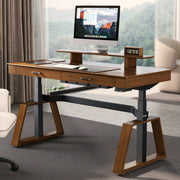
Before touching the monitor, ensure your chair and desk are set. If you are using an adjustable base like the Faux Saddle Leather Adjustable Standing Desk (55"x23"), set the height so your elbows are at a 90-degree angle and your forearms are parallel to the floor. This is your "Neutral Zero."
2. The Top-Third Rule
As recommended by the Canadian Centre for Occupational Health and Safety (CCOHS), the top of your monitor should be at or slightly below eye level. For FPS players, we recommend the "Top Bezel" method:
- Sit in your active gaming stance (often slightly leaned forward).
- Adjust the Single Monitor Arm so the top bezel of the monitor is level with your horizontal sightline.
- This ensures that your eyes naturally rest on the upper third of the screen, where most HUD elements (mini-maps, kill feeds) are located, while the center of the screen—your crosshair—is perfectly positioned for a slight downward gaze, which is more natural for the human eye.
3. Depth and Field of View (FOV)
The distance between your eyes and the screen should generally be between 20 and 30 inches (50–75 cm). However, in FPS gaming, this distance should be calibrated based on your monitor's size to optimize your Field of View (FOV). If you find yourself leaning forward to see pixels, the monitor is too far. Use the extension capabilities of your monitor arm (up to 27.3 inches on the Single Monitor Arm) to bring the screen to you, rather than leaning your torso toward the screen.
| Parameter | Recommended Range | Rationale |
|---|---|---|
| Vertical Height | Top bezel at eye level | Reduces neck extension; optimizes HUD visibility. |
| Tilt Angle | 10° – 20° Backward | Aligns screen perpendicular to line of sight; reduces parallax. |
| Viewing Distance | 20" – 30" (50–75cm) | Balances visual acuity with eye strain reduction. |
| Tilt Tension | Firm but movable | Prevents "bounce" during aggressive mouse movements. |
Beyond Height: Tilt, Parallax, and Stability
Once the height is set, two technical factors often separate professional setups from amateur ones: tilt and stability.
The 15-Degree Tilt Rule
A slight 10–20 degree backward tilt is not just about reducing glare. It is about geometry. Because your eyes are positioned above the center of the screen, a perfectly vertical monitor is actually further away at the bottom than it is at the top. Tilting the screen back slightly aligns the entire surface more perpendicularly to your line of sight. This reduces parallax error and ensures that your "flick" to a target at the bottom of the screen requires the same mental calculation as a flick to the top.

Eliminating the "Flick-Bounce"
For FPS players, stability is paramount. High-intensity "flick" shots involve rapid mouse movements that can vibrate a low-quality desk or a flimsy monitor stand. Any wobble in the monitor disrupts the visual feedback loop, making it harder for your brain to confirm a hit.
To prevent this, ensure your monitor arm's tension is properly adjusted. The Single Monitor Arm features a tension adjustment for the gas spring; it should be tight enough to hold the monitor firmly with zero bounce during mouse flicks, yet smooth enough for repositioning. We recommend checking the desk clamp or grommet mount every few months. Subtle loosening from desk vibrations can introduce an imperceptible wobble that disrupts the muscle memory of your aim.
Integrating Stability: The Role of the Desk and Storage
A monitor arm is only as stable as the surface it is attached to. For a high-performance setup, the desk must provide a rigid foundation. The Faux Saddle Leather Adjustable Standing Desk (55"x23") is engineered for this level of stability, featuring anti-collision technology and a robust frame that minimizes lateral movement.
Furthermore, a cluttered desk is a distraction and a physical hindrance. If your monitor arm is sharing space with loose cables, controllers, or documents, your range of motion for low-DPI gaming may be restricted. Utilizing external storage, such as the 23" Rolling File Cabinet with Drawer, allows you to keep the desktop clear for maximum "mouse real estate."
For those using secondary displays or laptops, a Carbon Fiber Dual Monitor Stand can act as a supplementary riser, ensuring that even your secondary screens are elevated to an ergonomic height, preventing the "neck-twist" that often occurs when looking at a laptop sitting flat on the desk.

As discussed in The 2026 Workstation White Paper: Converging Ergonomic Science and Sustainable Engineering, the integration of mechanical stability and user-centric adjustability is the hallmark of modern high-performance setups. By combining a stable base with precision-calibrated monitor arms, you create a system that supports both your health and your competitive rank.
The Ideal Sit-Stand Rhythm for Gamers
While monitor calibration is vital, the World Health Organization (WHO) 2020 Guidelines remind us that reducing sedentary time is crucial for long-term health. For gamers, this means incorporating movement into the session.
The "20-8-2" rule, developed by the Cornell University Ergonomics Web, is an excellent framework:
- 20 Minutes Sitting: Focus on your primary gaming posture and precision calibration.
- 8 Minutes Standing: Use your Faux Saddle Leather Adjustable Standing Desk (55"x23") to transition to a standing position. Note that your monitor arm height will likely need a slight adjustment (usually higher) when standing to account for the change in spinal elongation.
- 2 Minutes Moving: Step away, stretch the hip flexors, and reset your visual focus on a distant object to reduce eye strain.
Methodology Note: This rhythm is a heuristic designed to encourage micro-movements. It should be adjusted based on individual comfort and the length of the gaming match. For users with pre-existing back conditions, consult a professional before adopting a high-frequency sit-stand routine.
Appendix: Modeling Ergonomic Precision
To understand the impact of monitor placement on FPS performance, we can model the relationship between screen distance, FOV, and sensitivity.
FOV Geometry Calculation
The ideal viewing distance ($D$) for a given monitor width ($W$) and desired horizontal Field of View ($\theta$) can be estimated using the following formula:
$$D = \frac{W/2}{\tan(\theta/2)}$$
If your monitor arm cannot reach the calculated $D$, you may experience a "Depth Deficit," forcing you to increase your in-game FOV, which can make targets appear smaller and harder to hit.
Sensitivity and Muscle Memory
For players who use a specific $cm/360$ (the distance the mouse travels to complete a full rotation), screen height is a hidden variable. If the screen is too high, you may subconsciously tilt your head back, slightly altering the angle of your shoulder and elbow. This change in joint angle can shift your "pivot point," making your horizontal swipes less consistent.
Modeling note (reproducible parameters): Our ergonomic recommendations are based on the following baseline scenario:
- User Height: 175cm – 185cm (approx. 50th–75th percentile).
- Monitor Size: 24" – 27" (Standard FPS competitive sizes).
- Grip Type: Claw/Palm hybrid.
- Assumption: The user utilizes a desk with a thickness of 0.75" – 1.5".
By adhering to these calibrations, you are not just "setting up a desk." You are engineering a performance environment that minimizes physical friction and maximizes your potential for precision.
YMYL Disclaimer: This article is for informational purposes only and does not constitute professional medical advice. Ergonomic adjustments should be tailored to individual physical needs. If you experience chronic pain or have pre-existing musculoskeletal conditions, please consult a qualified physiotherapist or ergonomic specialist before making significant changes to your workstation.
References
- BIFMA G1-2013 Ergonomics Guideline for Furniture
- Canadian Centre for Occupational Health and Safety (CCOHS) - Sit/Stand Desk Guide
- ISO 11226:2000 - Evaluation of Static Working Postures
- Cornell University Ergonomics Web — Workstation Guides
- World Health Organization (WHO) 2020 Guidelines on Physical Activity and Sedentary Behaviour
- Health and Safety Executive (HSE) - Working Safely with Display Screen Equipment
Leave a comment