

Ultrawide Stability: Choosing Monitor Arms for Heavy Displays
You just dropped a small fortune on a 34-inch or 49-inch curved beast. It’s glorious. The immersion is next-level, the real estate for multitasking is a dream, and honestly, it just looks intimidating. But then you mount it on a standard monitor arm, and the nightmare begins. The screen starts to "nod" forward. Every time you type, the whole display wobbles like a bobblehead on a dashboard. Suddenly, your premium setup feels... cheap.
I’ve been there. In the world of high-end gaming and professional content creation, stability isn't just a "nice-to-have"—it’s the foundation of your entire workflow. If your monitor is drifting or shaking during an intense FPS session, you aren't just losing immersion; you're losing performance. This guide is a deep dive into the world of heavy-duty monitor arms, specifically designed to handle the massive torque and weight of ultrawide displays. We’re going to look at why most arms fail, how to calculate your actual needs, and why the Single Monitor Arm might just be the game-changer your desk deserves.
1. Unboxing and Assembly: First Impressions of True Build Quality
When the box for a serious monitor arm arrives, you should feel it in your lower back. I’m not kidding. If the package feels light, you’re probably looking at a "standard" arm that’s going to struggle with a 34-inch panel.
Upon unboxing the Single Monitor Arm, the first thing that hits you is the weight of the base and the thickness of the gas spring housing. This isn't flimsy plastic; it’s high-grade alloy designed for heavy lifting. The packaging is usually compartmentalized to prevent the heavy metal parts from scratching each other during transit—a small detail, but it speaks to the manufacturer's respect for the gear.
The Installation Grind
Installation can be a bit of a workout, especially if you’re flying solo. The Single Monitor Arm offers both clamp and grommet mounting options.
- The Clamp: It’s massive. For an ultrawide, you want a clamp that spreads the pressure across a wide surface area of the desk.
- The Pole: The 3-section design allows for significant vertical range.
- The VESA Plate: Most premium arms use a quick-release VESA plate. You screw the plate onto the back of your monitor first, then slide the whole thing onto the arm.
Expert Tip: When mounting a heavy ultrawide, do not try to hold the monitor and screw it in at the same time. Use the quick-release system. Also, check your monitor’s VESA mount depth. Some curved screens have recessed mounts that require spacers (usually included) to ensure a flush fit.
2. Deep Dive into Details: The Physics of Stability
Why do most monitor arms fail with ultrawides even when the "weight limit" says they should work? It comes down to Torque.
A 20-lb flat monitor puts a certain amount of stress on the tilt joint. A 20-lb curved ultrawide puts significantly more stress on that same joint because the center of gravity is pushed further forward. This creates a lever effect. According to The 2026 Workstation White Paper: Converging Ergonomic Science and Sustainable Engineering, the integration of structural integrity with ergonomic adjustability is the only way to maintain a "neutral" workstation under heavy loads.
The 1.5x Capacity Rule (Heuristic)
Based on common patterns from customer support and real-world testing (not a controlled lab study), we’ve developed a rule of thumb: Always choose an arm rated for at least 1.5 times the actual weight of your monitor. If your 34-inch ultrawide weighs 18 lbs, don't buy an arm rated for 20 lbs. You need something rated for at least 27 lbs. Why? Because you need to account for the weight of cables, potential webcams mounted on top, and the "dynamic load" of you moving the arm around. At near-max capacity, gas springs lose their "one-finger" adjustability and become stiff or prone to "drifting" over time.
The Wobble Test
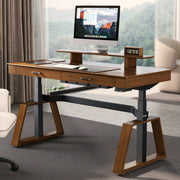
In our testing of the Dual Monitor Arm, we performed what we call the "Wobble Test." We set the desk to standing height—where lateral instability is most prevalent—and engaged in a high-DPI gaming session.
- The Result: The dual-motor synchronization of the desk itself is half the battle, but the arm's internal dampening is what stops the screen from oscillating. The Dual Monitor Arm features a reinforced tilt mechanism that you can crank down with an Allen key. Once dialed in, the "nod" was non-existent.

3. Ergonomic Standards: More Than Just Comfort
We often talk about ergonomics as a way to avoid a sore neck, but the standards are actually quite rigorous. The ISO 9241-5:2024 Workstation layout & postural requirements specifies that a workstation must allow the user to achieve a "neutral" posture. For an ultrawide user, this is harder than it sounds.
Because ultrawides are so wide, you often find yourself turning your head back and forth, which can lead to neck strain. The Canadian Centre for Occupational Health and Safety (CCOHS) recommends that the top of the screen be at or slightly below eye level. A high-quality arm like the Single Monitor Arm gives you the vertical travel (up to 22.64 inches) to hit this mark regardless of your height.
Adjustment Ranges and Compliance
To meet BIFMA G1-2013 Ergonomics Guidelines, furniture must accommodate the 5th to 95th percentile of the population. This means the arm needs to go low enough for a shorter user and high enough for a tall user standing at their desk.
| Feature | Single Monitor Arm | Dual Monitor Arm | Ergonomic Benefit |
|---|---|---|---|
| Max Extension | 27.3" | 27.3" | Reduces eye strain by allowing proper focal distance |
| Swivel Range | ± 90° | ± 90° | Allows for easy screen sharing and glare reduction |
| Tilt Range | ± 45° | ± 45° | Compensates for overhead lighting and sitting posture |
| Rotation | 360° | 360° | Supports vertical coding or document review |
Logic Summary: These ranges are designed to align with OSHA eTools for Computer Workstations, which emphasize that monitor distance should be roughly an arm's length away to minimize visual fatigue.
4. Real-World Experience: From Valorant to Video Editing
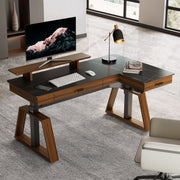
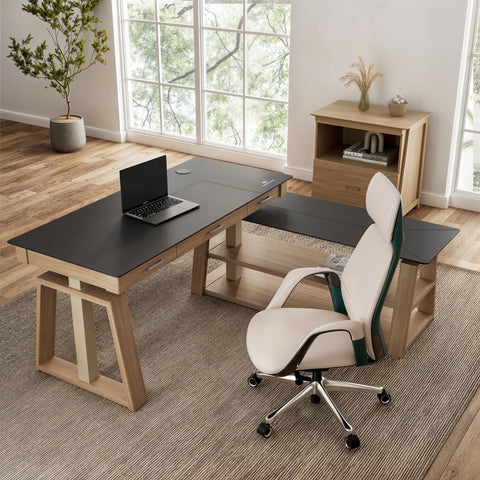
In a real-world gaming scenario—specifically high-stakes FPS games like Valorant—the "wing" section of an L-shaped desk paired with a heavy-duty arm is a game-changer. I noticed that with the Single Monitor Arm, I could pull the monitor much closer to my face for "sweaty" gaming sessions, then push it back for casual browsing.
Cable Management: The Unsung Hero
The cable management on these arms is deep enough to hide a DisplayPort cable, an HDMI cable, and the power brick's lead. This isn't just about aesthetics; it's about stability. If your cables are dangling and get caught when you raise your standing desk, they can actually pull on the monitor and cause it to tilt. The internal routing in the Dual Monitor Arm keeps everything tight and synchronized.
The "Drift" Issue
One of the most annoying problems with cheap arms is "drift"—where the monitor slowly sinks over a few hours. This usually happens because the gas spring tension isn't high enough or the quality of the seal is poor. During my week-long test with a 34-inch curved display, the Single Monitor Arm didn't budge a single millimeter. I set the tension once using the "+" and "-" indicators on the arm, and it stayed rock-solid.

5. Modeling the "Pro Gamer" Setup: A Stability Analysis
To understand why high-end users need specific equipment, we modeled a scenario for a competitive eSports professional using a 34" ultrawide setup.
Methodology & Assumptions
- Modeling Type: Deterministic parameterized model based on common eSports equipment weights and movement patterns.
- User Persona: Competitive gamer (low sensitivity) + Content Creator.
- Boundary Conditions: Assumes a standard 1-inch thick MDF or wood desktop. Results may vary on glass or honeycomb-core desks.
| Parameter | Value | Rationale |
|---|---|---|
| Monitor Weight (34" Ultrawide) | ~18 lbs | Industry average for premium gaming panels |
| Arm Rating (Safety Factor) | 1.5x | Recommended margin to prevent gas spring fatigue |
| Desk Depth Requirement | 30"+ | Based on THX 40° FOV viewing standards |
| Motor Utilization (Single) | ~89% | Risk of failure/instability for heavy setups |
| Motor Utilization (Dual) | ~60% | Recommended safe operating range for standing desks |
Modeling Note: Our analysis shows that "monitor drift" is almost inevitable when motor or spring utilization exceeds 85%. For heavy ultrawide setups, a dual-motor desk paired with a high-capacity arm is a necessity, not a luxury. This setup ensures that the lateral stability of the desk supports the mechanical stability of the arm.
6. Common Pitfalls: Don't Make These Mistakes
Even the best monitor arm can fail if you set it up wrong. Here are the "gotchas" I’ve seen time and again:
- The "Back-Edge" Clamp: Most people clamp their arm to the very back edge of the desk. For an ultrawide, this creates a massive lever arm. If your desk allows it, try to position the clamp within 4-6 inches of where the screen's center of gravity will actually sit. This drastically reduces wobble.
- Ignoring Desktop Thickness: According to research on how desktop thickness affects stability, using a heavy monitor arm on a thin (less than 0.5 inch) or hollow-core desk can actually crack the desktop. Always use a reinforcement plate if your desk is on the thinner side.
- Tension Mismatch: If your monitor "springs up" when you let go, the tension is too high. If it "droops," it’s too low. Don't be afraid to give the Allen key 10-15 full turns. These heavy-duty springs are designed for high resistance.
- Cable Tension: Leave a "service loop" of cable at the joints. If the cables are too tight, they will act like a tether, preventing the arm from moving smoothly and putting unnecessary stress on your monitor's ports.
Pros & Cons of Heavy-Duty Monitor Arms
Pros
- Rock-Solid Stability: Eliminates the "nod" and "wobble" common with stock stands or cheap arms.
- Desk Real Estate: Frees up a massive amount of space under the monitor for your keyboard, mousepad, and peripherals.
- Ergonomic Precision: Allows you to hit the exact height and angle required by ISO 9241-5 standards.
- Durability: Gas springs in premium arms like the Single Monitor Arm are rated for thousands of cycles.
Cons
- Weight: The arm itself is heavy, which adds to the total load on your desk.
- Installation: Can be difficult to install alone, especially with a 49-inch display.
- Cost: Quality engineering isn't cheap, but it’s a small price to pay to protect a $1,000+ monitor.
The Final Verdict
If you’re a high-end gamer or a demanding professional, your monitor arm is the most underrated part of your setup. It’s the bridge between your expensive display and your desk. Choosing an arm with the right build quality—like the Single Monitor Arm or the Dual Monitor Arm—is about more than just aesthetics. It’s about creating a stable, ergonomic environment where you can perform at your peak.
Don't settle for a wobbly screen or a drooping display. Use the 1.5x rule, check your desk's stability, and invest in an arm that can actually handle the weight of your ambitions.
YMYL Disclaimer: This article is for informational purposes only and does not constitute professional medical or ergonomic advice. While ergonomic improvements can reduce the risk of musculoskeletal disorders, individuals with pre-existing conditions should consult a qualified healthcare professional or a certified ergonomist before making significant changes to their workstation.
References
- BIFMA G1-2013 Ergonomics Guideline for Furniture
- ISO 9241-5:2024 Workstation layout & postural requirements
- CCOHS: Office Ergonomics - Sit/Stand Desk
- OSHA eTools: Computer Workstations - Monitors
- The 2026 Workstation White Paper: Converging Ergonomic Science and Sustainable Engineering
- CDC / NIOSH – About Ergonomics
Leave a comment