

Most people choose a desk by size and color. Far fewer think about the surface finish. Yet the microtexture, gloss level, and material of your desktop quietly shape how your mouse tracks, how your eyes feel at 4 p.m., and how comfortable your wrists are after a full day at the keyboard.
This guide explains how desk surface finish impacts your workflow and ergonomic comfort, and how to choose the right desktop material and finish for remote work, creative tasks, and gaming.

Why Desk Surface Finish Matters More Than You Think
Ergonomics is not just about chair height and lumbar support. According to the OSHA eTools guide on computer workstations, neutral working posture depends on joint angles and on how the body interacts with surfaces—contact pressure at the forearms, wrists, and hands is a key factor. The desktop is one of the largest contact surfaces in your setup.
From a practical standpoint, surface finish affects three core dimensions of workflow:
- Musculoskeletal comfort: Edge sharpness, local hardness, and friction all change how much pressure your wrists and forearms absorb while typing or mousing.
- Visual ergonomics: Gloss level and reflectivity determine how much glare you see, which the HSE guidance on display screen equipment notes as a contributor to eye strain and headaches.
- Input precision and speed: Microtexture and material pairings with mouse feet or stylus tips change tracking smoothness, micro-corrections, and fatigue.
Industry standards such as ISO 9241-5:2024 and ANSI/HFES 100 focus on workstation layout and postural requirements rather than specific finishes, but they share one principle: the work surface must support neutral posture and minimize static strain. Finish is one of the most overlooked variables in achieving that.
The Science Behind Surface Finish and Ergonomics
Microtexture, Friction, and Musculoskeletal Load
Tribology research—how surfaces interact under motion—shows that friction and wear depend strongly on the material pair and local contact pressure. As summarized by Mechaction’s overview on friction and wear, two surfaces with similar lab abrasion ratings can behave very differently once you add real-world contact from plastics, skin, and metals.
In practical terms for desks:
- Very smooth, glossy finishes often feel “fast” initially, but modern optical mouse sensors can struggle with uniform, reflective surfaces. That leads to micro-corrections from your hand and forearm.
- Matte, finely textured finishes add a small amount of controlled drag. That can stabilize cursor movement and reduce sudden braking at the edges of motion.
- Edge design and surface hardness change how force is distributed. An 8–15 mm edge bevel with a rounded radius, a heuristic used by many workplace designers, reduces peak wrist pressure compared with a sharp 90° edge.
According to OSHA’s “Neutral Working Postures” guidance, the forearms should be roughly parallel to the floor with wrists straight. If the edge is too sharp or the surface too hard or cold, users unconsciously flex their wrists or shrug shoulders to avoid pressure, increasing musculoskeletal load.
Glare, Gloss, and Visual Fatigue
Reflective finishes do not just affect aesthetics. Visual ergonomics research compiled in sources like the ScienceDirect topic on disability glare shows that specular highlights—concentrated bright spots—can create more discomfort than overall brightness.
In controlled tests, surfaces with high diffuse reflectance but low specular reflection (matte finishes) reduce perceived glare and squinting compared with glossy surfaces of similar brightness. In a south-facing room with strong daylight, a high-gloss or glass desktop can almost double visible hotspots across the surface, especially under overhead lighting.
This matters for multi-monitor setups and creative work. Tiny glare patches near the bottom edge of your monitors force your eyes to adapt constantly as they move between screen and desk, which can contribute to fatigue by late afternoon.
Static Sitting, Standing, and Surface Interaction
Most guidance on sit-stand desks focuses on time ratios. Cornell University’s ergonomics group, for example, proposes a “20-8-2” rhythm—20 minutes sitting, 8 minutes standing, and 2 minutes of light movement—summarized on their Workstation Guides. The World Health Organization’s guidelines on physical activity similarly emphasize breaking up sedentary behavior.
What often goes unstated is that when users stand, they rest more weight on their forearms and wrists as they lean on the desktop. This changes how the finish feels:
- Hard, cold surfaces like sintered stone or glass can make leaning uncomfortable, prompting users to reduce standing time.
- Slightly warmer, compliant finishes such as certain veneers or soft-touch laminates feel more tolerable for long sessions, especially when combined with rounded edges.
In other words, the wrong finish can indirectly undermine the benefits of a sit-stand desk by making specific postures less comfortable.
Common Desk Surface Types and How They Affect Workflow
Different materials are usually paired with characteristic finishes. The table below summarizes how major desktop categories behave in real workflows.
Comparison of Common Desktop Materials and Finishes
| Material / Finish Type | Typical Finish & Feel | Ergonomic Impact (Mouse, Wrist, Eyes) | Durability & Wear Pattern | Best For | Watch Out For |
|---|---|---|---|---|---|
| High-pressure laminate (HPL), matte | Smooth but slightly textured, low-gloss | Stable mouse tracking, moderate drag; good for handwriting; low glare. | Resists stains and scratches well; softer resins can hide micro-scratches. | Mixed digital + paper work, home offices, shared spaces. | Cheap ultra-smooth dark laminates can show fingerprints; avoid overly glossy versions. |
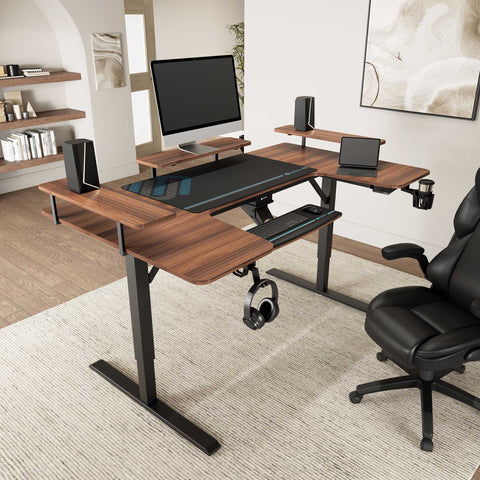
| Wood veneer with polyurethane, low/mid sheen | Natural grain with subtle texture, warm feel | Comfortable for forearms, good for typing; controlled mouse glide depending on sheen. | With modern elastic coatings, handles daily wear well; edges may show first. | Executive or creative work, users who like warmer tactile feedback. | Older or very thin veneers can chip if abused; protect high-impact corners. |
| Faux leather / soft-touch tops | Soft, slightly grippy, warm to touch | Very comfortable for resting forearms; slightly higher drag for mouse and handwriting. | Surface can deform locally over time where wrists rest; may show shiny spots. | Writing-intensive work, tablet or laptop users who rest palms heavily. | For heavy typing, add a hard palm rest to prevent inconsistent wrist support. |
| Carbon-fiber-style textured laminates | Distinct texture, often medium gloss | Mouse performance depends on sensor; optical sensors like moderate texture, high-DPI lasers can become noisy. | Hides minor scratches well; high spots can polish over time. | Gamers, fast cursor work, users who like “sporty” aesthetic. | Consider a 2–4 mm desk mat for consistent tracking and wrist comfort. |
| Sintered stone / ceramic | Very hard, cool, often matte or satin | Excellent for mouse glide if not too glossy; may feel very hard under wrists. | Extremely scratch and heat resistant; edges must be well-finished. | Heavy-duty use, multi-device workflows, hot equipment. | Cold feel and hardness can reduce comfort; plan wrist rests or soft edges. |
| Tempered glass, glossy | Ultra-smooth, cold, reflective | High glide for mouse but can cause sensor jitter; strong glare risk near windows; uncomfortable to lean on. | Resists staining, scratches can be obvious; fingerprints visible. | Minimalist setups, occasional use areas. | For full-day use, combine with mats and careful lighting control to avoid glare and hand fatigue. |
Information Gain Insight: Lab Durability vs Real Use
A common assumption is that a “harder” finish is automatically more durable. In practice, standard abrasion tests often run a few hundred to a thousand cycles. Real desks see tens of thousands of micro-movements from forearms, mugs, and devices over several years.
Expert synthesis on friction and wear such as the work summarized by Mechaction shows that ultra-hard, brittle coatings can develop micro-chipping and white scratch lines sooner in high-use zones. Slightly softer, more elastic finishes distribute impact energy better and may look fresher over time.
Pro Tip: Focus on real-world wear zones—front edge, mouse area, and around the keyboard. If a finish feels like ceramic tile under your wrist, plan on using a palm rest or mat even if the spec sheet calls it “extra durable.”
How Finish Influences Mouse Tracking, Typing, and Creative Work
Mouse Sensors, Microtexture, and Fatigue
Practitioners working with mouse peripherals routinely see that optical sensors tolerate smooth matte and plastic laminates well, while high-DPI laser sensors are more sensitive to highly textured or reflective surfaces. Technical discussions collected by RGBKeys on mouse tracking explain that specular surfaces and very uniform patterns can confuse sensors, leading to jitter or acceleration.
Research insight IG2 highlights a counterintuitive point: although glossy surfaces feel “fast,” optical sensors often perform worse on specular, low-texture finishes. Users then compensate with tiny corrections, increasing hand and forearm fatigue over long sessions.
For practical setup:
- If you use a modern optical mouse for office work, a matte laminate or veneer generally provides reliable tracking without needing a separate pad.
- If you use a high-DPI gaming or design mouse, consider a 2–4 mm full-surface desk mat to create a consistent texture and friction profile.
- Avoid mixing multiple microtextures under the mouse path (e.g., sliding between bare desk and a very soft pad), which forces your muscles to relearn resistance mid-movement.
Typing Comfort and Desk Edge Design
The desk edge is where ergonomics and finish intersect most strongly.
OSHA’s workstation guidance for desks stresses that the work surface should not press into the forearms or wrists. Workplace designers often adopt a practical heuristic: an edge bevel of 8–15 mm with a rounded radius reduces localized pressure points without sacrificing usable depth.
Insight IG4 from human–device interaction research reinforces this: a bit of controlled drag on the surface plus a soft edge radius lowers peak contact pressure compared with a very slick top and sharp edge. Users can rest their forearms lightly instead of hovering their hands, which reduces shoulder and neck load.
Key implications for choosing finishes:
- Hard, sharp edges on glass or stone require more careful posture and usually demand a separate wrist rest.
- Soft-touch or leather wraps on the front edge are very comfortable but may compress over time in exact wrist spots, slightly changing typing height. Pair them with an adjustable keyboard tray if you type for long hours.
Stylus, Handwriting, and Paper-Based Work
Insight IG3 notes that stylus and handwriting tasks are often more sensitive to microtexture and drag than mouse work. A surface that feels perfect for cursor glide can feel too slick for handwriting, causing lines to wobble and signatures to overshoot.
In practical terms:
- For annotation-heavy workflows (signing documents, sketching, tablet use), prefer a matte, slightly textured finish in the writing zone.
- For purely digital workflows, a smoother finish in the mouse zone may be acceptable, provided glare is controlled.
This leads directly to a powerful idea: zoning your desktop.
Pro Tip: Zoning Your Desk Surface for Different Tasks
Insight IG13 counters a common belief that a uniform finish is ideal. In practice, zoning your surface can deliver a better overall workflow:
- A matte, higher-friction writing and keyboard area for stability.
- A smoother, darker mouse zone to reduce friction and provide clear sensor contrast.
In many modern workstations, this is implemented with a large desk mat that covers the keyboard and mouse zone, while leaving a bare wood or veneer area for notebooks and reference documents.

Matching Finish to Room Lighting, Devices, and Habits
Lighting Direction and Gloss Selection
Desk finish and room lighting interact strongly. The HSE DSE guidance recommends arranging workstations to avoid reflections on screens, which also applies to the desktop itself.
Based on field observations in home and corporate offices:
- South-facing rooms with strong daylight: Avoid high-gloss glass or lacquer directly under windows. Choose matte or low-sheen finishes to prevent double reflections from windows and monitors.
- Studios and north-facing rooms: Light is softer and more diffuse, so a satin or mid-sheen finish can work without excessive glare, especially if you use task lighting.
- Overhead panel lighting: Highly reflective tops can create bright strips in your lower visual field. A low-gloss surface reduces this and makes it easier to see subtle color differences on screens and paper.
Insight IG6 notes that perceived glare depends more on specular hotspots than on overall brightness. For most home offices, a mid-tone, low-gloss surface balances brightness with glare control.
Devices and Accessories: Avoiding Hidden Conflicts
Real-world issues often appear only after you have loaded the desktop with equipment. Practitioners see these recurring problems:
- Mouse + finish mismatch: High-DPI laser mice on aggressive carbon textures can show jitter; the fix is usually a thin, full-surface mat with a fine texture.
- Leather and soft-touch tops: These feel premium but create localized depressions over time where wrists rest. For heavy typing, add a thin hard-surface palm rest in front of the keyboard to stabilize wrist height.
- Heavy under-desk CPU mounts: On sit-stand frames, always check lift capacity and cable slack. When the desk moves, tight cables can drag against the surface or stress connectors.
Insight IG9 also warns that not every desk mat is an automatic upgrade. Mats change local friction, static charge, and edge height. A 4 mm pad with a sharp front edge can create a new pressure line where wrists rest. Look for mats with beveled edges and test their thickness against your keyboard height.
Myth to Debunk: “Laminate is Cheap, Veneer is Fragile”
A common myth is that laminate is “cheap but tough,” while veneer is “premium but fragile.” Insight IG10 and furniture finish guidelines suggest a more nuanced reality:
- High-pressure laminates can be extremely durable, but ultra-smooth, dark gloss laminates often become fingerprint and glare problems, even if they resist scratches well.
- A low- to mid-sheen veneer with a modern polyurethane topcoat can offer very forgiving wear in daily use, hiding micro-scratches and providing better visual comfort for mixed digital/paper workflows.
For home offices and studios, this means veneer with a contemporary, protective finish can be both visually pleasing and practical—especially when paired with careful edge design.
Practical Checklist: Choosing the Right Desk Finish for Your Workflow
Use this step-by-step checklist when deciding between wood, laminate, leather, stone, or glass, and between matte, satin, and gloss.
1. Start with Your Primary Tasks
- List your top three daily activities (e.g., data entry, video editing, illustration, gaming).
- If handwriting or stylus use exceeds 20–30% of your day, prioritize a matte, slightly textured writing zone.
- If high-speed mouse work dominates, allocate a smoother, well-controlled mouse zone, even if that means adding a mat.
2. Assess Your Room Lighting
- Identify window direction and main light sources.
- For strong direct light, lean toward matte or low-gloss surfaces.
- For controlled, diffuse lighting, satin or mid-sheen can work while still limiting glare.
3. Evaluate Edge Comfort
- Run your forearm across the front edge—there should be no sharp ridge.
- Look for a bevel or rounded edge in the 8–15 mm range to reduce localized pressure.
- If the edge is hard and sharp (common with glass and stone), plan for soft accessories like palm rests.
4. Match Finish to Devices
- Note your mouse type (optical vs laser, DPI settings).
- If you use high-DPI laser sensors, prioritize a consistent, non-reflective texture via a mat or suitable laminate.
- If your keyboard has a tall profile, be careful with thick mats that raise the wrist angle.
5. Plan for Long-Term Wear and Maintenance
- Consider the high-use zones: front edge, mouse area, under wrists.
- For heavy daily use over many years, slightly elastic coatings on veneer or laminate usually age more gracefully than extremely brittle, high-gloss finishes.
- Cleaning matters: avoid acidic or abrasive cleaners, which research (IG14) shows can change microtexture and degrade mouse tracking and ink behavior long before visible damage appears.
Care, Cleaning, and Indoor Air Quality
Preserving Surface Performance
Finish is not static. Poor cleaning practices can change how the desktop behaves:
- Avoid acidic cleaners on veneer and leather; they can strip protective layers and dry out the material.
- Use a pH-neutral cleaner on laminates.
- For sintered stone, a microfibre cloth removes dust without scratching the surface.
- Apply a dedicated leather conditioner every 6–12 months on leather or faux-leather finishes to preserve flexibility and tactile comfort.
These recommendations align with general furniture care research (IG14), which shows that aggressive solvents and abrasive wipes alter surface roughness and friction characteristics over time.
VOCs and Comfort
Indoor air quality is part of ergonomic comfort. Data compiled on volatile organic compounds in furniture coatings indicates that some high-performance urethane or UV-cured finishes can off-gas measurable VOCs for several weeks.
While reputable manufacturers follow safety regulations, sensitive users—especially in small, poorly ventilated home offices—often report that a low-odor, low-VOC finish makes long sessions more pleasant. Certifications such as UL GREENGUARD are one way to identify products tested for low chemical emissions.
Putting It All Together: Example Setups
Remote Worker, Spreadsheet + Email Heavy
- Finish: Matte laminate or low-sheen veneer.
- Edge: Rounded, 8–15 mm bevel.
- Accessories: Thin full-surface mat only if mouse tracking requires it; optional compact palm rest for long typing sessions.
- Lighting: Indirect desk lamp plus adjusted monitor brightness to minimize contrast with the surface.
Result: Stable cursor control, minimal glare, comfortable forearm support for 6–8 hour desk days.
Digital Artist or Editor with Pen Display
- Finish: Matte, slightly textured finish in the pen display area; smoother area beside it for mouse.
- Zoning: Use a large mat under the keyboard and mouse; keep the pen display on the bare desktop if its own surface is optimized.
- Edge: Soft front edge to support leaning during drawing.
Result: Controlled stylus friction for precise strokes, with a separate optimized zone for pointer work.
Gamer / Creator Hybrid Setup
- Finish: Combination of visually striking texture (e.g., subtle carbon pattern) with a 2–4 mm full-surface mat to standardize friction.
- Lighting: Bias lighting behind monitors to reduce contrast between screen and dark desktop.
- Edge: Rounded edge plus wrist-friendly mat front profile.
Result: Predictable mouse feel at high DPI, reduced eye strain from balanced lighting, comfortable forearm support during long sessions.
For more ideas on combining ergonomics and aesthetics in compact spaces, see the style-focused guidance in Stylish Standing Desk Designs for Small Home Offices and material comparisons in Metal vs. Wood: Best Desk for an Industrial Office.
Key Takeaways
- Desk surface finish is a functional ergonomic component, not just an aesthetic choice. It influences musculoskeletal comfort, visual fatigue, and input precision.
- Matte and low-gloss finishes usually offer better glare control and more stable tracking than high-gloss surfaces, especially in bright rooms.
- A small amount of controlled surface drag and a rounded front edge can significantly reduce wrist pressure and shoulder load.
- Real-world durability depends on material pairs and high-use zones, not just lab abrasion numbers; slightly elastic finishes often age more gracefully than ultra-hard, brittle coatings.
- The most effective setups often combine materials and textures—for example, a warm veneer top with a tailored desk mat and palm rest, aligned to your specific workflow.
By treating the desktop finish as part of your ergonomic toolkit—alongside chair, monitor height, and sit-stand rhythm—you can create a workspace that supports both productivity and long-term musculoskeletal health.
FAQ
Does a standing desk change which surface finish I should choose?
Yes. When standing, people lean more on the front edge, so hardness and edge radius matter even more. Choose finishes and edge profiles that feel comfortable under partial body weight and consider adding soft wrist supports if you select stone or glass.
Is a glossy white desk bad for my eyes?
Not automatically, but high-gloss surfaces with strong lighting can create bright reflections that increase eye strain. In line with the HSE DSE guidance, arranging lighting to avoid reflections and choosing a matte or low-gloss finish typically improves comfort.
Can I fix a “wrong” finish with a desk mat?
Often you can improve things, but mats also change friction, height, and edge pressure. As highlighted in mouse-tracking analyses like RGBKeys’ discussion, the wrong mat can introduce new issues. Choose beveled, appropriately thin mats and test them with your specific mouse and keyboard.
Are stone or glass desktops too cold for long workdays?
Many users find them visually appealing but physically cold and hard, especially in cooler rooms. Insight IG11 notes that high-stiffness, cold surfaces increase perceived hardness and can accelerate edge fatigue. Combining them with soft edge treatments and rests helps balance aesthetics and comfort.
How often should I clean or condition my desk surface?
Dust and wipe weekly with appropriate cleaners (pH-neutral for laminates, microfibre for stone), and treat leather or faux leather with conditioner every 6–12 months. Avoid abrasive pads and strong solvents, which can alter microtexture and shorten the useful life of the finish.
Disclaimer: This article is for informational purposes only and does not constitute medical or occupational health advice. Individuals with existing musculoskeletal conditions or specific health concerns should consult a qualified healthcare or ergonomics professional before making significant changes to their workstation or work habits.
Sources
- OSHA eTools: Computer Workstations – Neutral Working Postures
- HSE: Working Safely with Display Screen Equipment
- Cornell University Ergonomics Web – Workstation Guides
- Tribology Testing Services | Friction and Wear | Mechaction
- Disability Glare and Specular Reflection – ScienceDirect Topic
- RGBKeys – Can Desk Imperfections Affect Mouse Tracking?
- Indoor VOC Emissions from Furniture Coatings
- UL GREENGUARD Certification




Leave a comment