

New year goals often focus on fitness, productivity, or learning. Yet for many home‑office workers, gamers, and content creators, the daily reality is sore, dry eyes and a tight neck by mid‑afternoon.
One of the highest‑impact, lowest‑cost upgrades for 2026 is precise monitor arm placement. When the screen’s height, distance, and tilt are tuned correctly, eye fatigue drops, focus improves, and your standing desk truly works for you instead of against you.
This guide walks through evidence‑based monitor positioning using a monitor arm, with practical numbers you can measure, quick self‑tests, and layout tips for single, dual, and ultrawide setups.
Why eye fatigue is a workspace problem, not just a “screen time” problem
Many people blame eye strain purely on long hours or screen brightness. In practice, three workstation factors drive a large share of discomfort:
- Viewing angle and head posture – A monitor that is too high or too low forces the neck out of neutral, which increases muscular load and can worsen visual fatigue.
- Viewing distance and character size – If text is too small at a given distance, the eyes work harder to maintain focus and convergence.
- Luminance contrast and glare – Bright light sources in or near the field of view make the eyes continually re‑adapt.
According to the OSHA eTools guidance on computer workstations, an ideal monitor setup keeps the head upright, the upper body relaxed, and the eyes looking slightly downward. The same guidance emphasizes arranging screens and lighting to minimize glare and extreme contrast—both of which are issues that monitor arms can directly help solve.
The goal is not to eliminate all work‑related visual effort, but to keep that effort within the range that the eyes and neck can tolerate comfortably over long sessions.
The fundamentals: Height, distance, and tilt that reduce eye fatigue
Monitor arms unlock better positioning than a fixed stand, but they also introduce more ways to get it wrong. This section breaks down the three most important variables.
1. Height: Where your eyes should meet the screen
A common rule is “put the top of the monitor at or just below eye level.” That works well for many users, and it appears in multiple official guides. For example, the CCOHS monitor guide recommends positioning the top line of text at or slightly below eye level so that the gaze falls gently downward.
However, this is not the entire story—especially for users over 40.
Practical rule of thumb for most users
- Aim for a 10–20° downward gaze to the center of the screen.
- In practice, this usually means the center of the monitor is about 4–6 cm (1.5–2.5 in) below your eye height when you sit or stand in a neutral posture.
- The top third of the visible image should sit at or just below eye level.
Use this chin‑tuck test (from practitioner experience):
- Sit or stand tall, shoulders relaxed.
- Look straight ahead and gently tuck your chin back as if making a double chin.
- If you need to tilt your head upward to see the top of the screen clearly, your monitor is too low.
- If your chin is noticeably lifted and your neck feels compressed at the back, the monitor is too high.
Pro Tip: Progressive and bifocal lenses change the rules
Conventional wisdom assumes everyone uses single‑vision lenses. In reality, many users with bifocal or progressive lenses are more comfortable with the entire monitor positioned lower.
According to the CCOHS guide on computer monitors, users with bifocals are often better off when the main viewing zone of the screen sits 15–20° below the horizontal line of sight, sometimes meaning the top of the monitor is 5–10 cm below eye level. This keeps the text within the near‑vision segment of the lens and avoids chronic neck extension.
If you wear progressive lenses:
- Intentionally set your monitor lower than standard advice.
- Use your monitor arm’s vertical travel to fine‑tune this over several days, not in a single session.
- If you still find yourself tipping your head back, lower the screen another 2–3 cm and consider increasing on‑screen text size.
2. Distance: How far is “arm’s length” in 2026?
Most guides still say “keep your monitor at an arm’s length (about 50–70 cm / 20–30 in).” That is a useful starting point, but modern 27–49" high‑resolution displays and different visual needs require a more precise approach.
Visual ergonomics norms such as ISO 9241‑303, summarized in ISO’s visual display ergonomics guidance, suggest designing text so that each character subtends about 20–22 arcminutes of visual angle. Translated into real setups:
- For 24–27" 1080p/1440p displays, a distance of 50–70 cm works well for typical font sizes.
- For 27–32" 4K displays, a distance of 60–80 cm is often preferable so text isn’t uncomfortably small.
- For 40–49" ultrawides, many users are more comfortable at 80–100 cm, sometimes even up to 1.0–1.2 m if fonts are enlarged.
This aligns with the research insight that optimal distance scales with screen size and resolution, rather than a fixed “one arm’s length” rule.
How to set your distance in under 2 minutes
- Push your chair to a position where your shoulders can relax and your forearms rest comfortably on the desk.
- Extend one arm toward the center of the screen.
- Place the monitor so that your fingertips roughly touch the screen.
- For 27–32" 4K or ultrawide displays, pull the screen back by another 5–10 cm.
- If you find yourself leaning forward to read small text, first increase text/UI scaling by 10–25%, then reassess distance. Avoid simply moving the monitor much closer as a first response.
This method keeps your back against the chair or in a neutral standing posture while the monitor moves to you via the arm, not the other way around.
3. Tilt and angle: Reducing glare and keeping the screen readable
Tilt is often treated as an afterthought, but it significantly affects glare and comfort.
- For most users, a slight backward tilt (5–10°) works well when the monitor is directly in front and your gaze is slightly downward.
- If the monitor is very low (for bifocal or laptop‑style setups), a neutral or slight forward tilt can keep the viewing surface perpendicular to your line of sight.
Evidence from lighting research, such as the daylit office studies by Van Den Wymelenberg & Inanici summarized in the University of Washington’s publication on luminance distribution and occupant preference, shows that perceived glare is strongly driven by bright sources in the field of view. Large areas above about 2000 cd/m² should ideally fill no more than 10% of the visual field to remain in the preferred comfort zone.
This is why bias lighting—a mid‑brightness glow behind the monitor at roughly 10–30% of screen luminance—is often more effective than extreme anti‑glare filters. It smooths the contrast around the display so your eyes are not jumping between a bright screen and a dark wall.
Quick tilt and glare checklist:
- Tilt the monitor until you no longer see ceiling lights or windows reflected in darker screen areas.
- Add a soft, indirect light behind or beside the monitor rather than directly overhead.
- Reduce screen brightness until white backgrounds are no brighter than a clean sheet of paper held next to the monitor.

The combination of precise tilt and bias lighting lets the monitor arm do much more than simply float your screen.
Using a monitor arm with a standing desk: Sit–stand without refocusing your eyes
Monitor arms show their real value on height‑adjustable desks. Without an arm, each time you raise the desk you may end up re‑adjusting your stance or craning your neck to see the screen.
1. Map your seated and standing eye heights
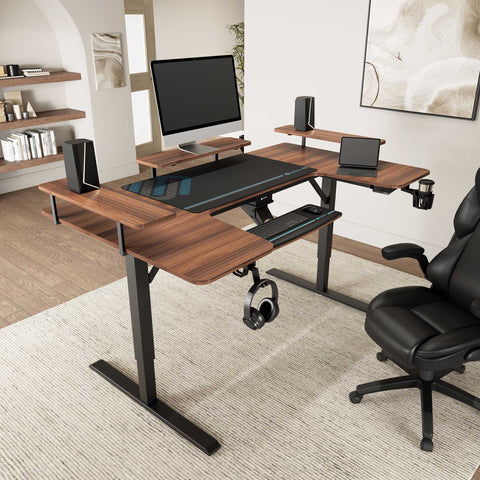
To sync your monitor arm with a standing desk like the Aero Pro Wing-Shaped Standing Desk (72"x23"), first capture two eye‑height measurements:
- Seated eye height – Sit upright with feet flat and shoulders relaxed. Measure from the floor to the corner of your eye.
- Standing eye height – Stand in your usual stance on any mat you use. Measure from the floor to your eye again.
The difference between these two values is your sit–stand delta—often 25–35 cm for many adults.
2. Program desk presets and align the arm
Modern height‑adjustable desks with memory presets, including the Aero Pro Wing-Shaped Standing Desk, make it easy to lock in consistent positions:
- Set a sitting preset where your elbows are around 90° and your wrists rest comfortably on the desk.
- Set a standing preset where your forearms are still near 90° and shoulders stay relaxed.
Once desk heights are fixed, use the monitor arm’s vertical travel so that:
- The center of the screen remains 4–6 cm below eye height in both positions.
- The tilt and distance remain effectively unchanged.
If the arm cannot raise the monitor enough for the standing preset, consider either a higher‑profile arm or using the desk’s built‑in risers so the arm’s neutral range covers both postures.
For a large‑surface sit–stand desk, a wing‑shaped layout like the Aero Pro desk keeps more equipment within easy reach, which helps avoid leaning forward when moving between sitting and standing.
3. Practical sit–stand rhythm without overloading your legs
Standing more is helpful for reducing sedentary time, but standing all day is not the goal. The Canadian Centre for Occupational Health and Safety suggests starting with short standing periods and alternating frequently.
Cornell University’s ergonomics team proposes a “20‑8‑2” pattern, summarized on the Cornell Ergonomics Web: every 30 minutes, aim for 20 minutes sitting, 8 minutes standing, and 2 minutes of light movement.
A monitor arm makes this realistic because the visual target does not move unpredictably when the desk height changes. Once distances and angles are dialed in, your eyes experience the same conditions in both positions.
Choosing and positioning a monitor arm for eye comfort
Not every arm is equal when it comes to supporting healthy viewing. Selecting the right one and installing it correctly prevents droop, wobble, and awkward screen angles that undo the ergonomic benefits.
1. Key specifications that matter for eye fatigue
Industry data for common VESA 75/100 monitor arms show nominal static capacities in the 11–22 kg range, but large ultrawide monitors can still overload arms when fully extended.
Research insights based on manufacturer guidance indicate that a safer practice is to keep the actual monitor weight under 60–70% of the arm’s stated maximum load. Heavy rear‑mounted accessories (such as soundbars or camera rigs) add extra bending moment and should be counted into this total.
For home‑office and content‑creation setups, prioritize:
- Vertical travel of at least 30 cm to cover seated and standing eye heights.
- Horizontal reach of 30–50 cm so you can set optimal viewing distance without pushing the desk against the wall.
- VESA 75/100 compatibility and a weight rating that exceeds your display weight by 20–30%.
This extra capacity reduces droop, improves stability, and maintains your chosen tilt and distance so you do not unconsciously adapt a poor posture.
Quick selection matrix
| User type | Typical monitor | Recommended arm traits |
|---|---|---|
| Single‑monitor office | 24–27" flat, 1080p/1440p | 30 cm vertical travel, 30–40 cm reach, 6–9 kg capacity |
| Creator / developer | 27–32" 4K or dual 24–27" | 35–40 cm vertical travel, 40–50 cm reach, 9–12 kg |
| Ultrawide enthusiast | 34–38" or 49" curved | High‑capacity arm, 40+ cm reach, check weight & moment |
These bands reflect typical usage in practice rather than regulatory thresholds.
2. Installation mistakes that quietly destroy your setup
Hands‑on experience from integrators shows several common errors that have direct consequences for eye strain.
Mistake 1: Clamping at a weak point of the desk
Clamping too close to a cut‑out, drawer, or edge increases flex. This can cause the monitor to wobble each time you type or change posture.
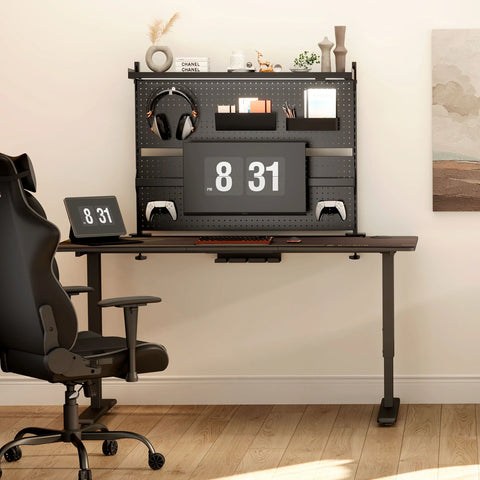
- Fix: Move the clamp a few centimeters inboard to a stiffer section, or use a grommet mount if the desk offers one. On a standing desk like the Ark Lite Standing Desk (63"x27"), a trapezoidal base and solid top give you more stable mounting areas and cleaner cable routing.
Mistake 2: Cable routing without slack
Routing cables tightly along the arm can prevent it from articulating fully and may even pull on the monitor, subtly altering tilt and causing the picture to shift as you move.
- Fix: Leave 10–15 cm of slack at each joint, then secure cables with soft ties or clips along the arm. Check that the arm reaches all intended positions without tugging.
Mistake 3: Ignoring monitor weight when setting the gas spring
If the gas spring is not balanced to the monitor weight, the arm can slowly creep downward or lift upward, changing the carefully‑set eye level during the day.
- Fix: Unlock the arm, move it to mid‑height, and adjust the tension screw until the arm stays in place when you let go. Re‑check after adding webcams, lights, or soundbars.
Mistake 4: Over‑rotating tilt toward windows or lights
Excessive upward tilt increases reflections from ceiling fixtures or windows behind you.
- Fix: Reduce tilt to 5–10°, then adjust your lighting. If necessary, angle the monitor slightly away from bright sources and rely on bias lighting to keep the background comfortable.
3. Dual monitors and ultrawides: Avoiding neck rotation overload
A widespread myth is that “two monitors are always better” for productivity. In reality, poorly arranged dual‑monitor setups can increase neck and shoulder load.
Field observations and lab studies summarized in a musculoskeletal review (doi:10.1002/acr.22239) show higher neck/shoulder discomfort when people spend more than 60% of their time looking at a screen positioned over 30° off center. Repetitive head rotation beyond about 25–30° makes muscular load and movement time rise sharply.
Better options for dual‑screen work:
- If you use both monitors equally, center the bezel gap directly in front of you and angle each screen so that their centers are within ±15° of your midline.
- If you use one as a primary and one as a reference, center the primary and place the secondary at 20–30° off center, not 45° or more.
- For truly split work (coding plus preview, multiple timelines, etc.), a single 34–38" ultrawide mounted on a robust arm often keeps your primary gaze zone within ±15°, reducing rotation.
Monitor arms make these alignments practical by allowing small, precise changes in lateral position and angle without moving the desk.
Step‑by‑step: Configure your monitor arm to cut eye fatigue
Use this configuration sequence the next time you reset your workspace for 2026.
Step 1: Fix your chair and desk first
OSHA’s neutral working posture guidelines emphasize starting from the body, not the equipment:
- Adjust your chair so your feet are flat, knees are around 90–100°, and thighs are roughly horizontal.
- With a standing desk, set the height so your elbows are near 90° and your wrists are neutral when typing.
- If your feet dangle while seated, add an adjustable footrest to support your lower limbs and reduce static load.
Only then should the monitor arm be adjusted to your body, not the other way around.
Step 2: Set distance
- Sit or stand in neutral posture.
- Move the monitor so the screen is about an arm’s length away.
- For large or high‑resolution displays, increase distance towards 60–80 cm (27–32") or 80–100 cm (40–49").
- Adjust font scaling until you can read comfortably without leaning.
Step 3: Set height and tilt
- Raise or lower the arm so the center of the screen is 4–6 cm below eye level.
- Check the top third of the screen is at or slightly below eye height (or lower for bifocal users).
- Tilt the monitor back 5–10° or to a position where the surface is perpendicular to your gaze.
- Perform the chin‑tuck test described earlier to validate height.

Step 4: Align lateral position and angle
- Center a single monitor directly in front of your nose and sternum.
- For dual monitors, center the primary or the gap depending on your usage split.
- Rotate screens until they form a gentle curve around you without forcing your head to turn more than 15–20° for most tasks.
Step 5: Tune lighting and bias light
- Identify any bright windows or lights visible on the screen; adjust blinds or light positions.
- Add a bias light strip or small lamp behind the monitor to create a mid‑level glow.
- Adjust screen brightness to match the perceived brightness of your surroundings.
Step 6: Run three quick verification checks
- Eyeline test: Look straight ahead. The top of the usable image should sit at or just below eye level, with your neck neutral.
- 20‑20‑20 visual break: Every 20 minutes, look 20 feet away for 20 seconds. Pair this with a brief posture reset.
- Reach test: With your forearm resting on the desk, move your cursor across the full screen. Your shoulders should stay relaxed without lifting or reaching.
If any of these checks fail, correct the monitor arm first before changing your posture to “fit” the screen.
Special considerations for gamers and content creators
Gamers and creators push their eyes and necks harder than many traditional office workers—often under intense focus for hours. A well‑tuned monitor arm can make a noticeable difference.
Gamers: Lower screens and peripheral awareness
Many gamers prefer a slightly lower primary monitor to expand their peripheral field for on‑screen events.
- Lower the monitor so that your gaze angle to the screen center is closer to 20–25° downward, which can be about 5 cm lower than a typical office setup.
- Keep the top of the screen below eye level so you are not lifting your chin.
- If you use a second screen for chat or streaming tools, place it slightly off center but still within 20–25° of midline to avoid continuous neck rotation.
Bias lighting is especially valuable in dim gaming rooms: it stabilizes luminance around the bright display and helps reduce the “headache after long sessions” pattern.
Content creators: Color accuracy and reflections
For color‑critical work (photo, video, design):
- Avoid heavy glossy panels when possible, or use your arm’s tilt and pan to minimize specular reflections.
- Keep overhead lights out of the reflection path by observing dark areas of the screen for visible bright patches.
- For ultrawide timelines, consider a slightly greater viewing distance (up to 80–100 cm) so you can see the entire width without excessive eye scanning.
A wide, organized surface such as the Aero Pro Wing-Shaped Standing Desk also helps by keeping reference tablets, control surfaces, and laptops within the same visual envelope without cluttering the primary gaze zone.
For broader workspace planning—chair, desk height, and cable routing—see the setup strategies in the guide on setting up your standing desk for peak productivity and the creator‑focused article on how standing desks boost a creator’s productivity.
Wrapping up: Make 2026 the year your eyes stop fighting your screen
Reducing eye fatigue is not about one magic accessory. It is about aligning your body, your desk, and your monitor so they support how you actually work.
Monitor arms, especially when paired with a stable standing desk and good cable management, give you the fine control needed to:
- Lock in a 10–20° downward gaze that suits your eyesight and lenses.
- Maintain a distance matched to your screen size and resolution, not just a generic “arm’s length”.
- Minimize glare through precise tilt and supporting bias lighting.
- Transition between sitting and standing without constantly refocusing or craning your neck.
Invest an hour at the start of the year to work through the configuration steps above. Small corrections—sometimes just 2–3 cm of movement—often translate into far less eye strain, more stable focus, and a workspace you can rely on through long editing days, streaming sessions, or deep work blocks.
FAQ: Monitor arms and eye fatigue
Does a monitor arm itself reduce eye strain?
Not directly. What matters is how you position the screen. A monitor arm enables you to set optimal height, distance, and angle—and then maintain that alignment as you move.
How often should I change positions at a sit–stand desk?
Guidance from Cornell’s ergonomics web suggests a 20‑8‑2 cycle every 30 minutes: 20 minutes sitting, 8 minutes standing, and 2 minutes of light movement. However, individuals with existing musculoskeletal or vision conditions should adapt this with professional advice.
Is standing better for my eyes than sitting?
Standing reduces prolonged static sitting, which is beneficial for general health, but eye fatigue mainly depends on viewing distance, angle, lighting, and breaks. A well‑set monitor arm can give your eyes similar comfort in both positions.
What if I still feel eye strain after optimizing my setup?
If you continue to experience headaches, blurred vision, or severe eye fatigue, consult an optometrist or ophthalmologist. Uncorrected vision issues (such as convergence insufficiency or outdated prescriptions) can make any setup uncomfortable.
Do I need an expensive arm for a basic 24–27" monitor?
Not necessarily. Focus on adequate vertical travel, stable clamping, and a weight rating that exceeds your monitor by 20–30%. Higher‑capacity arms become more important for heavy 32" and ultrawide displays or when you mount extra gear.
This article is for informational purposes only and does not constitute medical or occupational health advice. Individuals with existing eye, vision, or musculoskeletal conditions should consult a qualified healthcare or ergonomics professional before making significant changes to their workstation setup.
Sources
- OSHA eTools: Computer Workstations – Monitors
- OSHA eTools: Computer Workstations – Neutral Working Postures
- Canadian Centre for Occupational Health and Safety – Computer Monitors
- Cornell University Ergonomics Web
- ISO 9241‑303 Visual Display Requirements
- The Effect of Luminance Distribution Patterns on Occupant Preference in a Daylit Office Environment




Leave a comment