

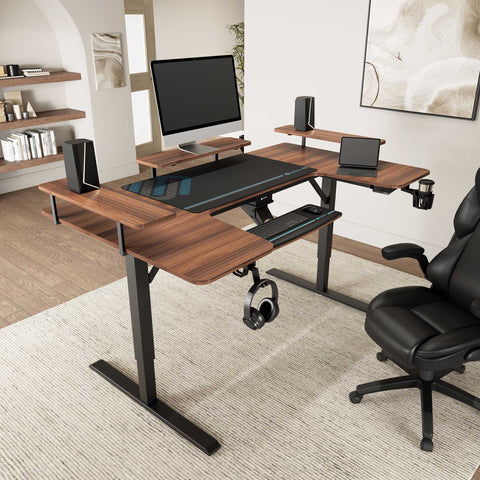
Imagine starting 2026 in a studio that feels like a command center made just for you: your main editing monitor perfectly centered, chat and timelines curved along the L, your mic and camera always ready, and not a single cable tugging when you raise the desk to stand.
That is the promise of a well-designed L-shaped desk layout for content creators.
This guide walks through how to turn any L-shaped standing desk into a focused, ergonomic workspace that supports multi-monitor editing, streaming, and deep work—without sacrificing comfort or aesthetics.

1. Start With the Vision: What Do You Actually Do at This Desk?
Before you move a single monitor arm, get clear on your workflow. As a creator, your L-shaped workstation usually needs to support three modes:
- Editing & deep work: video or audio editing, scripting, thumbnail design.
- Streaming & recording: camera, mic, chat, scenes, overlays.
- Admin & storage: email, project management, drives, paperwork, gear.
A powerful way to design your L-shaped layout is to map each mode to a zone.
The 3-Zone Creator L Layout
Use this simple zoning framework as your baseline:
| Zone | Location on L-desk | Main Tasks | Ergonomic Priority |
|---|---|---|---|
| Primary Creation Zone | Center of the main desk run | Editing, scripting, core apps | Neutral posture, minimal reach |
| Live & Control Zone | Inner corner + short section of return | Streaming controls, chat, audio | Quick access within 45° shoulder sweep |
| Support & Storage Zone | Outer end of L-return | Drives, paperwork, decorative items | Non-frequent reach, visual buffer |
This zoning mirrors the principle from OSHA’s computer workstation guidance: keep frequently used items in the “primary work zone” (within comfortable reach and straight ahead) and move less-used items to secondary zones to reduce awkward reaches and twisting.
2. Ergonomic Backbone: Height, Posture, and Switching Modes
A beautiful workspace that hurts your neck by 3 p.m. will never support your 2026 goals. So we start with ergonomics, then fit the L-shape around you.
2.1 Set Your Sit–Stand Rhythm for Creative Work
Research summarized by the World Health Organization stresses two key ideas: adults should reduce long periods of sedentary behavior and interrupt static postures regularly. Standing is useful, but it does not replace exercise.
For creators, a practical rhythm that balances focus and comfort is:
- 45–60 minutes seated for intensive editing or scripting.
- Then 10–15 minutes standing for lighter tasks: reviewing cuts, answering comments, checking analytics.
When you’re working in tighter sprints, a 30/30 pattern (30 minutes sitting, 30 standing) also works. This aligns with the “alternate positions” principle described in ISO 11226 on static postures: the longer a posture is held, the more load accumulates in muscles and joints.
Who should be cautious:
- If you already live with musculoskeletal or cardiovascular conditions, adopt these ratios gradually.
- Discuss bigger changes (like long standing blocks) with a clinician or physiotherapist.
2.2 Dial In Desk and Monitor Heights
Use this order of operations, adapted from OSHA’s neutral posture guidelines and CCOHS sit/stand tips:
- Chair first (for sitting): Feet flat on the floor, knees roughly 90–110°, hips slightly above knees.
- Desk second: Raise or lower your L-shaped standing desk so your elbows rest at about 90° with shoulders relaxed when your hands are on the keyboard/mouse.
-
Monitor distance & height:
- Distance: 50–75 cm (about arm’s length) from eyes to screen, as echoed in many workstation guides such as Cornell University’s ergonomics resources.
- Height: top of the primary monitor 2–3 inches above eye level, so your gaze naturally falls 5–10° downward.
- Standing height: When standing, repeat the same elbow and gaze rules. Your shoulders should feel effortless—not shrugged or reaching.
If your L-shaped desk is height-adjustable, use its memory presets to lock in one seated and one standing height so you can shift between “thinking” and “execution” modes with one tap.
2.3 Pro Tip: Sit–Stand Desks Are a Tool, Not a Magic Fix
A common myth is that “a sit–stand L-shaped desk will solve my health problems by itself.”
In reality, evidence is more nuanced. A systematic review in the Cochrane Library found that sit–stand desks typically reduce sitting time by about 84–116 minutes per workday, but long-term changes in health markers were modest and sometimes inconsistent.
Our analysis shows you get the most benefit when you:
- Use the desk to break up static sitting (every 30–60 minutes).
- Add micro-movements: small stretches, weight shifts, or walking during uploads and renders.
- Keep both sitting and standing postures within ergonomic ranges.
For creators, that means planning standing blocks around naturally lighter tasks (reading chat replays, skimming comments, scheduling content) instead of forcing yourself to stand through every intense edit.
3. L-Shaped Layouts for Different Creator Profiles
Now let’s translate ergonomics into real layouts. Here are three high-impact configurations that work especially well with height-adjustable L-shaped desks.
3.1 Dual-Monitor Editing + Streaming Layout
Ideal for: Variety streamers, YouTubers, podcasters with video, and anyone juggling OBS, chat, and a main editing app.
Primary Creation Zone (main run of the L):
- Primary monitor: dead center on the longest side of the L, 50–75 cm away, top 2–3 inches above eye level.
- Keyboard and mouse: directly in front of your torso, elbows at ~90°, wrists straight.
- Keep this zone as clean as possible—no speakers blocking the screen edges, no mic arm sitting in the middle of your view.
Live & Control Zone (inner corner + short return):
- Secondary monitor(s): angled inward 10–30°, slightly lower or higher (5–10 cm difference) than your main screen. Place chat, OBS controls, or timelines here.
- This matches a key shoulder-health insight highlighted in workstation summaries like NirvaHealth’s shoulder-strain guide: keep your most-used controls within a 45–60° shoulder-safe reach arc to avoid excessive torso twist.
- Audio interface, stream deck, and macro keys: place them in that same 45° arc, within 30–40 cm of your torso, so you can trigger scenes without reaching across the desk.
Support Zone (outer wing of the L):
- Place external drives, decorative items, or a printer here—things you do not touch every few minutes.
- This provides a psychological buffer, keeping your core field of view free for content while still keeping essentials nearby.
3.2 Deep-Work Video Editor Layout
Ideal for: Long-form editors, color graders, and creators who spend hours on timelines.
Primary Creation Zone:
- Treat the center of the long side as a single wide cockpit.
- Place dual monitors side by side, slightly curved, with the primary timeline monitor directly in front of you and the secondary program/output view to the side.
- The top edges still stay just above eye level, gaze 5–10° downward.
L-Return as Tool Deck:
- Place your control surface, tablet, and mixing board on the nearer half of the return, not all the way to its end.
- The extra surface area on the far end can host chargers, references, or a small notebook.
This follows a key ergonomic insight drawn from NirvaHealth and NIOSH ergonomics overviews: primary input devices and most-used controls should sit within 30–40 cm of the torso and within a 45° sweep of each shoulder. Oversized L-wings that push your tablet or mixer far out to the side increase shoulder abduction and trunk twist, especially for shorter users.
3.3 Compact Creator/Streamer in a Small Room
Ideal for: Bedroom studios, shared apartments, or corner nooks.
In small rooms, treat the L as a compact “U” around you:
- Use the shorter return as your recording side: camera, ring light, mic arm.
- Keep the main run for your editing and streaming monitors.
- If the L is reversible, flip it so the shorter side goes where your camera has a cleaner background (no doors or bright windows).
This creates clear mental modes:
- Face the main run for deep work.
- Pivot slightly to the return when you’re recording or live.
4. Monitor & Gear Placement: Precision for Multi-Monitor Setups
Fine-tuning monitor placement can be the difference between feeling “locked in” and constantly craning your neck.
4.1 Monitor Distance, Angle, and Staggering
Use these practical rules when designing 2026-ready L-shaped layouts:
- Distance: 50–75 cm from your eyes.
- Vertical placement: top line of text at or slightly below eye level. The CCOHS sit-stand desk guidance explains this helps reduce neck bending and eye strain.
-
Secondary monitors:
- Angle 10–30° inward, gently wrapping your field of view.
- Stagger vertically by 5–10 cm (chat or timelines slightly lower or higher) so you glide your eyes more than your neck.
If you stream, a useful layout is:
- Main gameplay or editing window on the center monitor.
- OBS and chat on the inboard side of the L.
- Reference material or notes on a smaller display mounted above or beside, used less often.
4.2 Weight, Stability, and Desk Load Capacity
Creators often underestimate how heavy their setup actually is. Two large monitors, a camera, speakers, and a boom arm can easily add up to 40–60 lbs, not counting the PC.
For a stable, wobble-free sit–stand experience:
- Stay under 50–70% of your desk’s rated load for everyday use. If your L-shaped desk is rated for 220 lbs, aim to keep your gear under ~110–150 lbs.
- Place heavier items (monitors, speakers, audio interface) closer to the inner corner and desk legs, not far out on the wings. This reduces cantilever torque and wobble at higher standing heights.
- If your monitors wobble at heights above 105 cm, consider:
- Lowering the monitor arms slightly.
- Bringing heavy monitors closer to the legs.
- Using a more compact, balanced monitor array.
These rules align with stability considerations discussed in recent standing-desk analyses summarized by The Conversation in 2024, which note that tall narrow-leg frames with heavily cantilevered loads show more wobble—especially relevant for color-critical work and on-camera setups.
4.3 Expert Warning: Don’t Sacrifice Ergonomics for “More Surface Area”
Many creators assume any bigger L-shaped desk automatically improves ergonomics. Our experience—and workstation analyses like those discussed by NirvaHealth—shows the opposite when the return gets too deep or too long.
Typical problem pattern:
- Oversized L-desk with a long return.
- Mixer, tablet, and secondary screens placed far out on that return.
- You repeatedly twist your torso and stretch your shoulder to use them.
The practical threshold:
- When frequently used tools sit beyond ~40 cm from your torso or outside a 45–60° shoulder arc, shoulder torque and trunk twisting rise sharply.
- This is especially stressful for shorter users whose reach envelope is smaller.
Design your 2026 layout so that:
- The inner half of the L hosts tools you touch every few minutes.
- The outer half remains for occasional-use items or decor.
5. Cable Management, PC Placement, and Accessory Strategy
A clean L-shaped workstation is not just pretty—it prevents snags when the desk rises, protects your equipment, and preserves your creative flow.
5.1 Cable Management for Sit–Stand L Desks
Adopt this layered approach:
-
Anchor a cable tray under the inner corner of the L.
- This becomes your central “junction box” for power strips and excess cable.
-
Separate power and signal paths.
- Route high-current power lines on one side of the tray.
- Run audio, video, and USB on the other to reduce interference.
-
Allow slack for height changes.
- Leave a gentle cable loop from your monitors and desktop gear down into the tray.
- Add Velcro or magnetic ties at 20–30 cm intervals so cables stay tidy but removable.
This strategy directly supports the “engineering control” philosophy in OSHA’s ergonomics solutions guidance: design the physical environment to remove strain and hazards instead of relying purely on habits.
5.2 Smarter PC Tower Placement on an L-Shaped Desk
It’s tempting to shove your PC under the L to “get it out of the way,” but this can choke airflow.
Thermal design guidance for PC cases—and analyses like the PC placement advice from deskperfection.com—highlight two critical points:
- Most towers need at least ~10 cm of clearance at air intakes and exhaust.
- Closed cabinets with no vents can raise internal temps by 5–10°C under load.
For creators, higher internal temperatures can mean:
- Lower sustained boost clocks during renders or live encoding.
- Shorter component lifespan over years.
Two practical, creator-tested placements:
-
Open-sided under-desk mount or cart:
- At least 10–15 cm clearance on all sides.
- Front and back unobstructed so fans can pull cool air.
-
Floor placement on a small stand:
- Raises the case 5 cm or more off carpet.
- Keeps the front clear of desk panels and clutter.
A mobile CPU cart also keeps cables low and allows you to roll the tower forward for maintenance without stressing ports.
5.3 Using Accessories to Protect Flow (Without Clutter)
Accessories should serve your workflow, not become a new kind of chaos.
Good accessory rules:
- Only add something if it solves a specific friction point (neck pain, cable snags, lack of storage).
- Prefer movable or modular items over permanent fixtures so your layout can evolve.
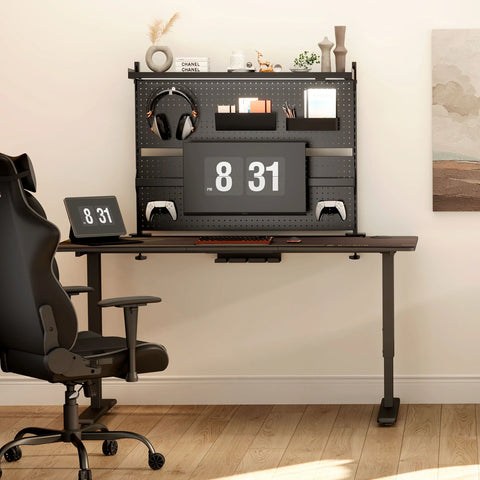
Well-designed desktop shelves can:
- Lift speakers and small monitors off the main surface.
- Create a “second story” for decor or storage while keeping the primary sightline clear.
A mobile CPU cart can:
- Free legroom under the L.
- Protect your PC from dust and accidental kicks.
- Maintain the clearance needed for healthy airflow.
6. Before & After: Transforming a Realistic Creator Workspace
To make this concrete, here’s how a typical “before” layout evolves into a 2026-ready productivity sanctuary.
6.1 Before: The Overloaded L-Wing
Common starting point:
- Main monitor offset toward one wing, not centered.
- Secondary monitor on the far end of the L-return.
- PC tower wedged in a closed side section, fans blowing directly into a panel.
- Cables draped down loosely, tugging when the desk moves.
- Mixer and stream deck pushed to the outermost corner.
Result:
- Neck turns right or left for long periods.
- Shoulders abducted every time you hit a stream button.
- Fans run hotter and louder under load.
- Raising the desk feels risky because of cable tension.
6.2 After: Zoned, Stable, and Ready for Deep Work
Redesigned layout using the principles from this guide:
- Primary monitor centered on the longest run of the L, at arm’s length, top slightly above eye level.
- Secondary monitor moved to the inner corner, angled inward, vertically staggered 5–10 cm.
- Stream deck and mixer placed within a 45° arm sweep and 30–40 cm reach.
- Cable tray mounted under the corner; power and signal separated, slack loops preserved.
- PC tower shifted to an open-sided stand or cart with 10–15 cm clearance on all sides.
- Rarely used items and decor moved to the far end of the return.
In practice, creators report they can stand for 30–60% longer before feeling fatigue once their monitors, inputs, and tower airflow are optimized. Focus sessions extend not because of willpower, but because the workstation finally supports the body instead of fighting it.
7. Quick Setup Checklist for 2026 L-Shaped Desks
Use this as your one-page implementation guide. Tape it inside a drawer or save it to your notes.
7.1 Ergonomic Positioning Checklist
- [ ] Chair adjusted so feet are flat, hips slightly above knees.
- [ ] Desk height set so elbows are ~90° when typing, shoulders relaxed.
- [ ] Primary monitor 50–75 cm from eyes; top 2–3 inches above eye level.
- [ ] Secondary monitors angled 10–30° inward and staggered 5–10 cm vertically.
- [ ] Keyboard and mouse directly in front of torso, wrists straight.
- [ ] Standing presets saved; using 45–60 minutes sitting + 10–15 minutes standing blocks.
7.2 L-Zone and Gear Placement Checklist
- [ ] Primary creation tasks mapped to the main run of the L.
- [ ] Live controls (chat, OBS, audio) in the inner corner within a 45° shoulder sweep.
- [ ] Support and storage items placed at the outer end of the return.
- [ ] Frequently used gear kept within 30–40 cm reach; rarely used items further out.
- [ ] Speakers and mics raised at least 20–30 cm off the desktop and not crammed into right-angled corners to reduce reflections.
7.3 Stability, Cables, and PC Checklist
- [ ] Total equipment weight comfortably under ~50–70% of desk’s max load.
- [ ] Heaviest gear placed near legs/inner corner, not at the far ends of the wings.
- [ ] Cable tray installed at the inner corner with power/signal separated.
- [ ] Velcro or magnetic ties every 20–30 cm; enough slack for full sit–stand travel.
- [ ] PC tower with at least 10–15 cm clearance on all sides or on a raised floor stand.
- [ ] No cable is taut when the desk is at its highest preset.
8. Bringing It All Together for Your 2026 Productivity Goals
Transforming your L-shaped desk into a creator’s sanctuary is less about buying more gear and more about aligning space with behavior:
- You’ve seen how neutral postures, from OSHA’s workstation guidelines, protect your neck and shoulders.
- You’ve learned why sit–stand desks, according to Cochrane’s review, are effective tools for cutting down sitting time—but work best when paired with smart routines.
- You’ve mapped your own workflow into zones so your L-shaped layout supports editing, streaming, and admin without constant twisting or reaching.
From here, your next step is simple:
- Pick one zone to optimize this week (for most creators, that’s the primary creation zone).
- Apply the checklists above to that area.
- Schedule a reminder one month into 2026 to reassess; as your channel and workflow evolve, your workstation should evolve with you.
If you want to go further, pair this guide with more in-depth ergonomic advice such as the workstation layout tips in Ergonomics of a Corner Desk for Remote Workers and the setup practices in Setting Up Your Standing Desk for Peak Productivity.
A thoughtfully planned L-shaped desk can turn your 2026 goals from “I hope I can keep up” into “my workspace is doing half the work for me.”
Disclaimer: This article is for informational purposes only and does not constitute medical, ergonomic, or occupational health advice. Work-related pain or pre-existing health conditions require personalized assessment. Always consult a qualified healthcare or ergonomics professional before making significant changes to your workstation or activity levels.




Leave a comment