

Imagine opening your laptop on January 2nd to a home office that feels like a tiny sanctuary of focus—not a cramped corner fighting with cables, papers, and gear.
Your monitor seems to float above the desk. Your keyboard and notebook finally have their own zones. You can sit or stand without dragging wires, and your shoulders relax the moment you start typing.
This is what a small-space 2026 home office makeover with a monitor arm can do: same square footage, completely different experience.
In this guide, I’ll walk you through how to redesign a compact home office around a monitor arm and ergonomic layout. You’ll learn how to free up desk space, improve posture, and set up a sit-stand workflow that supports your New Year productivity goals.
1. Why a Monitor Arm Is the Small-Space Game Changer
When floor space is fixed, the only dimension left to optimize is vertical. That’s where a monitor arm quietly transforms your desk from “just workable” into a true workspace sanctuary.
How a Monitor Arm Multiplies Space in a Tiny Room
Most built-in monitor stands eat 20–30 cm of depth and lock you into one viewing height. A good arm:
- Lifts the screen off the desktop, opening space for a laptop, tablet, or notebook underneath.
- Lets you push the monitor back to a healthy viewing distance without the stand hitting the wall.
- Swings out of the way when you need a clear surface for sketching, journaling, or paperwork.
In real small-apartment setups I’ve helped redesign, a single arm typically frees 15–25% of usable desk surface. That difference often turns a chaotic 80 cm desk into a calm, two-zone workstation: one zone for deep work, one for quick tasks.
Ergonomic Gains: Less Strain, More Stamina
The space win is only half the story. According to the OSHA eTools guidance on neutral working postures, your neck, shoulders, and wrists stay healthiest when your joints rest near 90–120° angles and your head is upright—not craning down or twisting.
A monitor arm makes this neutral posture achievable because you can:
- Align the top third of the screen at or just below eye level.
- Keep the screen 45–75 cm from your eyes, depending on monitor size.
- Center the display directly in front of you, instead of off to the side.
These adjustments reduce the static loading on your neck and shoulder muscles, a key factor in work-related musculoskeletal discomfort highlighted by EU-OSHA’s overview of ergonomics in office work.
Myth to Drop in 2026: “I Just Need a Bigger Desk”
A common misconception is that productivity problems disappear with a larger desk. In practice, people often spread clutter to fill whatever space they have.
What actually changes work quality is control: defined zones, a clear line of sight, and a posture that doesn’t drain energy. The right monitor arm plus a compact, height-adjustable desk can outperform a much larger static desk by:
- Reducing reach distances, so you move less to access essentials.
- Keeping tools within a “primary zone” of about 40–50 cm from your body.
- Supporting sit-stand transitions without reconfiguring your whole setup.
If a bigger desk doesn’t fit your home—or your budget—reconfiguring vertically with a monitor arm is one of the highest-return upgrades you can make.
2. Designing Your 2026 Small-Space Layout Around a Monitor Arm
Think of your monitor arm as the anchor of your layout. Everything else—chair, keyboard, footrest, and storage—should support your posture relative to that floating screen.
Step-by-Step Ergonomic Layout (Sit and Stand)
These steps synthesize guidance from OSHA’s computer workstation eTools and CCOHS’s sit-stand desk recommendations, adapted for small home offices.
1) Start with your chair and feet
- Adjust your chair so your feet rest flat on the floor, or on a stable support.
- Aim for knees around 90–110° and hips slightly above knees.
- Keep 2–3 fingers of space between the front of the seat and the back of your knees.
If your feet dangle in this position, that’s your cue to add a footrest.
An under-desk option like the Adjustable Ergonomic Footrest lets you tilt 0–20° to support your ankles and promote circulation—especially helpful when you’re working long sessions in a compact room where your chair height is dictated by desk height.

2) Set desk height and keyboard position
For sitting:
- Raise or lower your desk so your forearms are roughly parallel to the floor when typing.
- Keep the keyboard 5–10 cm from the desk edge.
- Maintain a flat or slightly negative tilt (0–10°) so your wrists stay neutral.
A pull-out solution such as the Pull-out Keyboard Tray is especially effective in small spaces. It tucks the keyboard away when not in use and gives you more usable desk depth for writing or drawing.
For standing:
- Bring the desk up until your elbows are about 90° while your shoulders stay relaxed.
- Recheck keyboard distance and tilt; small changes feel bigger when standing.
The Canadian guide from CCOHS emphasizes that the keyboard and mouse must move with you between sitting and standing; otherwise, you end up in awkward reaches that cancel out the benefits of a sit-stand setup.
3) Dial in monitor height and distance
Now bring in the monitor arm.
- Adjust arm height so the top line of text is at or slightly below eye level.
- Position the monitor 45–75 cm from your eyes (roughly an arm’s length for most users).
- Center the screen directly in front of you to avoid twisting your neck.
This aligns closely with the recommendations from the OSHA monitor component guide, which aims to minimize neck flexion and visual fatigue.
As you move between sitting and standing, use the arm’s joints rather than re-clamping hardware. Over a day, these micro-adjustments let you keep a neutral posture rather than “making do” with a too-high or too-low view.
Sample Small-Space Layouts for 2026
Use these as templates to sketch your own room.
| Layout | Room Type | Desk Style | Monitor Arm Placement | Best For |
|---|---|---|---|---|
| Wall-Hugging Studio Setup | 1-room studio, 120 cm wall | Rectangular sit-stand desk | Arm centered at back edge | Solo laptop + external monitor, content creation |
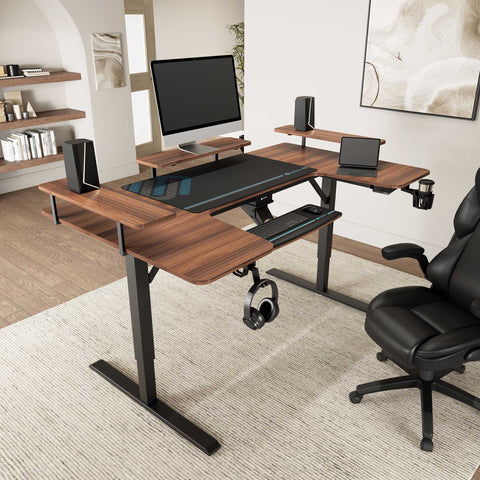
| Corner Creator Nook | Bedroom corner, 150×150 cm | L-shaped standing desk | Arm on shorter return, near corner | Dual-role desk (work + gaming/streaming) |
| Window-Facing Focus Zone | Narrow room with window | Narrow-depth standing desk | Arm slightly off-center to avoid glare | Writers, coders, reading-heavy roles |
For L-shaped desks, installers often place the monitor arm on the shorter return. This keeps reach distances within about 50–60 cm and makes it easier to center your primary monitor within your natural work zone.
A compact L-shaped option like the L-Shaped Standing Desk with Accessories Set (60"x23") gives you a main side for deep work and a return for secondary gear or a laptop—while still fitting into a small corner.

3. Choosing and Mounting a Monitor Arm for a Small Home Office
Not every monitor arm works well in a compact, sit-stand workflow. Let’s break down the decisions that matter most.
Key Specs for a 2026-Ready Monitor Arm
Use this checklist when comparing options:
- Weight capacity with buffer: Choose an arm rated at least 20–30% above your monitor’s actual weight. Installers have seen arms rated for static loads sag gradually when used with frequent sit-stand motion. That buffer helps preserve height over years of daily adjustments.
- VESA compatibility: Confirm your monitor supports 75×75 or 100×100 mm VESA mounting. Without that, you’ll need specialty adapters.
- Range of motion: Look for height, tilt, swivel, and rotation (portrait/landscape) adjustments so multiple users can share the same workstation.
- Desk thickness and clearance: Measure your desktop. Clamp mounts usually need 2–4 cm of unobstructed rear clearance; if the desk is thinner than 20 mm or has a thick back lip, consider a grommet mount or an under-surface adapter instead.
Pro Tip: Protect Thin or Hollow Desktops
A frequent field problem is clamp-mounted arms denting or crushing veneered or hollow-core desktops over time. Manufacturers and installers now use 3–6 mm steel reinforcement plates or through-bolted grommets to spread the load, especially with heavier ultrawide monitors. This simple layer can prevent permanent damage and wobble.
If your desk is particleboard or very thin, consider adding reinforcement before you install the arm. It’s a one-time fix that can add years to your setup.
Expert Warning: Heavy Arms and Standing Desk Wobble
On height-adjustable desks, heavy dual arms mounted far from a leg can amplify wobble at standing height. User communities and desk makers report that keeping total monitor-arm load under roughly 15–20% of the desk’s lift rating, and mounting the arm as close to a leg or frame support as possible, significantly improves stability.
For a small-space home office, where your desk might also hold speakers, a laptop stand, and decor, it pays to:
- Prefer a single, well-rated arm over oversized dual arms when possible.
- Keep the arm’s base near a desk leg or support beam.
- Avoid fully extending the arm more than necessary during normal work.
These choices keep your monitor stable when you type, even at full standing height.
Clamp vs. Grommet in Tight Quarters
Clamp mount is often ideal for renters and small-apartment users because it avoids drilling and lets you reposition the arm later. Just confirm you have:
- 2–4 cm of clear space behind the desk for the clamp hardware.
- A desktop thickness within the arm’s supported range.
Grommet mount is better when:
- Your desk is flush against the wall with no rear clearance.
- You want maximum stability for a heavier ultrawide monitor.
- You’re comfortable making a clean, single hole in the surface (often hidden by the arm’s base).
In truly micro spaces, I often combine a shallow desk (60–70 cm depth) with a grommet-mounted arm positioned slightly off-center, so the display can float above a laptop when needed and swing aside for analog work.
4. Cable Management and CPU Placement: The Hidden Small-Space Superpowers
Nothing breaks the magic of a clean, floating monitor faster than a nest of cables and a bulky PC tower kicking your shins.
Plan Your Cables for Sit-Stand Motion
A practical rule from experienced installers is to allow:
- 30–40 cm of extra length for monitor power and display cables.
- An additional 40–60 cm of slack for desks that shift from seated to standing height.
Route cables through a shallow tray or raceway fixed to the underside of the desktop, and secure them with clips or magnetic ties where they join the monitor arm. This prevents pinching or tugging when you raise the desk or swing the screen.
According to the OSHA work process guidance, minimizing awkward reaches and unexpected tugs also reduces the micro-strain that accumulates over long days.
Freeing Floor Space with a Mobile CPU Cart
In a small home office, a floor-standing tower under the desk can:
- Block legroom and prevent you from using a footrest.
- Catch cables and restrict sit-stand motion.
- Make cleaning and rearranging frustrating.
A dedicated under-desk or mobile holder, such as the Mobile Height Adjustable CPU Cart, solves this by:
- Lifting the case off the floor.
- Offering an adjustable height range (for example, around 23–33" in many designs) to fit most towers.
- Rolling out easily when you need to access ports or clean.
By moving the CPU to the side or slightly behind the primary work zone, you clear a sanctuary for your feet and reduce visual clutter when you glance under the desk.
5. Building a Sustainable Sit-Stand Rhythm for the New Year
A monitor arm and standing desk are tools. The health and productivity gains come from how you use them day to day.
Why Alternating Positions Matters
The World Health Organization’s 2020 Guidelines on Physical Activity and Sedentary Behaviour encourage adults to reduce sedentary time and break up long periods of sitting with movement. At the same time, OSHwiki’s article on prolonged static standing warns that standing too long without movement can also stress the lower limbs and back.
So the goal isn’t “sit all day” or “stand all day,” but a dynamic mix.
Research summarized in a Cochrane review on workplace interventions found that sit-stand desks can reduce sitting time by roughly 84–116 minutes per workday, but long-term health outcomes depend on broader habits—like walking, stretching, and total daily activity.
A Realistic Sit-Stand Progression for 2026
Based on ergonomic practice and user feedback, this progression works well for most healthy adults who are new to standing work:
| Week | Standing per 2–3 hours of work | Total Standing Target (8-hr day) | Notes |
|---|---|---|---|
| 1–2 | 20–30 minutes | 60–90 minutes | Focus on posture and comfort. Use a footrest to shift weight. |
| 3–4 | 30–45 minutes | 90–150 minutes | Add light movement: calf raises, gentle weight shifts. |
| 5+ | 45–60 minutes | 120–180 minutes | Settle into a rhythm that feels sustainable long term. |
This aligns well with the “avoid prolonged static postures” principle in ISO 11226 on static working postures, which evaluates both posture angles and duration.
Important: If you have existing musculoskeletal or cardiovascular conditions, talk with a healthcare professional before making major changes to your work routine.
Micro-Habits That Make Your Setup Work Harder for You
To match your New Year productivity goals, pair your hardware with habits:
- Use timers: Set gentle reminders every 30–45 minutes to check posture, change position, or walk for 2–3 minutes.
- Anchor rituals to actions: For example, stand for your first email block of the day, or always take calls standing.
- Leverage your footrest: When sitting, tilt and reposition your feet regularly to keep blood moving; when standing, occasionally rest one foot on a support to unload your lower back.
- Do a 30-second cable and clutter reset at day’s end: Return the monitor to a neutral position, push in the keyboard tray, clear mugs and paper. You’ll start the next morning with a calm visual field.
For more ideas on dialing in your standing desk for focus, you can also explore the setup strategies in the guide on setting up your standing desk for peak productivity.
6. Putting It All Together: Your 2026 Small-Space Makeover Blueprint
To close, here’s a compact checklist you can work through over a weekend to transform your home office around a monitor arm.
Small-Space Makeover Checklist
Planning
- [ ] Measure desk width, depth, and thickness.
- [ ] Check monitor weight and VESA pattern (75×75 or 100×100 mm).
- [ ] Decide clamp vs. grommet mount based on wall clearance.
- [ ] Sketch your room and choose a layout: wall-hugging, corner nook, or window-facing.
Ergonomic foundation
- [ ] Adjust your chair so feet are supported, knees ~90–110°.
- [ ] Add a footrest if your feet don’t comfortably reach the floor.
- [ ] Set desk or keyboard tray height so elbows are ~90° when typing.
- [ ] Place keyboard 5–10 cm from desk edge with minimal or negative tilt.
Monitor arm setup
- [ ] Install reinforcement plate or grommet if your desktop is thin or hollow.
- [ ] Mount the arm close to a desk leg or frame support to reduce wobble.
- [ ] Set monitor top line at or slightly below eye level.
- [ ] Position screen 45–75 cm from your eyes, centered in front of you.
Cable and CPU management
- [ ] Allow 30–40 cm slack for monitor cables, plus 40–60 cm for sit-stand travel.
- [ ] Route cables through an under-desk tray; secure at the arm’s spine.
- [ ] Move your tower to a CPU cart or holder to clear legroom.
Sit-stand rhythm
- [ ] Start with 20–30 minutes of standing every 1.5–2 hours.
- [ ] Gradually build toward 45–60 minutes standing per 2–3 hours.
- [ ] Use timers or apps to remind you to change position and move.
When you run through this checklist, you don’t just upgrade a desk—you reshape your daily experience. Your monitor floats, your posture supports long stretches of deep work, and your compact room finally feels like it was designed for you.
That’s a powerful way to begin a new year.
Frequently Asked Questions
Is a monitor arm really necessary in a small home office?
Not strictly—but it’s one of the highest-impact upgrades for cramped spaces. By lifting the screen off the desk and pushing it back to a better viewing distance, you create room for a keyboard, notebook, or drawing tablet while following neutral posture guidelines from sources like OSHA’s monitor setup guide.
Will standing more at my desk replace exercise?
No. The World Health Organization’s guidelines make it clear that adults still benefit from 150–300 minutes of moderate-intensity activity per week, plus reduced sedentary time. A sit-stand desk and monitor arm reduce long, uninterrupted sitting, but they don’t replace dedicated physical activity.
How do I avoid leg and foot fatigue when standing?
Start gradually, follow the progression table above, and use supports. Alternating between standing and sitting lowers strain, and a footrest or occasional foot-up posture can help your lower back relax. If pain persists or worsens, consult a healthcare professional.
What if multiple people share the same small workspace?
This is where a fully adjustable monitor arm shines. Different users can quickly tweak screen height, tilt, and distance to match their body dimensions. Following layout ranges from standards like BIFMA G1-2013, which are designed to accommodate roughly the 5th to 95th percentile of the population, helps “fit most users” with a single setup.
Health & Safety Disclaimer
This article is for informational and educational purposes only. It does not constitute medical, health, or safety advice and is not a substitute for consultation with qualified healthcare or occupational health professionals. Always consider your individual health status and consult an appropriate professional before making significant changes to your workstation, activity level, or work habits, especially if you have existing musculoskeletal, cardiovascular, or other medical conditions.
Sources
- OSHA eTools: Computer Workstations
- CCOHS: Office Ergonomics – Sit/Stand Desk
- World Health Organization: Guidelines on Physical Activity and Sedentary Behaviour
- ISO 11226: Ergonomics – Evaluation of static working postures
- OSHwiki – Ergonomics in Office Work
- BIFMA G1-2013 Ergonomics Guideline for Furniture




Leave a comment