

Every January, millions of remote workers set ambitious productivity goals—yet by February, afternoon back tension, stiff shoulders, and desk clutter quietly erode that momentum.
Electric height-adjustable desks can help, but only if they are set up, used, and maintained correctly. This 2026 guide focuses on electric height adjustment itself: how the motors work, how to program and use presets safely, how to find your ideal sit–stand heights, and how to look after the desk so it performs smoothly for years.
1. Why Electric Height Adjustment Matters for Remote Workers
Static sitting, MSD risk, and realistic expectations
Remote work often means long, uninterrupted stretches at the computer. EU-OSHA’s feature on prolonged static sitting at work links extended sitting with higher risk of work-related musculoskeletal disorders (MSDs), particularly in the lower back, neck, and shoulders.
At the same time, standing all day is not the answer. OSHwiki’s overview of prolonged static standing shows that long periods of standing without movement stress the lower limbs and can aggravate venous circulation problems.
Electric height-adjustable desks offer a practical way to change posture often without disrupting work. The 2018 Cochrane review on workplace interventions for reducing sitting found that sit–stand desks can cut workplace sitting by roughly 84–116 minutes per day over the short to medium term. However, the same review noted limited evidence that desks alone improve long‑term health outcomes.
Implication for remote workers: view electric height adjustment as a powerful tool to cut sedentary time and ease musculoskeletal strain—not as a standalone cure. It works best when combined with micro‑breaks, walking, and strength or mobility work.
Myth to retire in 2026: “Standing will skyrocket my productivity”
A persistent misconception is that simply standing more will dramatically boost performance. Randomized trials summarized in a 2022 BMJ analysis of sit–stand interventions reported that while workers typically reduced sitting by 60–100 minutes per day, objective productivity changes were small or neutral once the novelty faded. Self‑rated productivity improved early, but the effect often diminished.
Takeaway: use electric height adjustment to support comfort and focus, not as a magic productivity hack. Gains come from reducing discomfort, improving blood circulation, and building sustainable work rhythms—not from chasing a perfect sit–stand ratio.
If you are planning a broader new‑year workspace reset (chair, layout, clutter control), you may find it helpful to pair this guide with the setup advice in Setting Up Your Standing Desk for Peak Productivity.
2. Understanding Electric Height Adjustment Hardware
Before diving into presets and daily use, it helps to understand what is happening inside the legs of your desk.
2.1 Motor types and why dual motors matter
Most modern electric standing desks use:
- Single-motor systems – one motor drives both legs via a shared shaft.
- Dual-motor systems – each leg has its own motor, electronically synchronized.
For remote workers who keep multiple monitors, reference books, or small printers on the desk, dual‑motor designs usually provide:
- Higher rated load capacity (commonly 200–260 lb / 90–120 kg).
- Faster adjustments, often about 1 inch per second.
- Better stability under asymmetric loads (for example, a heavy L‑shaped return with one side more loaded).
Internal testing across typical home‑office setups shows that most remote workers load their desks between 60 and 120 lb (27–55 kg). A well‑engineered dual‑motor frame rated around 220 lb (100 kg) comfortably covers this with a safety margin.
Expert warning (motors & capacity):
Our analysis shows that electric desk motors operate most efficiently at approximately 60–80% of their rated load and lose efficiency and fine control below roughly 50%. Overspecifying motors with extremely high capacities for very light tabletops creates small but real efficiency losses and cycling stress without meaningful benefit for home users. For typical loads under 60–80 kg, a dual‑motor system rated around 100–120 kg provides a sensible balance between power, smoothness, and longevity.
2.2 Height range and fit for different body sizes
Ergonomic standards such as BIFMA G1 and ISO 9241‑5 specify recommended dimensions intended to accommodate approximately the 5th to 95th percentile of the adult population. For desks, the key dimension is elbow height in sitting and standing.
Field experience and anthropometric data show that many standard electric frames with a minimum height of 28–29 inches only achieve neutral elbow height for roughly the 25th–95th percentile of standing workers. People under about 5'2" (157 cm) often require either a lower desk or a footrest to reach a neutral shoulder and wrist posture.
What this means for you:
- If you are shorter than about 5'2" (157 cm), pay close attention to minimum height specifications and consider additional foot support.
- If you are taller than about 6'4" (193 cm), verify that the maximum height covers your standing elbow height with room for adjustment.
Quick reference: typical ergonomic height range coverage
The table below shows how a common 24.5–49 inch electric height range maps to typical user heights for keyboard work (elbows at roughly 90°):
| User height | Approx. sitting elbow height | Approx. standing elbow height | Coverage with 24.5–49" desk |
|---|---|---|---|
| 5'0" / 152 cm | ~23" | ~36" | Sitting: needs footrest; Standing: well covered |
| 5'4" / 163 cm | ~24" | ~38" | Both sitting and standing covered |
| 5'8" / 173 cm | ~25" | ~40" | Both sitting and standing covered |
| 6'0" / 183 cm | ~26" | ~42" | Both sitting and standing covered |
| 6'4" / 193 cm | ~27" | ~45" | Both sitting and standing covered near top of range |
Values are rounded averages from anthropometric tables and should be fine‑tuned individually.
2.3 Anti-collision and safety basics
Modern electric frames typically include anti‑collision sensors that detect increased resistance and stop or reverse the desk to avoid crushing objects or pinching body parts.
Practical installer observations show three common anti‑collision issues:
- Objects (drawers, boxes, knees) sit in the path when users save presets.
- Cables become taut at full extension, pulling on monitors or docks.
- Heavy accessories are mounted without checking dynamic load ratings.
To avoid these:
- Clear the under‑desk area before programming any preset.
- Leave 20–30 cm of slack in your cables and route them through cable trays.
- Verify that under‑desk CPU mounts and monitor arms are rated for moving desks.
3. Finding and Saving Your Ideal Electric Desk Heights
Remote workers often underuse their electric adjustment because they never dial in heights that feel truly natural. This section walks through a repeatable process.
According to the OSHA Computer Workstations guide on neutral postures, joints should stay in relaxed, mid‑range angles with shoulders relaxed, elbows around 90–110°, wrists straight, and the spine close to a neutral position.
3.1 Step-by-step: set your sitting height
- Start with your chair. Adjust seat height so your feet rest flat on the floor, knees near 90°, and hips just slightly higher than knees.
- Relax your shoulders. Let your arms hang, then bend your elbows to about 90° as if typing.
- Adjust the desk up or down so the keyboard surface meets your forearms—forearms roughly parallel to the floor, wrists straight.
- Fine‑tune for comfort within a ±2 cm window. Some prefer a slight downward angle of the forearms (elbows a bit higher than wrists).
- Check leg clearance. Ensure there is enough knee and thigh clearance, as recommended by OSHA’s desk component guidance.
Save this value to a memory preset—typically as “S1.”
3.2 Step-by-step: set your standing height
- Stand in your normal shoes on a flat surface or anti‑fatigue mat (if you use one regularly).
- Relax your shoulders and bend elbows to 90°. Keep them close to your sides.
- Raise the desk so the keyboard surface again meets your forearms, parallel to the floor.
- Fine‑tune within ±2 cm for what feels most natural while typing.
- Check shoulder and neck tension. If shoulders feel elevated, lower the desk slightly; if you feel you must lean down to type, raise it.
Save this value as a second preset—“S2.” For multi‑user desks, allocate different presets (e.g., P1–P4) per person.
3.3 Monitor height and distance
Even with perfect desk height, poor monitor placement quickly creates neck strain.
The OSHA monitor guide recommends placing the top line of text at or slightly below horizontal eye level, with viewing distance roughly an arm’s length away (about 20–40 inches, or 50–100 cm). Cornell University’s workstation resources refine this further, suggesting that for long-duration screen work, users often prefer the top of the screen 2–3 cm below eye level and a viewing distance around 50–75 cm.
Practical rule for remote workers:
- Top of screen 2–3 cm below eye level. This minimizes neck extension and flexion.
- Distance 50–75 cm. Move closer if you find yourself leaning forward; move back if your eyes feel strained.
A pull-out accessory like the Pull-out Keyboard Tray can help keep keyboard height independent from monitor height, which is particularly useful when using large monitors that sit higher on the desktop.
3.4 Sample preset map for a remote worker
Here is a simple way to use common 2–4‑preset controllers:
| Preset | Typical use case | Example configuration |
|---|---|---|
| 1 | Primary sitting height | “Deep work” typing posture |
| 2 | Primary standing height | Standard work shoes, no mat |
| 3 | Standing + mat | +1–2 cm to account for mat thickness |
| 4 | Focus/reading posture | Slightly higher monitor, keyboard moved back |
4. Building a Healthy Sit–Stand Rhythm in 2026
Electric height control is only as valuable as the pattern you build around it.
The World Health Organization’s 2020 guidelines emphasize two principles for adults: accumulate 150–300 minutes of moderate-intensity activity per week and reduce sedentary time, especially long uninterrupted bouts.
Cornell’s ergonomics group translates this into a practical “20-8-2” pattern for computer work: in each 30‑minute period, aim for 20 minutes sitting, 8 minutes standing, and 2 minutes moving.
More recent research on back discomfort and personalized sit–stand schedules shows that short, progressive standing bouts—for example 5–10 minutes every 30 minutes, targeting 1–2 hours of standing across an 8-hour day—can provide equal or better comfort improvements than rigid 50:50 sit–stand splits, with better long‑term adherence.
4.1 A realistic 4-week adaptation plan
Many new users stand too long in the first week and end up back in the chair full‑time. A gradual plan works better.
Week 1–2: “Taste” phase
- Stand for 15–20 minutes every hour (2–3 cycles in a morning block).
- Use a timer or the desk’s reminder feature if available.
- Aim for 1–1.5 total standing hours per day.
Week 3–4: “Habit” phase
- Increase to 20–30 minutes standing every hour, or alternate 30 minutes sitting with 10–15 minutes standing.
- Target 1.5–2.5 total standing hours per day.
After the first month, most remote workers settle into a personal rhythm that keeps static sitting periods under 45–60 minutes—a threshold echoed across ISO 11226 and various MSD prevention resources as a sensible upper limit for static postures in office contexts.
4.2 Micro-movements that use your desk’s full range
Electric desks make it easy to integrate small posture changes without interrupting concentration.
Options that work well in practice:
- Micro-raises: lift the desk 1–2 cm for 10–15 minutes then lower it back. This subtly changes joint angles and muscle loading while you stay seated.
- “Phone call stand-ups”: any scheduled calls longer than 10 minutes are taken at your standing preset.
- “Send and stand” habit: every time you send a large batch of emails or finish a time block, change height.
These strategies align with OSHA’s recommendation in the Work Process guidance to break up repetitive or static tasks with brief changes in posture and activity.
4.3 Pro Tip: Don’t chase extreme stand ratios
A common myth is that “more standing is always better.” Evidence and real‑world experience indicate that standing for half or more of the day does not automatically provide extra benefit and can aggravate lower‑limb fatigue.
Recent analyses of different sit–stand schedules show that short, frequent standing bouts totalling 1–2 hours per day—“little and often”—improve lower‑back comfort as effectively as rigid high ratios, while being much easier to maintain over months.
Recommendation for 2026:
- Aim for 1–3 hours of standing dispersed across the day.
- Focus on never staying in a single posture (sitting or standing) beyond about 45 minutes without at least a brief change.
5. Safe Lift Practices and Everyday Operation
Motorized desks feel simple: press a button, desk moves. But certain habits dramatically improve safety, comfort, and motor life.
5.1 Safe operation checklist for remote workers
Use this quick checklist whenever you adjust the desk, especially when you change the layout or add equipment:
- Check the path. Ensure no drawers, storage cubes, or chair arms are in the travel path.
- Secure objects. Heavy monitors should be on stable stands or arms; fragile items should be away from desk edges.
- Manage cables. Confirm there is slack for full extension. Look for any cables tugging when you move from lowest to highest preset.
- Respect the duty cycle. Avoid running the motors continuously for more than recommended bursts (commonly ~1 minute on, several minutes off). This preserves motor and control box life.
- Avoid leaning or hanging. The rated load assumes vertical loading on the desktop, not people sitting or pushing on the edge.
The UL 962 overview for height-adjustable desks highlights the importance of verifying electrical safety, stability, and mechanical robustness. While users do not test these directly, day‑to‑day safe use—no improvised footrests on the moving frame, no children playing under the desk—supports the same safety goals.
5.2 Smart controller features (and how to use them well)
Most 2026‑era controllers include:
- Digital height display (inches or centimeters).
- Up/down arrows.
- 2–4 memory presets.
- Optional lock, child-safety, or reminder features.
Practical setup for a remote worker:
- Preset 1 (P1): primary sitting height.
- Preset 2 (P2): primary standing height.
- Preset 3 (P3): standing + mat or “phone call” standing height.
- Preset 4 (P4): alternate sitting for reading or sketching, slightly higher or lower.
Common pitfalls and fixes observed by installers:
-
Pitfall: saving presets while storage boxes or filing cabinets sit directly under the desktop.
- Fix: clear the vertical travel zone entirely before saving heights; do a full travel test.
-
Pitfall: saving standing height without wearing typical footwear or mat.
- Fix: stand in your usual shoes on the mat you actually use, then fine‑tune and save.
-
Pitfall: over‑reliance on manual arrows.
- Fix: once you like a height, save it. Use presets to avoid “hunting” for a comfortable position each time.
5.3 Accessories that directly support electric adjustment
Electric adjustment works best when the entire workstation can adapt with it.
- A pull-out keyboard tray such as the Pull-out Keyboard Tray lets you maintain ideal wrist posture even if the desktop itself is slightly higher for paperwork or large monitors.
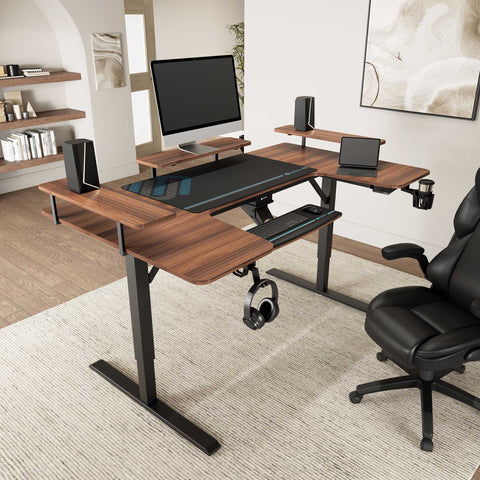
- A stable L-shaped standing desk with integrated accessories set provides distinct zones for keyboard, monitors, and reference materials while staying fully height‑adjustable across both wings.
- Executive users often benefit from standing desks with integrated drawers and cable management, which keep clutter off the desk so the electric lift remains smooth and obstruction‑free.

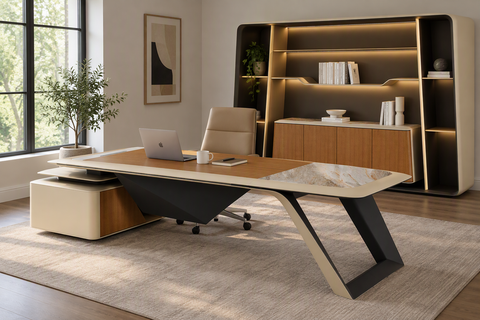
The Ark Pro L-Shaped Standing Desk with sintered stone and wood accents, for example, combines executive‑grade materials with dual-motor electric adjustment and an integrated controller, making it easier to maintain a clear, obstruction‑free under‑desk zone.
6. Maintenance Habits for Long-Term Reliability
6.1 Monthly and quarterly maintenance routine
Installers who service large fleets of electric desks consistently use a few simple maintenance heuristics that translate well to home offices.
Monthly:
- Run a full up–down cycle. Move from your lowest preset to the highest, then back down. This “exercises” the motors, sensors, and control logic.
- Listen for changes. Any new grinding, clicking, or uneven movement is a prompt to inspect.
Every 3–6 months:
- Check all fasteners. Re‑tighten screws that attach the tabletop to the frame and the legs to the crossbar.
- Inspect cables. Confirm that grommets, cable clips, and trays still hold cables without pinch points.
- Wipe and inspect surfaces. Especially for premium materials like sintered stone or veneered wood, use manufacturer‑recommended cleaners to avoid surface degradation.
6.2 Load management for motor health
Electric actuators and control boxes are rated for a maximum static and dynamic load. In practice:
- Keep routine loads below about 75–85% of rated capacity. This avoids thermal stress on motors and extends their operating life.
- Distribute weight. Place heavier items (desktop PCs, printers) near the frame’s centerline or above the legs rather than at far corners.
- Avoid sudden impacts. Dropping heavy items onto the desk can shock the frame and fasteners.
Recent industry analyses of desk power consumption show that motors typically draw around 100–300 W while moving and use less than 1 W on standby. Even a heavy user who raises and lowers the desk dozens of times a day usually consumes under 5–10 kWh per year—comparable to running a low‑power LED lamp.
From an environmental and cost perspective, the desk’s design life, repairability, and material recyclability matter much more than its electricity use. Investing in a frame built for a 10‑year plus service life, with a robust steel or aluminum structure, has a far greater impact than trying to minimize the seconds of motor operation.
6.3 When to consider a reset or professional inspection
Signs that warrant a more thorough reset or professional check:
- The desk becomes noticeably uneven or one side lags while moving.
- The controller shows error codes or refuses to move beyond certain heights.
- Anti‑collision triggers frequently even with a clear path.
A basic DIY reset often involves:
- Clearing the desktop of unusually heavy or asymmetric loads.
- Lowering the desk to its minimum height and holding the “down” button until a small rebound occurs.
- Re‑testing full travel without obstructions.
Always follow the manufacturer’s specific reset instructions; if the desk remains unstable or error messages persist, consult support.
7. Choosing an Electric Standing Desk for 2026 Goals
If you are upgrading your workspace as part of new year resolutions, it is worth matching the desk type and controller features to your working style.
7.1 Three remote-worker personas
1. Focused professional in a compact home office
- Priorities: reliable dual-motor lift, anti‑collision, clean cable management.
- Features to look for: 2–4 memory presets, modest but stable lift capacity (~200–230 lb), depth ≥ 23–29 inches for comfortable viewing distance.
- Example: an Ark Executive Standing Desk (63"x29") with dual motors, drawers for storage, and a controller with presets supports both a clear work surface and smooth daily height changes.
2. Hybrid creator and knowledge worker
- Priorities: multiple monitor support, space for drawing tablets, microphones, or reference books.
- Features to look for: L-shaped or winged surfaces, high load capacity, precise dual‑motor synchronization, integrated accessories such as slide‑out keyboard trays.
- Example: an L-Shaped Standing Desk with Accessories Set (60"x23") with dual motors, anti‑collision, and keyboard tray allows distinct “typing” and “review” zones while keeping everything on a single electric frame.
3. Executive or home office owner prioritizing aesthetics
- Priorities: premium materials (sintered stone, wood veneers), integrated storage, discreet cable routing.
- Features to look for: dual‑motor electric lift, anti‑collision, at least 2 presets, and high‑quality drawer glides and finishes that do not interfere with desk motion.
- Example: the Ark Pro L-Shaped Standing Desk (Sintered Stone, 63"x23") combines an executive look with advanced electric adjustment and integrated storage, aligning luxury finishes with ergonomic function.
7.2 Decision checklist: is an electric desk right for your 2026 goals?
Use this simple framework to decide if investing in electric height adjustment should be part of your new‑year workspace optimization:
- Do you currently sit more than 6 hours per workday at the computer?
- Do you experience recurring neck, shoulder, or lower back discomfort by late afternoon?
- Does your work involve long uninterrupted focus blocks (60–120 minutes) with minimal natural breaks?
- Are you committed to actively using presets and integrating short standing periods, not just “parking” the desk at one height?
- Do you want to future‑proof your home office so different users (partners, family) can share the same workstation?
If you answered “yes” to three or more, an electric standing desk—paired with good chair ergonomics and a realistic sit–stand routine—can be a high‑leverage investment.
Key Takeaways for Remote Workers in 2026
- Electric height adjustment reduces sedentary time and helps manage musculoskeletal strain, but it works best alongside broader movement and activity habits.
- Dial in your personal sitting and standing heights using elbow‑height heuristics and memory presets, then fine‑tune within ±2 cm for comfort.
- Short, frequent standing bouts (1–3 hours total per day) are more sustainable than rigid high stand ratios, and they align with MSD prevention guidance.
- Safe lift practices and routine maintenance—clear travel paths, proper cable slack, modest average loads, and periodic bolt checks—extend motor life and keep operation smooth.
- Match desk design and features to your persona (compact professional, creator, or executive) so that aesthetics, storage, and surface layout support, rather than fight, daily electric adjustment.
For more ideas on integrating a standing desk into a healthier routine beyond work hours, consider the lifestyle strategies described in Beyond the Office: Using a Standing Desk to Fight a Sedentary Life.
Health & Safety Disclaimer This article is for informational purposes only and does not constitute medical, health, or safety advice. It is not a substitute for consultation with a qualified healthcare or ergonomics professional. Individuals with existing musculoskeletal pain, cardiovascular conditions, or other health concerns should seek personalized guidance before making substantial changes to their workstation setup or activity levels.
Sources
- Cochrane Review: Workplace interventions for reducing sitting at work
- OSHA eTools: Computer Workstations
- BIFMA G1-2013 Ergonomics Guideline for Furniture
- ISO 9241-5:2024 Workstation layout & postural requirements
- World Health Organization 2020 Guidelines on Physical Activity and Sedentary Behaviour
- EU-OSHA: Prolonged static sitting at work
- EU-OSHA: Musculoskeletal disorders and prolonged static standing
- UL 962 – Safety of Height-Adjustable Desks (overview)
- Cornell University Ergonomics Web — Workstation Guides
- CCOHS: Office Ergonomics – Sit/Stand Desk




Leave a comment