

The Ergonomic Challenge of Ultrawide Monitors
An ultrawide monitor promises an immersive, panoramic canvas for productivity and gaming. But this expansive screen real estate introduces ergonomic challenges that a standard monitor setup simply doesn't have. In our experience helping users optimize their workstations, we often see people trading screen space for neck pain, eye strain, and persistent discomfort. The issue generally stems from applying old rules to new technology; the sheer width of an ultrawide display requires a fundamentally different approach to placement and posture.
This guide provides a practical, evidence-based framework for taming your ultrawide monitor. We will move beyond generic advice and delve into the specific adjustments required to create a setup that is both productive and sustainable for your long-term well-being.
The Core Problem: Why Ultrawides Demand a Different Approach
The fundamental issue with ultrawide monitors is their width. A standard 24- or 27-inch monitor fits comfortably within our central field of vision. An ultrawide, especially 34-inch models and larger, extends far into our peripheral view. This forces us to physically turn our head and neck repeatedly, rather than just shifting our eyes.
Based on general ergonomic principles and background datasets like ISO 9241-5, frequent or sustained neck rotation is a known risk factor for muscle fatigue. As a practical rule of thumb, your primary comfort zone for viewing is a relatively narrow cone of about ±15 degrees from your neutral gaze midline. Content placed outside a ±30-degree arc requires significant head turning, leading to strain over a workday.
How to Measure Your ±15° Comfort Zone
To put this into practice, you need to know where your comfort zone ends. Here is a quick way to measure it at your desk:
- The App Method: Download a free "protractor" or "clinometer" app on your smartphone.
- Zero It Out: Sit in your normal posture looking straight at the center of your screen. Hold the phone flat against your chest or forehead and zero the app.
- Find the Limits: Slowly turn your head to look at the left edge of your screen, then the right.
- Evaluate: If the app reads more than 15 to 20 degrees of rotation to see your main work windows, you are likely forcing excessive neck movement and should adjust your setup.
Common Myth Debunked: "Set It Up Like a Regular Monitor"
A common pattern we see is users simply placing an ultrawide monitor on their desk, geometrically centering it, and getting to work. Centering a 49-inch monitor means that to see either edge, you might rotate your head nearly 40 degrees—far outside the comfortable viewing arc. This sustained neck torsion is a key reason why many ultrawide users report stiffness.

Mastering Placement: The Pillars of Ultrawide Ergonomics
Achieving an ergonomic ultrawide setup hinges on three key pillars: viewing distance, screen height and tilt, and—most importantly—horizontal alignment.
Pillar 1: Viewing Distance
The old "arm's length" rule is often insufficient for ultrawides. Sitting too close forces excessive head and eye movement to scan the screen. For most ultrawide monitors (34 inches and larger), a viewing distance of 80–100 cm (about 31–39 inches) is a highly recommended starting point. This increased distance helps bring more of the screen into your comfortable viewing cone.
This presents a practical challenge: many standard desks are simply not deep enough. A desk depth of at least 30 inches (76 cm) is often necessary to achieve this viewing distance while maintaining proper keyboard and mouse posture.
Pillar 2: Screen Height and Tilt
For standard monitors, general guidelines from organizations like OSHA recommend positioning the top of the screen at or slightly below eye level. With an ultrawide, this heuristic often needs a slight modification. Due to the screen's vertical size, placing the top edge at eye level can make the bottom of the screen too low.
A better practical approach is to position the top third of the screen at or just below eye level. When you switch to a standing position, you may need to lower it by an additional 3-5 degrees to maintain a neutral neck posture. A slight upward tilt of the monitor (around 5-10 degrees) can also improve the viewing angle for the lower portions of the screen.
Pillar 3: Horizontal Alignment and Workflow Zoning
This is the most critical and often-missed step. Do not center the monitor; center your primary task. Identify the area of the screen you look at most frequently—perhaps a code editor, a design canvas, or a document. Align this "primary work zone" directly in front of you.
Treat your ultrawide as a zoned dashboard:
- Primary Zone (Center ±15°): This is for your main, active task window. It should occupy the central 40-50% of the screen.
- Secondary Zones (±15° to ±30°): Flank your primary zone with secondary applications, like communication apps or reference materials.
- Peripheral Zones (Beyond ±30°): The far edges of the screen are for static, infrequently checked information like system monitoring tools or server logs.
Workshop Case Study: The 49-Inch Adjustment
To illustrate the impact of these changes, we recently conducted an informal setup test in our workshop. A user experiencing daily neck stiffness (self-rated at 7/10 discomfort) was using a geometrically centered 49-inch ultrawide at a standard 60 cm (24 in) viewing distance.
The Fix: We moved the setup to a 30-inch deep desk, pushing the monitor back to a 95 cm viewing distance. We then shifted their primary code editor to the exact visual center (the ±15° zone) and moved their email client to the far edge. The Result: After two weeks of use, the user reported their neck discomfort dropped to a 2/10. By matching the viewing distance to the screen size and prioritizing the central visual cone, the need for extreme neck rotation was drastically reduced.
Quick-Reference Setup Guide
Use this table as a practical checklist to configure your ultrawide setup.
| Parameter | Recommendation for Ultrawide Monitors | Rationale |
|---|---|---|
| Viewing Distance | 80–100 cm (31–39 in) | Reduces excessive head/eye scanning and brings screen edges into a more comfortable viewing arc. |
| Screen Height | Top third of the screen at or slightly below eye level. | Helps maintain a neutral neck position without forcing you to look too far down. |
| Screen Tilt | 5–10 degrees upward. | Improves viewing angle for the entire screen surface. |
| Horizontal Center | Align your body's midline with your primary task window. | Minimizes sustained neck rotation. |
| Workflow Zoning | Dedicate the central ~50% to primary tasks and outer thirds to secondary info. | Creates an efficient workflow that leverages screen space without causing strain. |
Expert Warning: Matching Monitor Curvature to Your Viewing Distance
A common belief is that a more aggressive curve is always better. However, the effectiveness of a curved screen is directly tied to your viewing distance. A monitor's curvature is rated with a number like 1000R or 1800R, which corresponds to the radius of the curve in millimeters. Generally, an 1800R monitor is designed to be viewed from approximately 1.8 meters away, while a 1000R monitor is optimized for a 1-meter distance.
If you sit too close to a highly curved monitor (e.g., at 60 cm from a 1000R screen), the perceived distortion at the edges can increase, forcing your eyes to constantly refocus. As a rule of thumb, try to match your viewing distance to the monitor's curvature radius as closely as your desk allows. If your workspace forces you to sit very close, a flatter panel might actually be more comfortable.
The Foundation: A Stable Desk and Smart Accessories
(Disclosure: This section includes specific product examples, including items from our own catalog or partners, to demonstrate the load capacity and stability required for heavy ultrawide setups. We may earn a commission on purchases made through these links.)
Your monitor setup is only as good as the foundation it rests on. For a heavy ultrawide monitor, especially in a sit-stand configuration, stability is paramount.

Desk Stability is Non-Negotiable
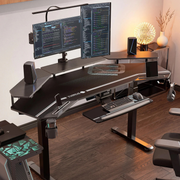
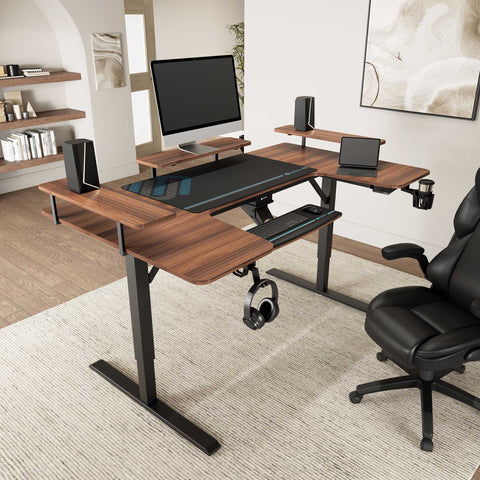
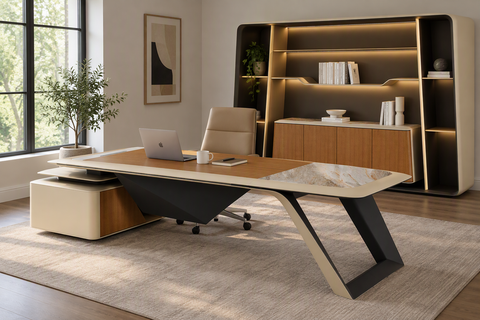
An ultrawide monitor, combined with a heavy-duty monitor arm, can place significant torque on a desk. Look for a standing desk with a robust dual-motor system and a high load capacity. For example, a desk like the Aero Pro Wing-Shaped Standing Desk (72"x23"), with its 220 lb weight capacity and sturdy frame, provides the stability needed to support a heavy ultrawide setup without perceptible wobble during sit-stand transitions.

Essential Accessories for a Clean and Functional Setup
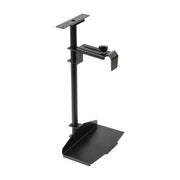
- CPU Holder: When using a standing desk, letting your PC tower sit on the floor can cause significant cable tension or port damage during height adjustments. A Knob-operated Adjustable CPU Holder attaches to the underside of your desk, allowing your CPU and all its connections to move safely with you.
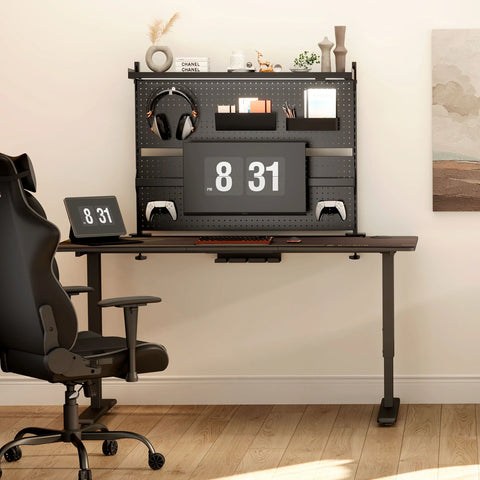
- Monitor Risers and Arms: While many ultrawides come with decent stands, a high-quality monitor arm or riser provides a greater range of adjustment. For those who prefer a fixed-height solution or need to elevate multiple devices, a product like the Carbon Fiber Dual Monitor Stand can help organize your desktop and position your screen correctly.
Establishing a Healthy Workflow
Even a perfectly measured setup can be undermined by static postures. The goal of ergonomics is to enable effortless movement and variation. The World Health Organization emphasizes the importance of reducing sedentary time and breaking up long periods of static behavior.
- Adopt a Sit-Stand Rhythm: Alternate between sitting and standing every 30-60 minutes. A popular heuristic is the "20-8-2" rule (often cited by university ergonomics programs): for every 30 minutes, sit for 20, stand for 8, and move/stretch for 2.
- Practice Micro-Breaks: Every 20-30 minutes, take a 30-second break to look away from your screen at a distant object to help reduce eye strain. Gently stretch your neck by looking left, right, up, and down to relieve muscle tension.
Key Takeaways
Transforming your ultrawide setup into a comfortable command center requires a deliberate approach:
- Adjust Your Distance: Ultrawides generally require more viewing distance (80-100cm) and a deeper desk.
- Center Your Work, Not Your Monitor: Align your primary task window with your body's midline to help prevent neck rotation.
- Zone Your Screen: Use the center for active tasks and the peripheries for static information.
- Invest in Stability: Use a sturdy desk and a CPU holder to ensure a safe and wobble-free experience.
- Move Frequently: Alternate between sitting and standing and incorporate micro-breaks.
Frequently Asked Questions (FAQ)
How far should I sit from a 49-inch ultrawide monitor?
For a large 49-inch screen, a viewing distance of at least 90–100 cm (about 35–39 inches) is generally recommended as a starting point. This helps you see the central portion of the screen without excessive head movement.
Should my ultrawide monitor be curved?
A curve can enhance immersion and make viewing the edges of the screen more comfortable, but it works best if your viewing distance roughly matches the monitor's curvature rating (e.g., viewing a 1000R monitor from about 1 meter away).
How do I avoid neck pain with my ultrawide setup?
A highly effective technique is to stop centering the monitor physically. Instead, position your primary application directly in front of you (within a ±15 degree viewing cone) and use the side areas for less-used applications.
Disclaimer: This article is for informational purposes only and does not constitute professional medical advice. If you have pre-existing musculoskeletal conditions or experience persistent pain, please consult a qualified healthcare professional or a certified ergonomist to address your specific needs.


Leave a comment