

Clamp vs. Grommet: Which Mount is Right for Your Monitor Arm?
Choosing the right monitor arm is a significant step toward an ergonomic and productive workspace. However, the arm itself is only as good as its foundation. The decision between a clamp or a grommet mount is the final, critical step that dictates your setup's stability, flexibility, and overall aesthetic. While it may seem like a minor detail, selecting the wrong mount can lead to a wobbly screen, a damaged desk, or an installation headache.
This article provides a comprehensive comparison of clamp and grommet mounting options. We will move beyond common assumptions to explore the technical realities of stability, drawing on industry standards and real-world installer experience. By the end, you will have a clear framework for assessing your desk and confidently choosing the mount that best suits your specific needs.
Understanding the Mounting Mechanisms
At the most basic level, both mounts serve the same purpose: to securely anchor the monitor arm's base to your desk. However, they achieve this in mechanically different ways.
What is a Clamp Mount?
A clamp mount is the most common and straightforward mounting option. It functions like a large C-clamp that tightens onto the edge of your desk using a turning screw mechanism. The top part of the clamp rests on the desk surface, while the bottom part secures against the underside.
This method requires no permanent modification to your desk, making it a popular choice for renters, anyone hesitant to drill holes, or those who might want to reposition their setup frequently. Its primary requirement is a flat, unobstructed desk edge with sufficient depth for the clamp to grab onto.

What is a Grommet Mount?
A grommet mount, also known as a bolt-through mount, secures the monitor arm by passing a bolt through a hole in your desk and tightening it from underneath with a nut and often a reinforcement plate. This creates a direct, centralized anchor point on the desktop.
This installation is ideal for desks that come with pre-drilled cable management holes (grommets) or for users who are comfortable drilling a hole to achieve a specific placement. It offers a cleaner, more integrated look and can be placed further from the desk edge than a clamp.

Head-to-Head Comparison: Clamp vs. Grommet
To help you decide, let's break down the advantages and disadvantages of each mounting style across several key criteria.
| Feature | Clamp Mount | Grommet Mount |
|---|---|---|
| Installation | Quick and easy; no tools or drilling required. | Requires a pre-existing hole or drilling a new one. |
| Desk Compatibility | Requires a flat desk edge (typically 1" to 4" thick) with no obstructions. Not suitable for desks with thick rear lips or beveled edges. | Works with almost any material you can drill through. Independent of desk edge shape. Ideal for desks with pre-drilled grommet holes. |
| Stability | Excellent on thick, solid desks. Can cause edge damage or be less stable on thin, hollow-core, or soft wood desktops if over-tightened or not padded. | Generally offers excellent stability by distributing force across the surface. Requires a backing plate on thinner desks to prevent pull-through. |
| Aesthetics | Visible hardware on the desk edge. Can look slightly less integrated. | Creates a very clean, "built-in" look with minimal visible hardware on the surface. |
| Flexibility | Very flexible. Easy to move to a different position on the desk or to a new desk entirely. | Semi-permanent. Moving the mount requires un-installing and leaves an open hole. |
The Stability Myth: What Really Causes Monitor Wobble?
A persistent myth in workspace ergonomics is that a grommet mount is always more stable than a clamp mount. While a bolt-through connection seems intuitively more secure, real-world testing and installer experience reveal a more nuanced reality. The mount type is rarely the primary cause of a wobbly monitor.
According to an analysis of standing desk stability, the weak link is often the desk frame itself, especially at standing height. Switching from a clamp to a grommet on a wobbly sit-stand desk rarely fixes sway, as the issue originates from the legs or frame, not the monitor arm's anchor point.
Expert Warning: Desk Thickness is the Deciding Factor
The most significant factor for mount stability is the quality and thickness of your desktop. As one in-depth user test found, on rigid particleboard or plywood desktops of 25–30 mm (1–1.2 inches), well-built monitor arms exhibit similar, minimal wobble whether clamped or grommet-mounted. The problems arise with thin or hollow-core tops (less than 20mm), which will wobble in both modes unless properly reinforced.
Here are the true culprits of monitor wobble:
- Thin or Hollow-Core Desktops: These surfaces lack the internal density and rigidity to resist the torque applied by a monitor arm, especially one holding a heavy or ultrawide screen. The desktop itself flexes and vibrates.
- Standing Desk Frame Sway: Taller desks, particularly at standing height, are susceptible to lateral or forward-backward movement. A perfectly secure mount will still wobble if the entire desk is moving.
- Arm Over-extension: The further a monitor arm is extended, the more leverage it has, amplifying any small movements from typing or desk adjustments. An expert review on ergonomics notes that keeping the monitor within two-thirds of the arm’s maximum extension and well under its weight limit (e.g., a 7kg monitor on a 9kg-rated arm) significantly reduces bounce and vibration.
A Practical Guide to Choosing Your Mount
Follow this step-by-step process to make an informed decision based on your specific equipment and workspace.
Step 1: Assess Your Desk
Before you even choose a monitor arm, analyze your desk. This is the most crucial step.
- Measure Desktop Thickness: Use a tape measure. If your desktop is over 25mm (1 inch) thick and feels solid, it can likely support either mount type well. If it's under 20mm, proceed with caution and plan for reinforcement.
- Inspect the Desk Edge (For Clamps): You need a flat, square edge for a clamp to get a secure grip. Field installers note that you typically need at least 25-35mm of unobstructed lip. Beveled edges, rounded profiles, or desks with a structural rail right at the back will prevent a clamp from working.
- Check for Existing Holes (For Grommets): Many office desks come with pre-drilled 2-3 inch grommet holes for cable management. These are perfect for a grommet mount.
-
Identify the Material:
- Solid Wood, Plywood, MDF, Particleboard: These are ideal candidates for both clamp and grommet mounts. For grommet installation, drilling is straightforward.
- Tempered Glass or Sintered Stone: Be extremely cautious. Never drill these materials yourself. A clamp mount with wide, soft protective pads is a much safer option, but a dedicated freestanding monitor stand is often the best choice.
Step 2: Plan Your Installation
Your choice also depends on your willingness to make permanent modifications.
- For Clamp Mounts: The key is preventing damage. According to industry analysis, damage is rare on solid tops if you stay within the manufacturer's recommended torque (often 6–8 N·m) and use a protective pad. Do not overtighten—the goal is to be snug, not to crush the wood.
- For Grommet Mounts: Placement is critical. For optimal stability when drilling your own hole, experts suggest placing it 60-80mm from the desk edge. More importantly, always use a steel backing plate underneath, especially on particleboard or MDF. This distributes the load and prevents the bolt from pulling through the desktop over time.
Decision-Making Checklist
| Condition | Recommended Mount | Key Consideration |
|---|---|---|
| My desk has a flat edge >25mm deep. | Clamp | Easiest and most flexible option. Use a protective pad. |
| My desk has a pre-drilled grommet hole. | Grommet | Quickest and cleanest installation. |
| My desk edge is beveled or blocked. | Grommet | Your only option if you're willing to drill a hole. |
| I want a permanent, clean, centered setup. | Grommet | Offers the most integrated aesthetic. |
| My desk is made of glass or stone. | Neither (Prefer Freestanding Stand) | If you must, use a clamp with wide protective pads. Do NOT drill. |
| My desk is thin (<20mm) or hollow-core. | Neither without reinforcement | Add a steel plate on top and bottom to create a "sandwich" for the mount. |
Beyond the Mount: Building a Stable Ergonomic Ecosystem
Achieving a truly stable and ergonomic workstation involves more than just the monitor mount. It requires a holistic approach where all components work together.
Proper monitor placement is a cornerstone of workplace health. Guidelines from authoritative bodies like the U.S. Occupational Safety and Health Administration (OSHA) recommend positioning the monitor so the top of the screen is at or slightly below eye level, and at about an arm's length away. A monitor arm is the tool that makes achieving this standard possible.
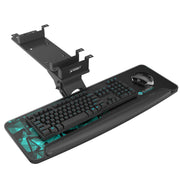
However, a monitor arm can also introduce new challenges. For instance, adjusting your desk for perfect monitor height might leave your keyboard too high. This is where a complete ergonomic system becomes important. An Adjustable Keyboard Tray allows you to maintain a neutral wrist posture independent of your desk height. Similarly, for those who prefer a simpler solution or have desks incompatible with arms, a static riser like the Carbon Fiber Dual Monitor Stand can provide a fixed ergonomic lift.
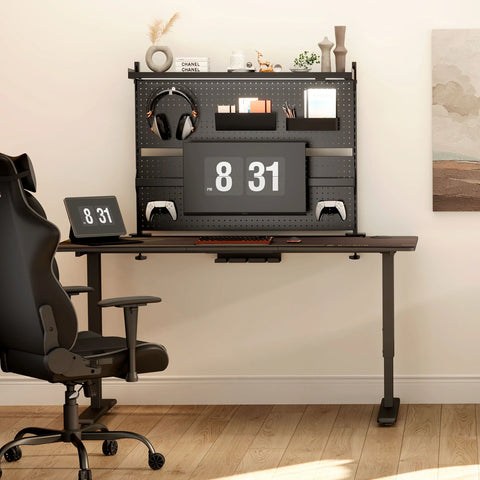
For a truly advanced setup, consider desk-mounted organization systems. A product like the Aegispeg Board not only organizes your accessories but can also serve as a mounting structure for monitors, freeing up your desk surface entirely.

Key Takeaways
Instead of asking "Is clamp or grommet better?", the right question is "Which mount is better for my desk?"
- Stability Depends on the Desk, Not the Mount: For most solid desks (over 1" thick), both clamp and grommet mounts offer excellent stability. The primary source of wobble is often a flimsy desktop or an unstable standing desk frame.
- Clamps Offer Flexibility: They are easy to install, move, and require no permanent modification, making them ideal for standard desk edges.
- Grommets Offer a Clean Aesthetic: They provide a permanent, integrated look and are perfect for desks with pre-drilled holes or for users who want precise, centered placement.
- Installation is Everything: A poorly installed mount will fail regardless of type. Avoid overtightening clamps and always use reinforcement plates for grommets on thinner desks.
By carefully evaluating your desk and following installation best practices, you can ensure your monitor arm is a stable, secure, and valuable part of your ergonomic workspace for years to come.
Frequently Asked Questions (FAQ)
Can I use a clamp mount on a glass desk? It is highly discouraged. The focused pressure from a clamp can shatter tempered glass. If you must, use a clamp with the widest possible pads on both sides to distribute the load, but a freestanding monitor stand is a much safer alternative.
How big a hole should I drill for a grommet mount? This depends on the monitor arm, but a 10-12mm (about 1/2 inch) diameter hole is common. Always consult the manufacturer's instructions before drilling.
Will a monitor arm fix my wobbly standing desk? No. In fact, it may amplify the wobble, especially with a heavy monitor extended far out. To fix a wobbly desk, you need to address the frame, floor leveling, or desktop material. A stable desk is a prerequisite for a stable monitor. You can learn more about this in our guide to Desk Stability: Standing vs. Fixed-Height Desks.
Is a grommet mount more secure? Not necessarily. On a thick, solid desk, a well-installed clamp is just as secure for holding the rated monitor weight. A grommet's advantage lies in its ability to bypass a problematic desk edge and its resistance to slipping, but both are fundamentally secure when installed correctly on a suitable surface.
Disclaimer: This article is for informational purposes only and does not constitute professional medical or engineering advice. Always follow manufacturer guidelines when installing equipment. If you have pre-existing health conditions, such as musculoskeletal disorders, consult with a qualified healthcare professional or certified ergonomist to design a workspace that meets your specific needs.


Leave a comment