

The modern professional landscape has transitioned from simple desk setups to complex, multi-functional workstations. For remote workers, software engineers, and content creators, the arrangement of digital real estate is no longer a matter of aesthetic preference but a critical factor in Musculoskeletal Health and long-term Productivity. One of the most debated configurations in the ergonomic community is the choice between vertical and horizontal monitor orientations—or a hybrid of both.
While the horizontal display remains the industry standard, the rise of specialized workflows has popularized the vertical (portrait) orientation. However, transitioning to a vertical setup without understanding the physiological implications can lead to unintended physical strain. This guide explores the technical, ergonomic, and practical dimensions of screen orientation to help users build a workspace that supports both high-level performance and physical well-being.
The Physiology of Screen Orientation: Vision and Neck Ergonomics
The human visual field is naturally wider than it is tall, which explains why horizontal screens feel intuitive for immersive tasks. However, the physiological cost of a workstation is often measured in "static load"—the effort required by muscles to maintain a fixed position. When a monitor is improperly positioned, the body compensates through micro-adjustments in the cervical spine and trapezius muscles.
According to the ISO 9241-5:2024 standard on workstation layout, the primary goal of monitor placement is to maintain a "spinal neutral position." This means the neck should not be tilted up or down for extended periods. For horizontal setups, the risk often involves excessive side-to-side rotation, which can lead to Repetitive Strain Injury (RSI). In contrast, vertical monitors introduce a different challenge: vertical eye travel.
A common misconception is that a vertical monitor reduces strain by bringing more content into the immediate field of view. However, a 2025 study on the muscular load impact of screen setups suggests that a 27-inch vertical screen at a distance of 70cm can actually increase muscle load for tasks that are not strictly text-based. The eye must travel a greater vertical distance, often forcing the user to tilt their chin up or down to see the top or bottom of the screen. To mitigate this, the Canadian Centre for Occupational Health and Safety (CCOHS) recommends that the monitor be placed so the top line of text is at or slightly below eye level.
Horizontal Orientation: The Panoramic Standard
Horizontal orientation is the foundation of most digital environments. It aligns with the "binocular vision" of humans and is the native format for video production, gaming, and most software interfaces.
The eSports and Gaming Context
For competitive gamers, horizontal space is a functional requirement. In games like Valorant or Counter-Strike, the Field of View (FOV) is optimized for a 16:9 or 21:9 aspect ratio. Our internal research into high-performance setups reveals that a "viewing distance deficit" is a frequent ergonomic oversight. For a 34-inch ultrawide monitor, the recommended viewing distance is approximately 27.1 inches to maintain a 60° FOV. If a desk is only 24 inches deep, the user sits too close, increasing eye fatigue and forcing excessive head movement to track peripheral action.
Furthermore, horizontal setups for gaming require significant desk width. A player using 800 DPI with a 0.35 sensitivity (common in tactical shooters) requires a minimum mousepad width of 56 cm (22 inches) for a full 360-degree turn. This necessitates a desk with a wide horizontal clearance, such as a 60-inch surface, to accommodate both the hardware and the range of motion.
Professional Video and Finance
In professional video editing (Adobe Premiere Pro, DaVinci Resolve) and financial trading, horizontal layouts are mandatory. Timelines and market data grids are engineered for panoramic views. Attempting to use these tools on a vertical screen results in inefficient window management and "letterboxing," where significant screen real estate is wasted on black bars.
Vertical Orientation: The Power of the Vertical Scroll
Vertical monitors excel in "information-dense" text environments. By rotating a screen 90 degrees, a user can view significantly more lines of code, long-form documents, or social media feeds without constant scrolling.
Coding and Writing
For software developers, a vertical screen allows for the visualization of entire functions or classes without losing context. A "pro tip" for high-resolution vertical monitors (such as 4K panels) is to use digital scaling to display two full-height documents side-by-side on a single rotated screen. This effectively provides the utility of two monitors without a physical bezel in the middle.
The Mixed-Orientation Setup
The most effective professional setups often utilize a "hybrid" approach: a primary horizontal monitor for focus work and a secondary vertical monitor for utility tasks. This vertical screen is ideal for:
- Reading stream chat or Discord while gaming.
- Monitoring real-time logs or terminal outputs.
- Keeping a reference document or "To-Do" list visible while writing.
However, users must be aware of the "VESA rotation point." Experienced users note that the rotation point must be precisely centered on the monitor arm. If the arm's gas spring is not calibrated for the off-center weight distribution of a portrait-oriented screen, the monitor may sag or tilt over time.
Technical Implementation: Stability and Load Management
Building a multi-monitor workstation requires more than just screen choice; it requires a foundation that can handle the mechanical stress of heavy equipment. This is where the distinction between single-motor and dual-motor desks becomes critical.
Desk Load and Motor Capacity
In our technical simulations for high-end content creators, we calculated the total system load for a setup featuring three 34-inch ultrawide monitors and a liquid-cooled PC. The data underscores the necessity of robust engineering.
| Component | Weight/Metric | Notes |
|---|---|---|
| Total System Load | 92.5 kg (204 lbs) | Includes monitors, PC, and tabletop |
| Single Motor Utilization | 115.6% | Danger: Exceeds safe operating capacity |
| Dual Motor Utilization | 77.1% | Safe: Within the 80% best-practice threshold |
| Recommended Desk Width | 60 inches | Necessary for low-sens gaming and triple monitors |
| Viewing Distance Deficit | 3.1 inches | Based on standard 24-inch desk depth |

As detailed in The 2026 Workstation White Paper: Converging Ergonomic Science and Sustainable Engineering, the mechanical integrity of the desk is the primary safety factor in height-adjustable setups. A dual-motor system, like that found in the GTG-L60, L-Shaped Glass LED Gaming Desk (60"x40"), provides the necessary torque to lift heavy multi-monitor arrays without the "stutter" that can damage sensitive electronics.

Ergonomic Solutions for Multi-Monitor Workspaces
To address the challenges of both horizontal and vertical orientations, specific ergonomic accessories are required to maintain a spinal neutral position.
Monitor Arms vs. Fixed Stands
A standard monitor stand often lacks the height necessary for a vertical orientation, especially for screens 27 inches or larger. Using a Dual Monitor Arm allows for independent height, tilt, and rotation adjustments. This is vital because, as noted in the HSE guide on Display Screen Equipment (DSE), the ability to customize the viewing angle is the most effective way to prevent neck torsion.

When setting up a vertical monitor, the bottom of the screen should not be so low that it touches the desk surface, as this forces the user to look down. Conversely, the top should not exceed eye level. A gas-spring arm provides the "vertical travel" (typically 25–40 cm) needed to preserve these angles whether the user is sitting or standing.
Desk Surface and Organization
For users who prefer a fixed-height elevation, the Carbon Fiber Dual Monitor Stand acts as a riser to bring horizontal screens to the correct eye level. This is particularly useful for setups where the primary monitor is a large ultrawide that may not be compatible with standard arms.
Practical Recommendations for a Mixed Setup
To achieve the ideal balance between performance and health, follow these standardized operating instructions derived from Cornell University Ergonomics Web and industry best practices.

- The 20-8-2 Rhythm: For every 30 minutes of work, spend 20 minutes sitting, 8 minutes standing, and 2 minutes moving. A sit-stand desk like the GTG-G55, Glass Desktop Gaming Standing Desk (55"x23") makes this transition seamless with programmable memory presets.
- The Sit-Stand Calibration: When moving from sitting to standing, your monitor height must be recalibrated. The top of the screen should remain at eye level in both positions. If your monitors are stacked vertically, ensure the top panel does not require more than a 30° neck extension, which violates ergonomic safety limits.
- Cable Management Logic: Vertical monitors often have ports located on the side or bottom when rotated. Ensure you have 10–15 cm of extra cable slack. Without this "buffer," the tension created when raising a standing desk can strain the ports or cause the monitor to tilt unexpectedly.
- Lighting and Glare: Vertical screens are more susceptible to glare from overhead lighting. Position your desk perpendicular to windows and use monitors with anti-glare coatings to reduce visual fatigue.
Selecting the Right Desk for Your Workflow
The choice of desk should be dictated by the "worst-case" load scenario. If the goal is a triple-monitor setup with a dedicated vertical screen, an L-shaped surface is often superior. The GTG-L60, L-Shaped Glass LED Gaming Desk (60"x40") provides a "primary" and "secondary" zone, allowing the vertical monitor to be placed in the corner of the "L" to minimize the horizontal head-turn radius.
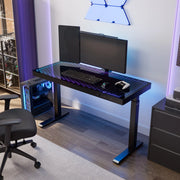
For smaller spaces, a straight desk like the GTG-G55, Glass Desktop Gaming Standing Desk (55"x23") is effective, provided the user utilizes a high-quality monitor arm to reclaim desk surface area.

Summary of Comparison: Vertical vs. Horizontal
| Feature | Horizontal Orientation | Vertical Orientation |
|---|---|---|
| Primary Use | Gaming, Video, General Productivity | Coding, Reading, Chat, Logs |
| Ergonomic Risk | Horizontal Neck Rotation | Vertical Eye Travel / Chin Tilt |
| Space Efficiency | High (Width-dependent) | High (Depth-dependent) |
| Software Compatibility | Universal | Specialized (Text-heavy) |
| Hardware Requirement | Standard Stand / Arm | Robust Pivot Arm with Gas Spring |
Optimizing a workspace is an iterative process. Whether choosing a panoramic horizontal array or a vertical-heavy coding station, the priority must remain on the BIFMA G1-2013 Ergonomics Guideline of fitting the furniture to the user, not the user to the furniture. By combining high-performance ergonomic desks with adjustable monitor solutions, professionals can create an environment that sustains both their hardware and their health.
Disclaimer: This article is for informational purposes only and does not constitute professional medical advice. Individuals with pre-existing musculoskeletal conditions or chronic back pain should consult a qualified physiotherapist or ergonomic specialist before making significant changes to their workstation setup or adoption of a sit-stand routine.






Leave a comment