

Quick Reference: Desk Sizes for Two Monitors + Laptop
At a glance (practical rules of thumb, not strict standards):
Setup Type Typical Screens Recommended Desk Size* Notes Scenario A – Multi‑Tasking Professional 2 × 24" monitors + 13" laptop 60" × 26–30" Works for most office users with moderate peripherals. Scenario B – Creative Power User 2 × 27–32" monitors + laptop 70"+ × 30" Better for heavy multitasking and large peripherals. *Sizes above are heuristics based on common hardware widths and ergonomic guidelines, not medical or regulatory requirements. If you have existing musculoskeletal issues, consult an ergonomist or clinician for personalized advice.
The Complexity of Multi-Monitor Multitasking: Why Your Desk Size Matters
Many professionals and gamers find that by mid-afternoon, a familiar tightness develops in the upper trapezius, often accompanied by a dull ache in the lower back. This discomfort is frequently dismissed as an inevitable byproduct of a "busy day," but it is more accurately a symptom of a mismatched workstation. When managing two monitors and a laptop, the physical layout of the desk influences posture, reaching frequency, and visual focal length.
A common misconception is that any desk wide enough to physically hold the equipment is sufficient. However, simply "fitting" hardware onto a surface does not account for the human element. According to the Canadian Centre for Occupational Health and Safety (CCOHS), a workstation should be organized to allow for a neutral body position, which is difficult to achieve when devices are cramped or placed at incorrect depths. The "invisible" footprint of equipment—such as the 8 to 10 inches of space consumed by many monitor bases—often leaves users with insufficient room for a keyboard, mouse, and peripheral tasks, forcing them into non-neutral, higher-strain postures.
The Physiology of the Workspace: MSDs and Static Load
To understand why desk dimensions are critical, it helps to look at the physiological principles of Musculoskeletal Disorders (MSDs). When a desk is too small, the user is more likely to engage in repetitive reaching or sustained static loading. Static loading occurs when muscles remain tense for long periods without movement, such as holding the arms forward to reach a keyboard that has been pushed too far back by large monitor stands.
Aligned with the general principles in ISO 11226:2000 for evaluating static working postures, prolonged static positions can lead to reduced blood circulation and localized muscle fatigue. In a dual-monitor and laptop setup, the "reach zone" becomes a primary concern. The primary work zone (where the keyboard and mouse reside) should be within easy reach of the elbows when they are tucked at the sides. If the desk depth is inadequate, the monitor stands can force these input devices closer to the body or further away, making a neutral spinal position harder to maintain.
Furthermore, the HSE (UK Health and Safety Executive) emphasizes that working with display screen equipment (DSE) requires careful consideration of the "viewing geometry." For a setup involving multiple screens, the neck flexion and rotation required to scan between a laptop and two monitors can lead to increased cervical strain if the desk width does not allow for a gentle, arc-like arrangement.
Logic Summary: The ergonomic risk factors discussed here assume a broad range of adult users (roughly 5th to 95th percentile) based on BIFMA G1-2013 guidelines. When we mention viewing distances like 20–40 inches, treat these as typical ergonomic ranges drawn from industry guidance, not precise medical prescriptions.
Determining the Ideal Desk Width: The 70-Inch Heuristic
When estimating the necessary width for two monitors and a laptop, it helps to break the problem into the actual physical width of the hardware plus the "buffer zone" required for peripheral movement.
A typical 27-inch monitor is roughly 24 inches wide. Two such monitors placed side by side span about 48 inches. Adding a 14-inch laptop brings the total hardware span to approximately 62 inches.
While many users attempt this setup on a 60-inch desk, patterns commonly seen in customer setups and support photos suggest this often feels cramped. Once space for a mousepad (around 10–12 inches), a phone, or a notepad is considered, a 60-inch surface leaves little margin for repositioning.
For long-term productivity and comfort, a width of about 70 inches or more works well as a practical rule of thumb for two 27" monitors plus a laptop. This is not a mandated standard, but rather a size that typically:
- Leaves buffer space for a mouse and peripherals.
- Allows the monitors to be angled slightly toward the user in a "cockpit" configuration, which can reduce excessive neck rotation.
As noted in The 2026 Workstation White Paper: Converging Ergonomic Science and Sustainable Engineering (company white paper), integrating larger surfaces is framed as a functional requirement for many high-density multitasking environments rather than a luxury.

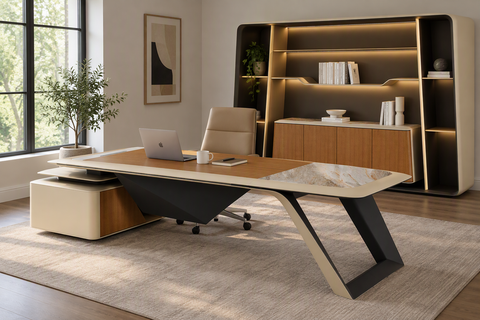
For those with slightly more constrained spaces, the Ark Executive Standing Desk (63"x29") provides a high-performance middle ground. At 63 inches, it can accommodate two 27-inch monitors and a laptop, especially if the laptop is used as a secondary screen or placed on a vertical stand to reduce horizontal span.
The Depth Dilemma: Why 30 Inches Is a Common Target
Desk depth is perhaps the most overlooked factor in workstation design. A common oversight is not accounting for the combined depth of monitor bases, which can add 8–10 inches of front-to-back space that you cannot use for your forearms.
If a desk is only 24 inches deep and the monitor stands take up about 10 inches, the user is left with roughly 14 inches for their keyboard and arms. This often leads to the "elbows-off-the-desk" posture, which increases the load on the shoulders and upper back.
In practice, for larger monitors (27-inch and above), many ergonomics practitioners and workstation guidelines suggest that a desk depth of around 30 inches makes it easier to maintain a viewing distance in the 20–40 inch range. Think of 30 inches as a practical target depth rather than an absolute rule:
- It makes it more feasible to keep the screens far enough away to reduce eye strain.
- It helps reduce the tendency to lean forward to read text, a movement that collapses the lumbar curve and adds pressure to the spinal discs.
| Component | Minimum Width (2×24" + Laptop) | Ideal Width (2×27" + Laptop) | Critical Depth* |
|---|---|---|---|
| Hardware Span | ~55 inches | ~62 inches | N/A |
| Peripheral Space | ~5 inches | ~10+ inches | N/A |
| Total Desk Size (Heuristic) | 60 inches | 70+ inches | ≈30 inches |
Depth estimate based on common monitor stand footprints and typical viewing-distance guidance from resources such as OSHA eTools for Computer Workstations. These figures are engineering estimates, not strict medical limits.

How to Measure Your Actual Equipment Width
To avoid guesswork, you can measure your own setup and compare it to the rules of thumb above.
Step-by-step measurement checklist:
- Measure each monitor’s actual width (edge to edge) with a tape measure.
- Add the widths of both monitors.
- Measure your laptop width and add it if you plan to keep it open on the desk.
-
Add buffer space:
- Add at least 4–6 inches for a mouse area.
- Add 3–4 inches if you keep a phone/notepad in easy reach.
-
Compare the total to your desk width:
- If the sum is within 2–3 inches of your desk width, the setup will likely feel tight.
- If you have 5+ inches spare, you’ll have more flexibility to angle screens and shuffle peripherals.
Scenario Modeling: Choosing the Right Setup
To provide actionable advice, the following scenarios model common professional needs. These are practical examples based on typical device sizes, not strict categories.
Scenario A: The Multi-Tasking Professional (Standard Case)
This user employs two 24-inch monitors and a 13-inch laptop. They require space for digital work but also a small area for "analog" tasks like signing documents or referencing a physical notebook.
- Recommended Size (heuristic): 60" × 26–30".
-
Why it works:
- The total hardware span (2×24" monitors + 13" laptop) typically comes in around the mid-50 inches.
- A 60" width leaves a few inches of side clearance for a mouse and phone.
- Depth of 26–30" helps maintain a comfortable viewing distance without pushing the keyboard off the front edge.
- Example Product: The Ark EL Executive Standing Desk (60"x26") is one option that fits this scenario, providing a professional aesthetic with enough surface area for a standard multi-screen array. (Brand product example)
Best for: Office workers, analysts, and students who multitask but don’t run oversized peripherals.
May feel limiting for: Users who rely on oversized mousepads, audio mixers, or need substantial paper spread-out space.
Scenario B: The Creative Power User (Edge Case)
This user utilizes dual 27-inch or 32-inch monitors and a high-performance laptop. They often have external peripherals like audio interfaces or large mousepads for precision work.
- Recommended Size (heuristic): 70"+ × 30".
-
Why width matters more here:
- Two 27" monitors plus an open laptop can easily span 62 inches or more.
- A 70" surface typically leaves 8 inches or more for mouse movement and angling the screens.
-
Strategy if space is tight:
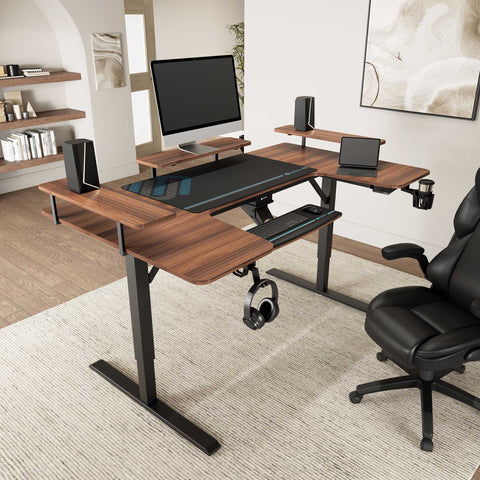
- If a 70-inch desk is too large for the room, consider an L-shaped configuration.
- In many real-world setups, the corner of an L-desk becomes a "dead zone" for screens because it demands excessive head turning.
- A more ergonomic layout often places the primary monitor on one leg and the secondary on the other, with the user seated facing one side rather than the corner.
Best for: Creators, traders, and gamers with large monitors and multiple peripherals.
May be overkill for: Casual users with smaller screens or limited rooms where maneuvering a large desk is impractical.
Maximizing Space with Ergonomic Accessories
When the physical footprint of the desk is limited, accessories can help compensate for lack of surface area.
Integrating a monitor arm or monitor riser is not just about saving space; it can also improve cable management and viewing geometry. By elevating the screens, you effectively reclaim the 8–10 inches of depth lost to many traditional stands.
The Carbon Fiber Dual Monitor Stand is one example of an "administrative and engineering hybrid" solution (brand product). It raises the monitors toward eye level—aligned with general principles in OSHA guidelines for monitor height—while providing a "tuck-away" zone for the keyboard when not in use. This effectively increases the usable depth of a smaller desk.

Practical Recommendations for a Healthy Workday
Once the desk size is selected, how you use the setup becomes just as important.
We recommend the following commonly cited ergonomic habits (these are general tips and not medical directives):
-
The 20-8-2 Rhythm (heuristic): Often attributed to Cornell University's Ergonomics Web, this pattern suggests:
- Sit for about 20 minutes.
- Stand for about 8 minutes.
- Move or stretch for about 2 minutes.
- Monitor Height Calibration: Aim for the top third of your screens to be around eye level, so your gaze naturally falls slightly downward. This can reduce eye strain and help you avoid tilting your head back.
-
The "Neutral Reach" Test:
- Sit in your chair with your elbows at roughly a 90-degree angle.
- Relax your shoulders and let your hands float over the desk.
- Your keyboard and mouse should be where your hands naturally land.
- If you have to reach forward, your desk may be too deep for your current monitor placement, or your monitors may be pushing the keyboard too far back.
- Cable Verticality: Use monitor arms or risers to route cables vertically. This reduces the "tangled mess" behind the desk that can prevent a desk from being placed close to a wall, wasting room space.
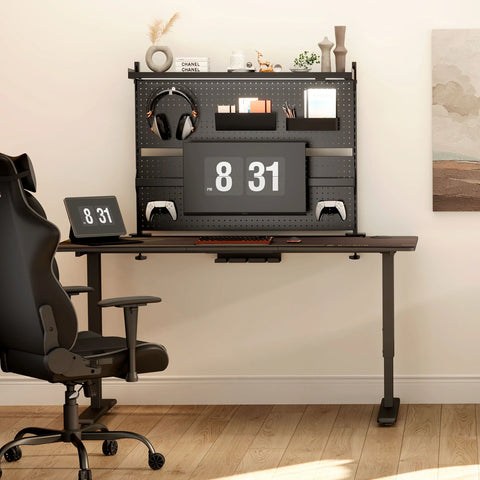
For those who require integrated storage to keep a clutter-free environment, the Standing Desk with Drawers, Wood Finish (47'' /55'') offers a 55-inch option that includes a built-in monitor riser. This is a compact example for users who need to maximize functionality within a smaller room footprint. (Brand product example)
Building a Trustworthy Workspace
Selecting a desk for a two-monitor and laptop setup is an investment in your long-term musculoskeletal health and daily comfort. By prioritizing a size range that accommodates your specific hardware and body dimensions, you move from a reactive setup (fixing pain after it appears) to a more proactive one (reducing strain through layout and equipment choices).
Whether you opt for the expansive surface of an executive-level standing desk or the space-saving efficiency of a riser-equipped model, the goals stay the same:
- Support a neutral posture.
- Maintain a comfortable viewing distance.
- Preserve enough clear surface area so that clutter doesn’t force you into awkward positions.
Disclaimer: This article is for informational purposes only and does not constitute professional medical advice. Individuals with pre-existing musculoskeletal conditions or chronic pain should consult a qualified physiotherapist, occupational health professional, or ergonomic specialist before making significant changes to their workstation or work routine.
References
- BIFMA G1-2013 Ergonomics Guideline for Furniture
- ISO 9241-5:2024 Workstation layout & postural requirements
- OSHA eTools: Computer Workstations - Desks
- Cornell University Ergonomics Web — Workstation Guides
- CCOHS: Office Ergonomics - Sit/Stand Desk
- The 2026 Workstation White Paper: Converging Ergonomic Science and Sustainable Engineering (company white paper)



Leave a comment