

Is That Winning Streak Costing You Your Wrists?
That familiar, nagging ache in your wrist after a long gaming session isn't a badge of honor. It's a warning sign. For many gamers, wrist pain can escalate from a minor annoyance to a chronic issue that cuts gaming marathons short and impacts daily life. This condition, often a form of Repetitive Strain Injury (RSI), stems from the very actions that lead to victory: rapid clicks, precise movements, and hours of sustained focus. But it doesn't have to be your new normal.
This guide is built on a simple premise: pain is a signal that your setup is working against you, not a mandatory side effect of gaming. We'll break down the science behind why your wrists hurt and provide actionable, evidence-based ergonomic solutions. By understanding the core principles of a healthy gaming posture, you can reconfigure your battlestation to prevent strain, boost your endurance, and keep you in the game, pain-free.
The Anatomy of Gaming Wrist Pain: Why It Happens
To solve wrist pain, you first need to understand its origins. The discomfort you feel is rarely due to a single cause but rather a combination of factors that place cumulative stress on the delicate structures of your wrists and hands. According to occupational health experts like the U.S. Occupational Safety and Health Administration (OSHA), the primary risk factors for musculoskeletal disorders are repetition, awkward postures, and excessive force—a perfect storm for the dedicated gamer.
The Three Main Culprits
-
Sustained Wrist Extension: This is the most common ergonomic sin. When you lay your hand flat on a desk to use a mouse or keyboard, your wrist naturally bends upward. Holding this extended position for hours compresses the tissues and nerves running through the carpal tunnel on the underside of your wrist. Based on general computer workstation ergonomics guidance (for example, the OSHA computer workstations eTool and similar office ergonomics guides), keeping the wrist as straight as possible with only a slight extension is recommended. In this article, keeping wrist extension within roughly 10–15 degrees is presented as a practical rule of thumb for gamers, not a strict medical requirement.
-
Repetitive Micro-Forces: Every click, every keypress, and every micro-adjustment of the mouse sends a small shock through your tendons. While a single click is harmless, thousands of them during a competitive match add up. This repetition can lead to inflammation and fatigue in the tendons responsible for finger and wrist movement.
-
Frequent Reaching and Awkward Angles: Constantly reaching for a poorly positioned mouse or contorting your wrist to hit key combinations forces your muscles and tendons to work from a disadvantaged position. Pivoting your wrist to move the mouse cursor instead of using your whole arm is a major contributor, leading to strain on the small muscles around the joint.
Debunking a Common Myth: "No Pain, No Gain"
A prevalent misconception in gaming culture is that physical discomfort is simply the price of dedication. This is fundamentally incorrect and risky. Pain is your body’s feedback system telling you that something is wrong. Ignoring it can contribute to chronic conditions like carpal tunnel syndrome or tendonitis, which may require long recovery periods. As we will explore, a properly configured ergonomic setup, like those detailed in our guide on Why Desk Ergonomics Matter for Long Gaming Sessions, is designed to reduce these harmful forces from the start.
Building Your Foundation: Desk and Chair Setup
Before you even think about your mouse or keyboard, your ergonomic journey begins with your chair and desk. These are the foundation of your posture. A common mistake is to adjust your setup around a desk that is the wrong height, forcing you into a compromised position. The correct approach is to start with your body, then bring the workstation to you.
Start with Your Chair
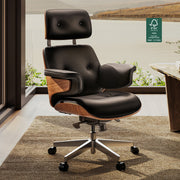
- Feet Firmly Planted: Adjust your chair height so your feet rest flat on the floor. Your thighs should be roughly parallel to the ground, with your knees at approximately a right angle. If your feet dangle, use a footrest.
- Back Support: Sit back in your chair so your spine is supported by the backrest, maintaining its natural curve. Your lumbar support should fit into the small of your back.
Align Your Desk to Your Body
Once your seated posture is correct, it’s time to address the desk. The goal is to achieve a neutral position for your arms and wrists.
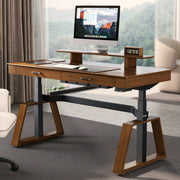
- Elbow Angle is Key: Adjust your desk height (if you have a sit-stand desk) or your chair height so that when your arms are resting at your sides, your elbows are bent at about a 90 to 100-degree angle. This range is consistent with many office ergonomics resources (such as the OSHA eTools: Computer Workstations and CCOHS office ergonomics guidance), which recommend roughly right angles at the elbows with relaxed shoulders.
- Keyboard Height: From this position, the surface where you type should be slightly lower than your elbow level. This small drop encourages a neutral or slightly downward-flexed wrist position, taking pressure off the carpal tunnel. The exact distance (for example, around 1–2 cm) should be treated as a practical guideline rather than a strict rule, and you can fine-tune it based on comfort.
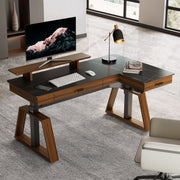
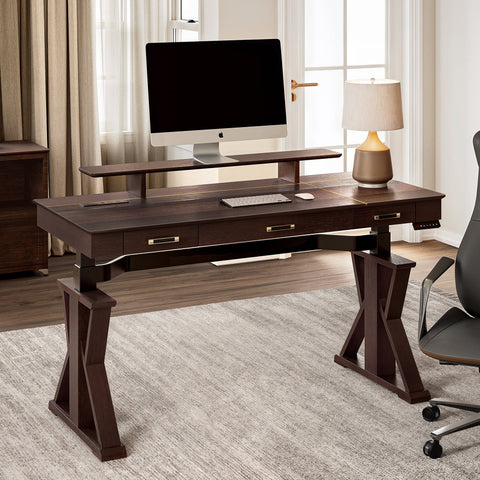
A spacious and stable surface is non-negotiable for serious gaming. A desk with ample width, like the Gaming Desk with Z Shaped Legs (61"x25"), provides the necessary room to position your keyboard correctly and still have a large area for wide, sweeping mouse movements that engage your whole arm, not just your wrist. This is a product example to illustrate dimensions and layout; it is provided for reference, not as a medical or professional recommendation.

Fine-Tuning Your Battlestation: An Ergonomic Checklist
With your foundational posture set, the next step is to arrange your peripherals. Every component—from your keyboard to your monitor—plays a role in helping reduce wrist strain. Use this checklist to audit and optimize your setup.
Ergonomic Gaming Station Checklist
| Component | Optimal Setup | Common Mistakes to Avoid |
|---|---|---|
| Keyboard | Positioned directly in front of you, with wrists straight (neutral). The surface should be slightly below elbow height, based on general office ergonomics guidance. | Placing it too far back, forcing you to reach; using keyboard feet that create excessive upward tilt (positive tilt). |
| Mouse | Placed as close to the keyboard as possible (for most people, keeping it within easy reach of the elbow and shoulder). | Positioning the mouse far to the side, causing shoulder abduction and outward arm rotation. |
| Armrests | Set to roughly the same height as the desk surface, allowing your forearms to rest comfortably without raising your shoulders. | Armrests that are too high (causing shoulder shrug) or too low (offering no support). |
| Monitor | Top of the screen should be at or slightly below eye level. Distance should be about an arm's length away, consistent with many office ergonomics guidelines. | Monitor too high, forcing neck extension; monitor too close, causing eye strain. |
| Cables | Secured and managed to allow for free mouse movement and desk height adjustments without snagging. | Dangling cables that catch on your mouse or get pulled when changing from sitting to standing. |
Deeper Dive: Keyboard and Mouse Placement
Your keyboard and mouse are your primary sources of interaction and, therefore, your primary sources of wrist strain. A common mistake is placing them based on habit rather than ergonomics.
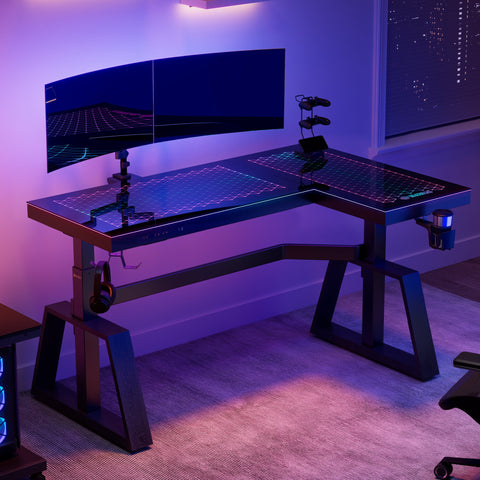
For keyboard positioning, avoid using the small plastic feet that flip out from the bottom. These create a positive tilt that forces your wrists into that extended position most office ergonomics guides caution against. If anything, a slight negative tilt (where the top of the keyboard is lower than the bottom) can help many users keep a more neutral wrist posture. Even on a compact surface, like that of the GTG - I43, LED Glass Desktop Gaming Desk (43"x23"), ensuring your keyboard is centered and your mouse is close by is critical. This is an example product to show how a compact desk can still accommodate proper layout, not a specific clinical recommendation.
For your mouse, the goal is to reduce unnecessary reaching. Your mouse should be positioned so that your elbow can remain close to your body. This encourages you to use your larger, more durable shoulder and arm muscles for movement, rather than making small, stressful flicks with your wrist. A large mousepad is an excellent accessory for this, as it provides a consistent surface for broad arm movements.
Finally, don't underestimate the impact of clutter. A tangled mess of wires can snag your mouse cable at a critical moment, not only affecting gameplay but causing you to make a sudden, jerky movement that can strain your wrist. Simple solutions like a Magnetic Cable Tie can keep your space organized and your movements fluid and unrestricted. This product mention is provided as a layout and cable-management example rather than a unique, must-have solution.

Beyond the Setup: Building Healthy Gaming Habits
An ergonomic setup is only half the battle. Your behaviors and habits are just as important for long-term wrist health. Static postures, even good ones, need to be interrupted. The World Health Organization (WHO) emphasizes the importance of breaking up long periods of sedentary time for overall well-being, and this principle applies directly to gaming.
The Power of Micro-Breaks
You don’t need to step away for long. The key is frequency. Many occupational health resources recommend regular short breaks from computer work to interrupt static postures. In this guide, aiming to take a short micro-break of roughly 20–30 seconds every 15–25 minutes is presented as a practical, experience-based gaming heuristic that aligns with that general principle. If this feels too frequent at first, start with slightly longer intervals and adjust based on comfort and any advice from your healthcare provider.
Effective Wrist Stretches:
- Extensor Stretch: Extend one arm in front of you with your palm facing down. Gently bend your wrist downward with your other hand, holding for about 15–20 seconds. You should feel a mild stretch on the top of your forearm.
- Flexor Stretch: Extend your arm in front of you with your palm facing up. Gently bend your wrist downward with your other hand, holding for about 15–20 seconds. You should feel a stretch on the underside of your forearm.
If any stretch causes sharp pain, numbness, or symptoms that linger, stop and consult a healthcare professional.
Listen to Your Body and Adapt
When you first correct your ergonomic setup, it might feel strange. Your body has adapted to your old habits, and it needs time to adjust. Start with shorter gaming sessions in your new posture and gradually increase the duration. If you feel pain, don’t push through it. Take it as a signal to re-evaluate. Is your chair at the right height? Is your wrist truly neutral? A helpful resource for this self-assessment is the workstation setup guide from the Canadian Centre for Occupational Health and Safety (CCOHS), which provides clear, easy-to-understand benchmarks.
Who This Guide Is For (and When to See a Professional)
This guide is designed for otherwise healthy gamers who are trying to prevent or reduce mild, occasional discomfort related to their setup and habits. It focuses on general ergonomic principles that are common in office and computer-work guidance.
However, ergonomics is not a substitute for medical care. You should stop self-managing and seek prompt medical attention (for example, from a physician, physical therapist, or other qualified professional) if you notice any of the following:
- Wrist or hand pain that is severe, persists for more than a few days, or keeps coming back despite rest and basic changes to your setup.
- Numbness, tingling, burning sensations, or weakness in your fingers, hand, or forearm.
- Pain that wakes you up at night, or symptoms that are getting progressively worse.
- Visible swelling, redness, or warmth around the wrist or hand.
If you have been diagnosed with conditions such as carpal tunnel syndrome, tendonitis, arthritis, or other chronic musculoskeletal problems, many of the general principles in this guide (like keeping a neutral wrist and avoiding prolonged static postures) may still be helpful. However, specific angles, break schedules, or stretches should be adapted under the guidance of your healthcare provider or a certified ergonomist, who can tailor recommendations to your diagnosis and treatment plan.
For more in-depth medical information on carpal tunnel syndrome and related conditions, look for resources from reputable health organizations such as national health services, professional medical associations, or hospital-based patient education pages.
Key Takeaways for Pain-Free Gaming
Reducing wrist pain is not about gaming less; it's about gaming smarter. By investing in an ergonomic setup and adopting healthier habits, you can help protect your body from cumulative strain and support your performance and longevity in the hobby you love.
Here are the most critical takeaways:
- Prioritize a Neutral Wrist: Your number one goal is to keep your wrists as straight as possible. Avoid bending them up, down, or to the sides for prolonged periods.
- Set Your Foundation: Always adjust your chair first, ensuring your feet are flat on the floor. Then, bring your desk and keyboard to the correct height for your body, maintaining a roughly 90–100 degree elbow angle, as suggested by mainstream office ergonomics resources.
- Keep Your Mouse Close: Reduce reaching by placing your mouse directly beside your keyboard. Use your whole arm for movement, not just your wrist.
- Embrace Breaks: Interrupt your gaming sessions regularly with short breaks and simple wrist stretches to relieve tension.
By implementing these strategies, you are making a long-term investment in your health and your gaming performance.
Frequently Asked Questions (FAQ)
How high should my gaming desk be? Your gaming desk should be at a height that allows your elbows to rest at about a right angle (roughly 90–100 degrees) with your forearms parallel to the floor and your shoulders relaxed. Your wrists should be in a neutral, straight position when typing or using the mouse. For most people, this means the keyboard surface will be slightly below their resting elbow height, consistent with general office ergonomics recommendations.
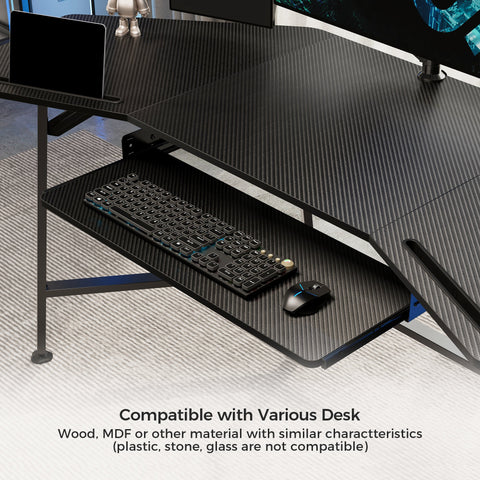
Are keyboard trays good for gaming? A keyboard tray can be a useful ergonomic tool if it allows you to achieve a neutral or slightly negative wrist angle and keeps your keyboard and mouse at an appropriate height. However, many keyboard trays are mounted too deep, forcing you to reach forward, or are too small to accommodate both a keyboard and a mouse comfortably for gaming.
How often should I really take breaks while gaming? Many computer ergonomics and occupational health resources encourage frequent short breaks rather than rare, long breaks. In this article, taking a short 20–30 second break approximately every 15–25 minutes is shared as a practical, experience-based guideline for gamers that aligns with that principle. If in doubt, or if you have existing conditions, check with a healthcare professional for a plan that fits your situation.
Disclaimer: This article is for informational purposes only and does not constitute professional medical advice. If you are experiencing persistent or severe wrist pain, please consult a qualified healthcare professional or a certified ergonomist to address your specific situation, especially if you have pre-existing conditions. Product and brand examples in this article are provided for layout and ergonomics illustration only and should not be interpreted as medical recommendations or the only suitable options.

Leave a comment