

A standing desk with cable management and monitor arm stays clean only if the desk is built to move cables with the setup, not around it. The right features reduce visible loops, make height changes less annoying, and cut the need for extra clips that often create more clutter.

Why Standing Desks Get Messy Fast
The mess usually starts when a desk that looked tidy at seated height begins to move. Once you raise it, slack appears, a power strip may hang lower than expected, and monitor-arm cables become the first thing to snag or look crooked. General workstation layout guidance is a useful reminder that placement matters more when the setup has moving parts.
For most buyers, the real question is not whether cables can be hidden. It is whether they can stay hidden during motion. A desk that seems clean on day one can look busy the first time the arm shifts or the desk rises for standing use.
A good rule: if the cable path only looks neat when nothing moves, it is probably not a fit for a standing desk with cable management and monitor arm. If your setup uses dual monitors, frequent sit-stand changes, or a visible tower PC, check routing first and aesthetics second.
Built-In Features That Keep Cables Hidden
Integrated routing features do the most work before you add accessories. A desk with a cable tray, raceway, or built-in bracket gives cords a home, so they do not dangle below the desktop or spread across the floor. That matters most in a standing desk with cable management and monitor arm use, because the setup has to look tidy at both heights.
Grommet routing guide is a good follow-up if you want a deeper look at how through-desk routing changes the clean-setup equation.
The cleanest result usually comes from three built-in moves working together:
- A tray or bracket that gathers excess cable length under the desk.
- Grommets or pass-through points that move cords through the desktop instead of over the edge.
- A monitor-ready layout that leaves a clear path for display and power cables.
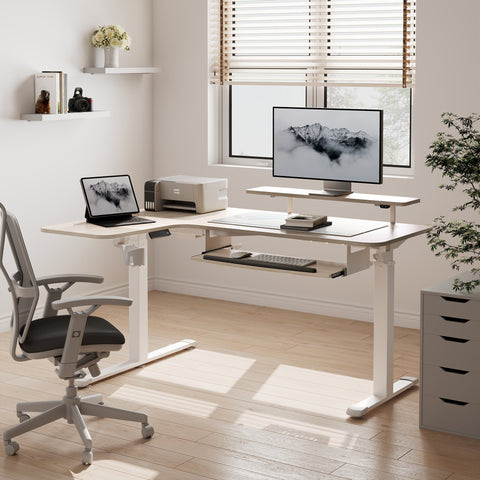
The 63x29 standing desk is a useful example of this idea because its desk design is meant to reduce reliance on aftermarket organizers. Treat it as a check point rather than a universal solution: the key is whether the built-in routing actually matches your monitor-arm layout.

Monitor Arm Routing Without Cable Strain
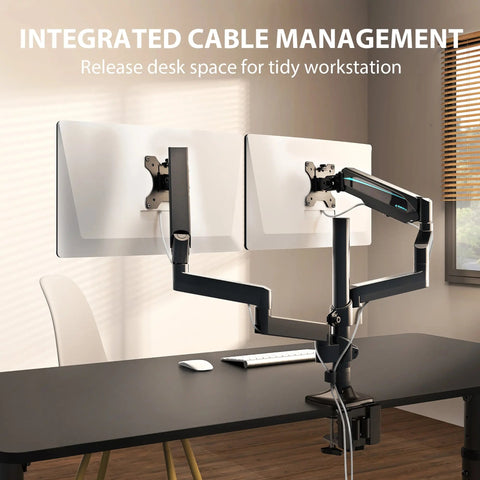
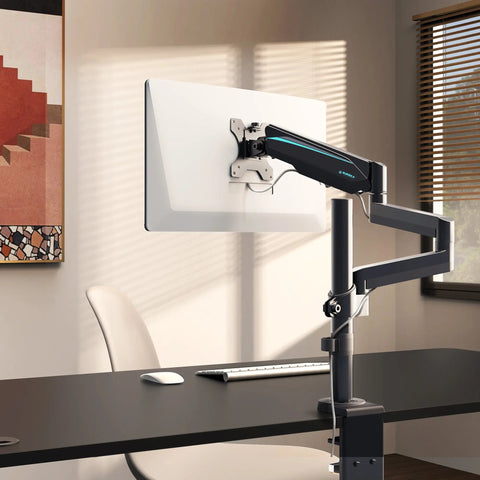
Monitor arms change the cable problem because the monitor does not stay still. If the arm moves up, down, or side to side, the cable path has to move with it. That is why clamp or grommet mounting is not just an installation choice. It also affects where the cable route begins and how much slack you need near the arm.
The Single Monitor Arm is a practical reference point because it supports both C-clamp and grommet mounting and is built for 17-32 inch monitors up to 17.6 lbs. That does not make it the right choice for every desk, but it does show why mount style and routing should be checked together.
A neat-looking arm setup can still fail if all the slack is left in one place. In practice, cable management works better when you split the slack across the arm, the desk edge, and the power source. That gives the cables room to move without pulling tight when the desk changes height.
| Routing Approach | Cleanliness | Movement Friendliness | Installation Effort | Best Use Case | Watch-Outs |
|---|---|---|---|---|---|
| Arm-channel routing | High | High | Medium | Frequent sit-stand use with monitor arms | Needs enough slack and a clean arm path |
| Desk-edge routing | Medium | Medium | Low | Simple setups that only need a basic tidy-up | Can still leave some cable visible |
| Clips, sleeves, or wraps | Medium to High | Medium to High | Medium | Mixed gaming and work stations | Easy to overuse and create clutter if stacked together |
For most people, arm-channel routing or a built-in tray is the better first step. Desk-edge clips help when you need a quick cleanup, but they are usually a support tool, not the whole solution.
When Add-Ons Help More Than They Hurt
Add-ons are worth it when they solve one clear problem. A cable tray helps if it collects power bricks and extra cord length in one hidden zone. A tidy bundle of ties or clips helps if the desk already has a real routing path and only needs cleanup at the edges.
Monitor Arm Mounts: Clamp vs. Grommet is a useful companion if you are deciding how the arm should connect to the desk. Mount choice affects cable entry points, so the best organizer is often the one that matches that first decision.
The Cable Management System is a stronger fit when you need a fuller kit rather than one or two loose accessories. Its 316-piece mix of raceways, tie wraps, mounting bases, and clips makes sense for a setup that needs several cable problems solved at once. If your desk is already crowded underneath, though, do not assume more parts will look better.
The Pull-out Keyboard Tray can also help in a specific kind of build: if the front edge of the desk needs to stay open for cable drop points, shifting keyboard storage off the desktop may make the whole station feel less cramped. That is a niche fix, not a default purchase. Keyboard Trays collection offers additional options when desktop space is limited.
Clean Setup Checklist Before You Buy
If you want a standing desk for a clean monitor-arm setup, verify these points before checkout:
- Confirm there is a real cable path, such as a tray, bracket, or pass-through, not just decorative hardware.
- Match the monitor-arm mount style to the desk thickness and layout before you worry about cable clips.
- Make sure the height range leaves room for cords at both seated and standing positions.
- Check whether the desk hides power bricks and adapters without blocking movement or access.
- Prefer built-in routing over a pile of add-ons if your goal is a Pinterest-style clean look.
The 2026 cable tray checklist is worth opening if you want a more detailed placement reminder before buying. The broader point is simple: a desk is only as clean as its worst cable path.
If you want a more integrated starting point, the Full-Surface Mousepad Gaming Desk (60"x27") is a helpful navigation reference because it includes a cable management tray and other built-in accessories. It is especially relevant for gaming-plus-work setups where the goal is to reduce separate add-ons.
Related Resources
- Frictionless Integration: Why Built-in Cable Management is the 2026 Standard
- Clean Your Battlestation: A Gaming Desk Cable Guide
- Magnetic Cable Tie
- Cable Management
FAQs
Q1. How Do I Keep Monitor Arm Cables From Tugging When I Raise My Desk?
Leave slack at the arm, the desk edge, and the power source, then test the full sit-to-stand range before you finish fastening anything. If one point carries all the tension, the cable is more likely to pull tight when the desk moves.
Q2. What Desk Features Matter Most for a Clean Monitor-Arm Setup?
Look first for a real cable tray or bracket, then for grommets or pass-throughs, and finally for a mount layout that keeps the monitor arm from fighting the cable path. Those features do more than decorative trims or add-on clips.
Q3. Can Add-On Cable Organizers Make a Standing Desk Cluttered?
Yes, especially when they overlap roles. Too many clips, sleeves, and trays can crowd the underside of the desk and make the setup look busier than before. One good routing system is usually better than several partial fixes.
Q4. How Often Should I Recheck Cable Routing on a Standing Desk?
Check it any time you move a monitor, add a device, or notice a new snag point. A quick recheck every few months is usually enough for home setups, especially if the desk sees frequent height changes.
Q5. Is a Built-In Cable Tray Better Than a Separate Organizer?
Usually, yes, if your goal is a cleaner visual result. Built-in routing tends to look more intentional and leaves less hardware hanging below the desk. Separate organizers still help, but they work best as support pieces, not the foundation.
The Cleanest Setup Starts With the Desk
Choose routing features first so cables stay hidden at every height. Verify tray placement, mount compatibility, and slack allowance before adding accessories. This keeps motion smooth and the surface uncluttered without extra hardware.




Leave a comment