

A work and gaming room setup works best when the desk, chair, power path, and primary display stay in place while only genuinely mode-specific gear changes. Start by mapping your work and gaming routines side by side. Then design the room around the transition you make most often, whether that means moving from a laptop to a gaming PC, hiding gaming gear before a call, or switching from a shared display to a console.

There is no universal layout for every person and device. A useful plan accounts for the people, equipment, and tasks in the room, which is also the principle behind customizing a workstation around the user, equipment, and task. The goal is not to duplicate two rooms. It is to create one dependable core and make every change visible, reachable, and repeatable.
Plan Your Work and Gaming Room Setup Before You Arrange the Room
Begin with the routine that must happen every day, not with furniture categories. Keep the shared workstation core stable wherever it serves both modes, and let room access, device type, call frequency, and available floor space determine what changes.
| Room or routine condition | Keep fixed | Change or control |
|---|---|---|
| Small room or shared corner | Desk position, chair, power route, and primary display | Use nearby or vertical storage, a compact camera-facing background, and reversible visual separation. Keep the route to each device clear. |
| Larger spare room | The main workstation core and permanent cable path | Add a second visible zone only when it improves access or shortens the reset. Avoid duplicating equipment that both routines can share. |
| Laptop-based work | Primary display position, charging access, and main input location | Move or connect the laptop, dock, external display, keyboard, and mouse as one planned sequence. |
| Desktop-based work | Desk, display, keyboard, mouse, and power path | Keep work peripherals connected when they also serve PC gaming. Separate only the inputs or computer that genuinely need to change. |
| Console gaming | Shared display position and power access | Switch to controller use and the console's display input. Do not assume a PC-style keyboard, mouse, dock, or switch path will work with the console. |
| Frequent video calls | Camera-facing wall, seated framing, and call-ready lighting position | Control the background and move gaming details outside the main sightline when they create visual clutter. |
Before arranging anything, sit where you will work and check the room through the camera view. Then trace the path to the laptop, controller, headset, charger, and other mode-specific items. The best hybrid home office gaming setup is the one that makes both routines easy to repeat, not the one that looks most complete in a static photo.

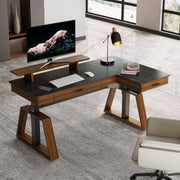
For additional layout inspiration, browse these hybrid workstation layouts after identifying your fixed core and transition points.
Create Visual Separation Without Duplicating the Room
Make the two modes feel distinct by controlling sightlines, not by promising privacy or sound control. Before committing to a permanent arrangement, use these three checks:
- Camera view: Sit in the actual work position and frame the shot at seated camera height. A small room may need a restrained wall or a reversible screen, while a spare room may allow the desk to face away from the gaming zone.
- Equipment sightline: Use furniture orientation, open shelving, a cabinet, or a reversible screen to keep controllers, extra displays, and decorative gaming details from dominating the work-facing view. In a shared-room corner, conceal only the items that create the most visible clutter.
- Access path: Make sure the route from the chair to the console, desktop, storage, and power connection remains usable in both modes. In a larger spare room, a separate visible zone is worthwhile only when it makes access or reset easier.
Treat visual separation as a presentation and workflow decision. It can make a room look more controlled on calls, but it does not guarantee privacy, soundproofing, or better productivity. For a more detailed planning path, see this hybrid command center plan.
Keep the Desk Core Fixed and Simplify Device Switching
Keep the desk position, power access, primary display position, and main input location shared when they serve both routines. Write the work-to-gaming and gaming-to-work sequences before buying a dock, KVM, switch, monitor arm, or extra peripheral, because compatibility depends on the exact devices.
The primary display should be tested directly in front of you, with the top at or slightly below eye level. OSHA gives at least 20 inches as a monitor-placement guideline, while screen size, vision, and task still affect the useful position. Use the primary monitor placement guidance as a starting point rather than a universal gaming distance.
| Starting work setup | Gaming setup | What changes |
|---|---|---|
| Laptop plus dock | Gaming PC | Connect the laptop, dock, display, keyboard, mouse, and charger as one sequence. Identify which display input and peripherals remain shared. |
| Desktop work | Gaming PC | Keep the display, keyboard, mouse, and power route fixed when both computers use them. Separate the computer or specialty input only when exchanging it is simpler than sharing it. |
| Laptop work | Console | Keep the display and power path stable, then switch to the console input and controller. Account for the console's ports and display behavior rather than copying a PC setup. |
For laptop work, use an external keyboard and pointing device with a laptop when the laptop is the primary computer. That keeps screen placement and input placement as separate decisions. Before purchase, compare the exact equipment's ports, display behavior, operating-system needs, VESA pattern, monitor weight, table thickness, and console requirements as applicable.
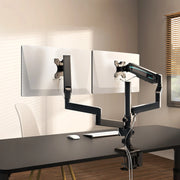
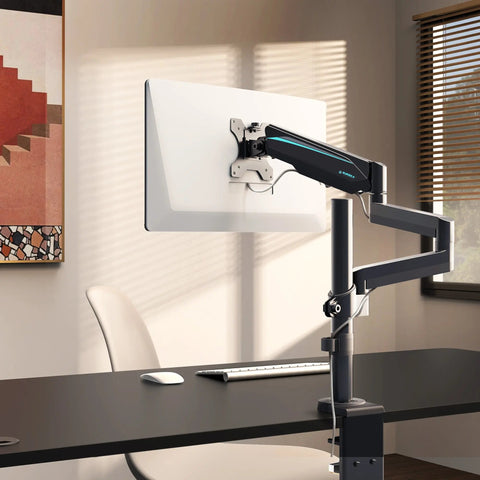
A conditional monitor-arm example is Eureka's Single Monitor Arm, which is listed for most 17- to 32-inch monitors up to 17.6 pounds, with 75x75 and 100x100 VESA support and a 0.4- to 3.5-inch table-thickness range. Those are manufacturer-listed limits, so match every dimension before purchase. An arm can help preserve display alignment and desk space, but it does not automatically improve ergonomics or solve device compatibility.
Give Swappable Gear a Home and a Cable Path
A fast reset starts with a home for every loose item and a clear distinction between permanent cable runs and swap points. Complete the sequence below in both directions so the room can return to a work-ready state after gaming.
- Assign homes. Give controllers, headsets, webcams, laptops, chargers, and specialty inputs a nearby location. Check compartment dimensions, access, ventilation, and whether every user can reach the item.
- Secure permanent runs. Route power and other cables that stay connected away from the reset path. Leave enough movement slack for the desk, chair, and any height adjustment without turning that slack into a floor hazard.
- Mark swap points. Identify the exact cable, input, charger, or peripheral that changes. Labeling the point is more useful than bundling every cable together. A reusable magnetic cable tie can bundle unused cables and keep them off the floor, but it cannot replace a planned route. Follow the manufacturer's material caution around magnetic-sensitive equipment.
- Test both directions. Run work to gaming and gaming to work. If the same interruption appears each time, fix that interruption before adding another storage bin or cable accessory.
If drawers or nearby compartments are the limiting factor, desks with storage can be a useful category to compare. Match the storage to the actual gear and access path rather than assuming a drawer solves the reset problem.
Set a Call-Ready Lighting Scene and a Gaming Scene
Choose the seated camera view first, then adjust lighting and visible details for each mode. Frequent calls make a stable camera-facing background more valuable, while mostly solo work may put more emphasis on task visibility and reflection control.
| Mode | Main visual priority | What to adjust |
|---|---|---|
| Work calls | Clear face, task area, and controlled background | Use the camera-facing wall as the reference point. Move distracting gaming details out of the main frame and test the scene from the chair. |
| Solo work | Task visibility and manageable reflections | Adjust the light and screen position together. Keep decorative lighting from competing with the work surface or creating distracting glare. |
| Gaming | A focused play view with controlled reflections | Switch to the gaming scene after establishing the work view. Keep bright or reflective elements out of the display's most distracting angles. |
| Shared-room use | A view that works for more than one activity | Prefer lighting and decor that can be changed without moving the desk. Store removable gaming details near the workstation rather than spreading them through the room. |
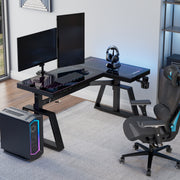
Judge the result from seated camera height and from the display position, not while standing in the doorway. Lighting can support a cleaner presentation, but the supplied evidence does not establish a universal brightness, color, or background standard that guarantees professionalism, eye comfort, or gaming performance. For more visual direction, explore these polished gaming setup ideas.
Fit the Shared Desk and Chair to Both Sessions
Test the complete workstation in both positions and let the first failed transition determine the next change. Adjustability matters when users change or when work and gaming require different sitting positions, so evaluate the desk, chair, monitor, keyboard, and controls together rather than relying on an office or gaming label.
- Test the work position. Check the primary display, keyboard reach, leg clearance, armrest access, camera framing, and access to the items needed for a call or focused task. OSHA's chair adjustability guidance emphasizes fitting the chair to the user and allowing variation when users or sitting positions change.
- Test the gaming position. Repeat the check with the gaming controls, headset, display, and any alternate input. Make sure the adjustments you need remain reachable instead of requiring a full rearrangement.
- Test reset and access. Return to the work position. The first failed transition may be awkward input access, an unusable camera view, missing storage, a cable swap, or poor seated fit. Make that specific failure the next layout change or purchase.
If one chair must serve both routines, Eureka's Typhon Hybrid Ergonomic Gaming Chair is listed for home-office and gaming environments, with a 4'9" to 6'1" recommended user-height range, an 18.50- to 22.05-inch seat-height range, a 16.5-inch seat depth, and a 20.5-inch seat width. These are manufacturer-listed specifications, not a promise of personal comfort. Compare them with the user's fit, desk height, arm position, and control access before choosing it.
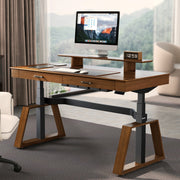
If desk height is the failed transition, compare height-adjustable desk options against the actual seated and gaming positions. If you need a broader starting point, browse desk options, then choose only a configuration that improves the specific failed transition.
A successful work and gaming room setup is not defined by having two complete setups. It is defined by a stable shared core, a controlled work-facing view, and a reset sequence that does not fight the room. Start by writing both routines and fix the first repeated failure before buying more equipment.
FAQs
A shared room can support work and gaming when its fixed workstation core, camera view, storage, and transition path match the routines that use it. The right arrangement depends on the room, equipment, and people sharing it.
Can one room really work for both gaming and remote work?
Yes, when the room can hold a stable workstation, a usable work-facing camera view, nearby homes for mode-specific gear, and a repeatable reset. A shared corner needs more compact, reversible choices than a private spare room because access and sightlines are tighter.
How do I make a gaming room look professional on work calls?
Choose the seated camera view first. Then control the lighting and move gaming details that compete with the background. If calls are frequent, prioritize a consistent camera-facing wall over decorative lighting that requires a new arrangement each day.
What should stay shared in a work and gaming room setup?
Usually keep the desk position, chair, power path, primary display position, and permanent cable route shared. Keep specialty inputs or a second computer separate when exchanging them is cleaner than forcing one device path to serve both.
How can I switch from work to gaming without rearranging everything?
Write both transition sequences, assign every loose item a nearby home, secure permanent cables, and mark the swap points. If the reset remains slow, fix the most repeated interruption before buying another accessory.
Leave a comment