

A strong hybrid workstation layout starts with faster mode switching, not with decorating the room. If one desk has to handle spreadsheets, calls, and gaming, the best setup is usually the one that keeps each mode in a clear zone and cuts down on daily rearranging. The goal is a desk that feels calm on camera, works for focused tasks, and still leaves room for play.

Start With Clear Zones
A simple hybrid workstation layout works best when the desk has three jobs: one area for work, one for gaming, and one small transition zone. That zoning idea helps stop devices from competing for the same surface, and it makes the desk easier to reset after a call or a gaming session.work-gaming-transition zones
Map the Desk Into Modes
Start by assigning the center of the desk to the mode that needs the most attention. For work, that is usually the laptop or main monitor, keyboard, mouse, and any notes you use every day. For gaming, that same footprint can stay mostly intact, but the input devices and game gear should have a clear home so you are not rebuilding the setup each time.
A useful rule is that the desk should change in seconds, not through a full teardown. If you have to move five or six items before you can switch modes, the layout is doing too much work for you.
Keep the Camera View Clean
The visible part of the desk should look intentional during video calls. Put the cleanest, most stable-looking items in the camera-facing area and push busy gear, charging cables, and controllers toward the edge or just out of frame. OSHA also points to a neutral posture baseline as the ergonomic goal, which fits a layout that keeps the chair, screen, and keyboard aligned instead of forcing a twisted posture.
What this means in practice is that the work area should look ready for a meeting even when the gaming gear is nearby. A tidy background is less about perfection and more about reducing visual noise.
Reserve One Shared Landing Zone
Every hybrid desk needs one small landing zone for items that move between modes. A notebook, headset, charging cable, or controller can live there without taking over the whole desktop. The point is to keep shared items visible enough to grab, but not spread across the desk.

When that landing zone stays consistent, the desk feels organized even when the mode changes. If the same object keeps moving around the room, it usually means the transition zone is too vague.
Place Screens for Both Work and Play
Screen placement matters because it affects work comfort, call framing, and how natural the gaming setup feels. OSHA recommends placing the monitor directly in front of you, at least 20 inches away, with the top of the screen at or slightly below eye level.monitor distance and height That is a useful baseline for a hybrid workstation layout, but it is still a starting point, not a universal fit for every chair, desk, or body type.
Center the Primary Display
For most readers, the main screen should stay centered with the chair and desk when work is the priority. That makes the posture simpler, keeps the keyboard and mouse in a natural reach, and gives the workspace a stable visual anchor. If the screen is shoved too far back, the desk can feel cramped even before you add a second device.
The practical test is simple: if your forearms, keyboard, and display all fight for the same space, the desk is too shallow or the screen is too far out of line. A centered screen usually fixes more problems than it creates.
Choose a Single-Screen or Dual-Screen Layout
One screen is usually enough when the room is tight or when you want the cleanest possible call view. Two screens make more sense when your work regularly involves reference docs, chat, dashboards, or shared material that would otherwise force constant window switching.
The best desk setup for a hybrid professional is not always the one with the most screens. It is the one that matches the amount of multitasking you actually do. If the second display mostly adds clutter or ends up dominating the camera view, a simpler layout may be the better choice.
Use Arms or Risers to Free Surface Space
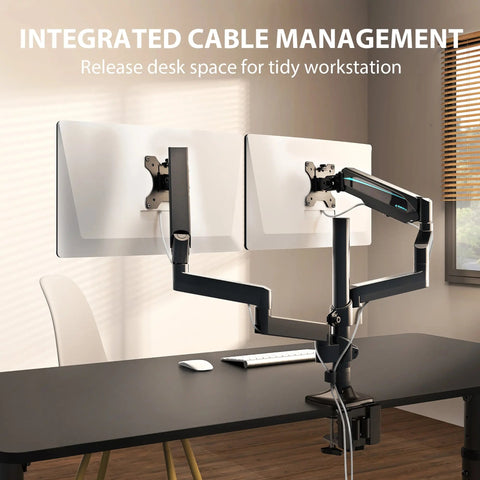
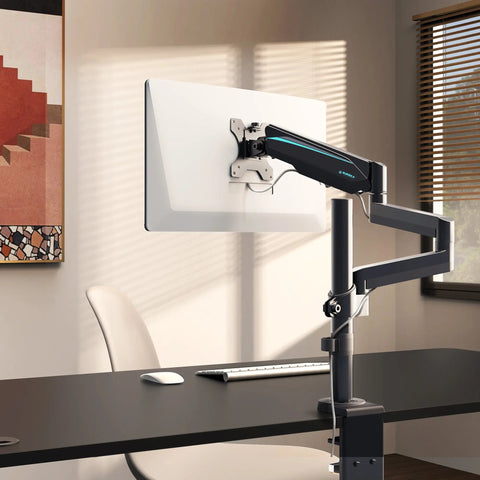
A monitor arm or riser can help reclaim desk space, but only if the desk depth, reach, and load limits fit the setup. The point is not to add hardware for its own sake. It is to lift or reposition the screen so the keyboard, notes, and gaming controls have room to breathe.
For a hybrid workstation layout for work and gaming, the screen decision should come first, then the accessories. If the display arrangement is stable, the rest of the desk can stay calmer and easier to switch.
Blend Storage and Accessories
The fastest hybrid worker desk organization ideas usually involve fewer visible objects, not more. Lighting, input devices, storage, and cable paths all shape how quickly the desk can move from work mode to gaming mode. Deliberate transitions, such as adjusting lighting or swapping input devices, can help mark the shift between tasks and reduce context-switching fatigue.lighting and input-device mode cues
Tame Cables Before They Tame the Layout
Cables are often the first thing that makes a hybrid workstation feel messy. Route them so they do not block legroom, camera sightlines, or mouse movement. Keep power and data lines predictable, because a random cable path tends to turn every mode change into a cleanup job.
A good cable plan should make the desk easier to use, not just easier to look at. If your hand keeps catching cords when you reach for a mouse or headset, the cable route needs another pass.
Keep Frequently Used Gear Within Reach
The gear you use every day should be easy to grab without crossing the whole desk. That might include a headset, controller, notebook, or charger. Items that are used less often can move farther away or into closed storage.
This is where dual purpose home office gaming station planning becomes practical. You are not trying to hide everything. You are deciding which tools deserve permanent surface access and which ones should disappear between modes.
Use Storage to Hide the Mode Swap
Storage keeps the desk from feeling like two setups stacked on top of each other. Drawers, shelves, and nearby cabinets can hold secondary peripherals, paperwork, and seasonal gear so the main surface stays open. If you need a place to start, browse home office options or hidden desk storage paths that support cleaner transitions.
The cleanest setup is usually the one where the desk stays visually light and the swap gear has a predictable home. That keeps the room calmer on camera and faster to reset after gaming.
Choose Furniture That Supports Switching
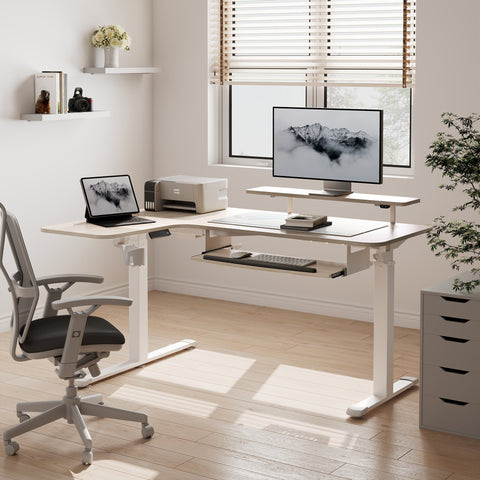
Furniture choices matter because they determine whether the desk stays flexible or feels cramped. For a hybrid workstation layout, desk depth, shape, stability, and built-in organization all affect how much room you have for screens, accessories, and daily transitions. A compact hybrid workspace guide recommends at least 24 inches of desk depth as a practical planning threshold, which is best treated as a useful baseline rather than a universal rule.
| Layout need | Helpful feature | Why it matters in hybrid use | Caveat to check |
|---|---|---|---|
| Desk depth and shape | Enough front-to-back room, with a shape that matches the corner or wall | Makes screen distance, keyboard placement, and accessory spread easier to manage | Measure the space you actually sit in, not just the overall room |
| Height adjustability | A surface that can adapt to different seating or work habits | Helps if your work and gaming posture preferences are not identical | Check the full range, not just the product name |
| Chair support | Adjustability that fits the desk height and screen position | Keeps the seating position aligned with the desk rather than fighting it | Chair fit and desk fit should be checked together |
| Stability | A desk that does not shift when screens or accessories are added | Reduces wobble when the layout gets busy | Stability matters more as the desk carries more gear |
| Built-in organization | Storage, routing, or accessory space built into the furniture | Cuts down on visible clutter and makes reset time shorter | Make sure the organization space matches what you actually use |
For most readers, the easiest mistake is chasing a stylish desk before checking depth and room fit. If the desk is too shallow, the monitor gets too close, the keyboard feels crowded, and the whole hybrid workstation layout starts to break down.
Finish With a Clean Reset
Before you call the setup done, do one final pass for zone clarity, screen position, cables, storage, and camera framing. If the desk still feels separate enough for work and gaming without a full rebuild, you are close. If not, simplify the visible gear and tighten the transition zone. The best hybrid desk is the one you can switch quickly and live with every day.
FAQs
How Do I Make One Desk Feel Separate for Work and Gaming?
Use zones, not room dividers. Keep work tools centered, gaming gear grouped, and one small transition zone for shared items. When the visual priority changes with the mode, the desk feels more intentional even though it is still one workspace.
What Should Stay on the Desk in a Hybrid Setup?
Only the items you use often enough to justify the space. A keyboard, mouse, monitor, headset, or notebook may belong on the desktop, while backup peripherals, paperwork, and extra chargers are better stored nearby. The less-used the item, the less surface space it should take.
Can a Dual-Monitor Layout Still Look Good on Video Calls?
Yes, if the call-facing area stays clean and the secondary screen stays out of the main camera view. Keep busy accessories lower or farther to the side, and center the screen you use most for calls. A dual-monitor setup works best when it does not dominate the frame.
Why Does Desk Depth Matter for Work and Gaming?
Desk depth affects how far the monitor can sit from you, how much room the keyboard gets, and how crowded the surface feels. A deeper desk usually makes it easier to keep the layout calm, especially when you want both work and gaming gear in the same footprint.
How Do I Keep Cable Clutter From Taking Over the Setup?
Group cords by function, route them along a predictable path, and keep charging spots in one place. If cables are easy to trace and easy to reset, the desk stays more flexible. If they spread across the surface, mode switching gets slower and the room looks busier than it needs to.




Leave a comment