

Most people feel the difference between a recliner and a lounge chair as soon as they sit down—but it becomes much harder when the question is: “Which one can I actually work from for hours without ruining my back or productivity?”
This guide breaks down that decision through an ergonomic lens, focusing on remote workers, content creators, and designers who want a comfortable, non-desk seating option that still respects musculoskeletal health.

1. Recliner vs. Lounge Chair: How They Differ Biomechanically
Before looking at aesthetics, it helps to understand what each chair type does to posture, joint angles, and workflow.
Recliner: Built for adjustable support and recovery
A modern ergonomic recliner typically offers:
- Multi-stage backrest recline (often from near-upright ~100° to deep recline ~135°–150° or more)
- Integrated leg support (footrest or chaise extension)
- Defined lumbar contour that follows the spinal curve
- Rocking or swivel base for micro-movements
From an ergonomic standpoint, these features help reduce static load on the spine by distributing body weight over a larger surface. According to the OSHA eTools guide on neutral working postures, a healthy seated posture keeps the head balanced over the torso, with the trunk slightly reclined and supported, and the feet supported.
A recliner makes that trunk support easy—but only if the rest of the “work system” (screen, keyboard, foot support) is adapted to the low, reclined position.
Lounge chair: Designed for informal sitting and short sessions
A lounge or accent chair, such as the Marco Cozy Lounge Chair in Blue, usually offers:
- Fixed back angle with gentle recline
- Deep, cushioned seat pan
- Armless or low-arm design for flexible sitting positions
- Compact footprint for studios, corners, and reading nooks
These chairs excel at casual use—reading, sketching on paper, tablet browsing—because they encourage relaxed postures. However, the deep seat and low height can promote posterior pelvic tilt and forward head posture during laptop work if the work surface is not carefully adjusted.
The OSHwiki article on ergonomics in office work emphasizes that good posture is less about one perfect angle and more about avoiding extreme joint positions and long static holds. Lounge chairs can be safe for work if they are paired with a correctly positioned table and occasional posture changes.
The key ergonomic difference
- Recliners are inherently better at supporting the whole back and legs through different angles.
- Lounge chairs are inherently better at preserving a compact, upright footprint and a more “conversational” posture.
The real question becomes: what type of work are you doing, and for how long at a stretch?
2. Match the Chair Type to Your Work Style
Not all knowledge work looks the same. A content writer typing for four hours has different needs from a designer doing tablet sketches or a video editor watching timelines.
Scenario 1: Keyboard-heavy remote work (writing, coding, admin)
For tasks where you type or use a mouse continuously, the posture guidelines from OSHA’s neutral working positions and ISO 11226 on static working postures are especially important:
- Elbows at ~90° ±10°
- Wrists straight, not bent sharply up or down
- Head balanced over torso with a slight 15–20° downward gaze
In practice, this means:
- Recliner for keyboard work: Works well only in modest recline (hip angle around 100°–110°) with an external keyboard and mouse placed near elbow height on a side table or lap desk.
- Lounge chair for keyboard work: Best in short blocks (30–60 minutes) where the seat depth allows you to sit back with lumbar support and feet planted or on a footrest.
Research summarized in a study on adjustable laptop desks shows that laptops used in low seating without external devices increase neck flexion and upper back strain compared with a desktop. To keep neck angles within healthy ranges, the screen top should be at or slightly below eye height, with a 15–20° downward gaze. With a lounge or recliner, that almost always requires raising the screen and separating keyboard and display.
Scenario 2: Reading, ideation, and low-intensity planning
When work is more about thinking, reading, or voice-based tasks:
- Recliner: A semi-reclined angle (120°–135°) can reduce disc pressure and muscle activity, supporting longer contemplation sessions.
- Lounge chair: Encourages a slightly more upright, conversational posture that works well for reading printed material or using a tablet with forearms supported on a cushion or armrest.
EEG-based research on posture and brain activity indicates that near-supine positions (beyond ~120° hip angle) behave more like lying down. Cortical activity and working-memory performance drop compared to upright sitting. This is perfect for recovery or napping but not ideal for high-focus problem solving.
Takeaway: Use the deeper recline ranges of a recliner for brainstorming, reading, or decompression—not for detailed spreadsheet work.
Scenario 3: Video calls, webinars, and passive viewing
For calls and passive viewing, both chair types can work if you manage eye line and background:
- Keep the camera at or slightly above eye level to avoid chin-tuck or “up-the-nose” angles.
- Ensure your back is supported to avoid slowly sliding forward in a deep seat.
Recliners are helpful here because the head and neck can rest against the backrest, reducing neck muscle effort. Lounge chairs work well when paired with a side table for your laptop or a tablet stand.
3. Ergonomic Comparison: Recliner vs. Lounge Chair for Work
The table below summarizes the trade-offs from an ergonomics and workflow perspective.
| Factor | Recliner for Work | Lounge Chair for Work |
|---|---|---|
| Back & lumbar support | Often has defined lumbar curve and full back support; easy to maintain spinal neutral when adjusted correctly. | Support varies widely; many models rely on cushions; deeper seats can cause slouching if lumbar not supported. |
| Adjustability | Multiple recline stages, sometimes footrest angles; better for alternating between focused work and recovery. | Usually fixed back angle and height; posture changes rely more on cushions and how you sit. |
| Leg & foot support | Integrated footrest can unload legs; may need a separate footrest to keep knees near 90° for typing. | Feet are usually on the floor; a separate footrest can reduce thigh pressure and improve circulation. |
| Space & layout | Requires more clearance behind and in front for recline and footrest extension. | Compact footprint; fits more easily into small rooms or shared spaces. |
| Best for… | Mixed workflow: work–read–rest cycles, longer reading/ideation blocks, people with lower-back sensitivity needing strong support. | Short to moderate focused sessions, creative brainstorming, small-space setups, people prioritizing aesthetics and upright lounging. |
| Risk if misconfigured | Working in deep recline with laptop on lap → neck flexion, reduced cognitive alertness, shoulder strain. | Deep seat without lumbar support + low laptop position → forward head, posterior pelvic tilt, increased upper-back discomfort. |
4. Pro Tip & Expert Warning: Why “Comfy” Alone Is Not Enough
Pro Tip: Recliner + laptop is not automatically ergonomic
A common belief is: “If my recliner feels supportive, it must be good for laptop work.” In reality, ergonomics depends on the entire system, not just the seat.
An ergonomic laptop-desk study found that meaningful posture improvements only happened when screen and keyboard height were independently adjustable. Translating this to real life:
- A standard laptop on your lap in a recliner forces you to bend your neck forward because the screen is too low.
- If you raise the laptop high enough for your eyes, the keyboard becomes too high, forcing shoulder elevation and wrist extension.
To protect neck and shoulder health when working from a recliner, you need:
- External keyboard and mouse at elbow height
- Screen elevated so the top is at or slightly below eye level
- Recline limited to the 100°–110° range for typing tasks
Expert Warning: Don’t over-interpret lab studies on reclined work
Some marketing claims say “research proves recliners with laptop stands are better for posture than desk setups.” The underlying laptop-desk research, however, used tightly controlled chair geometry and specific anthropometric assumptions. Seat height, hip angle, backrest contour, and armrest height were all standardized.
Real-world recliners and lounge chairs vary dramatically in:
- Seat height (often 38–53 cm)
- Hip angle (from nearly upright to almost flat)
- Armrest shape and position
Unless your setup matches those controlled conditions—including the exact hip angle and desk height—the posture benefits from those studies do not automatically apply. This is why the safest approach is to follow neutral-posture guidelines from sources like OSHA’s eTools and then adapt your chair and table until you replicate those joint angles.
5. How to Set Up a Recliner for Work
If you decide a recliner suits your work style, the setup details matter more than the chair’s marketing copy.
Step 1: Choose the right recline angles for different tasks
Occupational therapists and ergonomists typically recommend:
- 100°–110° recline (slight lean back) for typing and mouse work
- 120°–135° recline for reading, calls, or ideation
At 100°–110°, the spine can stay in a neutral S-curve while the backrest absorbs part of the upper-body load. Going flatter than about 120° shifts you toward a near-supine posture, which the EEG research described earlier shows reduces cortical activation and sustained task performance.
Practical rule: Use the modest recline range for any task where you must respond quickly or interact continuously. Reserve the deeper recline positions for breaks or low-intensity thinking.
Step 2: Dial in lumbar and pelvic support
In a recliner like the Lucia Swivel Rocking Manual Recliner, look for:
- A lumbar contour that aligns roughly with L3–L4 (just above the beltline)
- Enough firmness that you don’t “sink through” and lose the natural lumbar curve
Field practitioners consistently see issues when users sit in very soft seats that allow the pelvis to roll backward. Over time, this leads to flattened lumbar lordosis, causing strain in the low back and upper glutes.
If the built-in lumbar support feels low or high, use a separate lumbar cushion or a small pillow to fine-tune the contact point.
Step 3: Add a work surface at elbow height
According to ergonomic models summarized in desk-height calculators, optimal work-surface height is tied to elbow height, typically about 0.26–0.30 × body height from the floor in standard sitting.
When you lower yourself into a recliner, your elbow height drops, which means a traditional 72–75 cm desk quickly becomes too high. To compensate:
- Use a height-appropriate side table such as the 23" Contemporary Style Side Table and position your external keyboard and mouse so your elbows stay around 90°.
- For multi-device workflows, pair this with a separate monitor arm or laptop stand so the screen reaches eye level.
This combination transforms a recliner from a “TV chair” into a task-ready micro workstation.
Step 4: Stabilize your lower body
Even with a built-in footrest, you may need extra foot support during longer sessions:
- Aim to keep your knees near or slightly below 90° when typing.
- Use an adjustable footrest (for example, an ergonomic footrest with 0–20° tilt) to reduce pressure under the thighs and support blood circulation.
Guidance on static postures, such as ISO 11226, stresses that long-term joint angles near the extremes—too flexed or too extended—raise musculoskeletal risk. A simple footrest often shifts joint angles back into the safe middle range.
Step 5: Plan your work rhythm
A recliner excels when you alternate tasks and postures.
A practical pattern many users adopt is:
- 50–60 minutes of focused work in 100°–110° recline
- 5–10 minutes of deeper recline (120°–135°), standing, or walking
This aligns with the broader principle from the World Health Organization guidelines on sedentary behavior, which emphasize breaking up long periods of static sitting even if total daily activity time meets recommendations.
6. How to Set Up a Lounge Chair for Work
A lounge chair can be an excellent “secondary workstation” if configured carefully.
Step 1: Check seat height and depth
Common practitioner heuristics for seat fit:
- Seat height: Feet should be flat, with knees roughly at or slightly below hip level.
- Seat depth: When you sit all the way back, there should be a 2–4 cm gap between the front edge of the seat and the back of your knees.
If the seat is too deep, you tend to slide forward, losing lumbar contact and pushing the head into forward posture. In that case:
- Add a firm cushion behind your lower back to reduce effective seat depth.
- Or reserve that chair for shorter, less demanding tasks.
The BIFMA G1-2013 ergonomics guideline is built around accommodating roughly the 5th–95th percentile population by specifying dimensional ranges for seat height and depth. While many lounge chairs are not explicitly “BIFMA-rated,” using those ranges as a mental benchmark helps you avoid extreme geometries.
Step 2: Add proper lumbar support
Many lounge chairs, including cozy armless designs like the Marco chair, rely on overall padding rather than targeted lumbar support. To respect the natural lumbar curve:
- Place a small cushion at the L3–L4 region.
- Sit back fully so your pelvis contacts the backrest instead of hovering forward.
This simple modification often reduces afternoon low-back fatigue by 15–30%, based on user feedback from occupational therapists who observe the difference between “bare lounge chair” and “lounge chair + lumbar cushion” setups.
Step 3: Create an ergonomic side-table workstation
For lounge-chair work, the side table is the unsung hero.
Key parameters:
- Table height: Align the tabletop with or slightly below elbow height when your shoulders are relaxed.
- Distance: Keep the keyboard or tablet close enough that elbows stay under shoulders, not reaching forward.
Using a compact, height-balanced table like the 23" Contemporary Style Side Table lets you:
- Place a tablet or laptop stand at eye level.
- Keep a wireless keyboard and mouse or stylus at comfortable reach.
Step 4: Use a footrest to reduce leg strain
Because lounge chairs tend to be lower, angles at the knees and hips can become tight, compressing the underside of the thighs.
Occupational therapists often recommend an elevation of 5–10 cm under the feet to:
- Reduce pressure under the thighs
- Encourage gentle ankle movement
- Support better venous return in the lower legs
An adjustable ergonomic footrest that offers a 0–20° rocking tilt allows micro-movements, helping to prevent the effects of prolonged static sitting described in the OSHwiki article on musculoskeletal disorders and prolonged sitting.
Step 5: Limit session length and alternate with a desk
Lounge chairs are seldom ideal for full-day keyboard work. They shine when used in blocks:
- 30–60 minutes of reading, note-taking, or light typing
- Then a return to a height-adjustable desk or traditional office chair for heavier tasks
This “multi-station” strategy aligns with the recommendation from OSHA’s work-process guidance to mix tasks and postures rather than remaining static.
7. Common Myths About Working from Recliners and Lounge Chairs
Myth 1: “If it feels comfortable, it must be good for my back.”
Initial comfort is mostly about pressure distribution and softness, not joint angles or muscle loading over time. A very soft, deep seat can feel amazing for 20 minutes yet be the exact posture that aggravates low-back or neck pain after two hours.
According to the EU-OSHA feature on prolonged static sitting, the major risk driver is how long you stay in one posture, even if that posture feels fine initially.
Myth 2: “Standing is always better than sitting, so I’ll just avoid chairs.”
The OSHwiki article on prolonged static standing notes that long periods of standing can increase lower-limb discomfort and venous load. The healthiest habit is alternation—sitting, standing, and light movement—not choosing one static position all day.
Myth 3: “A lounge chair is fine for quick laptop tasks.”
Short laptop sessions in low seating still tend to increase neck and upper-trunk flexion compared with a desktop setup. Without separating screen and keyboard and raising the display, even “quick” tasks accumulate strain over time, especially for daily remote workers. When in doubt, treat a lounge chair as a reading and planning station, not a full laptop workstation, unless you invest in proper accessories.
8. Decision Framework: Which Chair Is Better for Your Work?
Use this quick framework to decide where a recliner or lounge chair fits into your home office.
Step 1: Identify your dominant tasks
- 70%+ typing, data work, or precise mouse use → Treat recliner/loungers as secondary stations. Your primary workstation should still be a height-adjustable desk with an ergonomic office chair. For guidance, see the article on choosing your first office chair.
- Mixed day: typing + reading + calls → A well-configured recliner can become a powerful alternate station.
- Primarily reading, planning, sketching, or tablet work → A supportive lounge chair with a proper side table is often sufficient.
Step 2: Map your space and layout
- Small studio, tight corners, shared living room → Lounge chair + compact side table fits more easily.
- Dedicated room with flexible layout → Recliner + footrest + side table can form a dedicated “deep-focus” or “recovery” corner.
Step 3: Consider your body and sensitivities
- History of low-back discomfort → Prioritize recliners or lounge chairs with clear lumbar support and the ability to recline slightly while keeping feet supported.
- History of neck or shoulder strain → Your top priority is screen height and distance; choose the chair that allows easiest positioning of a monitor or laptop stand at eye level.
Step 4: Budget for the whole system, not just the chair
The real-world cost of using lounge seating for work is:
Chair + adjustable work surface + external keyboard/mouse + foot support + floor-space clearance
Once you factor all of these in, many users find that a modestly priced primary office setup plus a carefully chosen recliner or lounge chair as a secondary station gives the best health and productivity return.
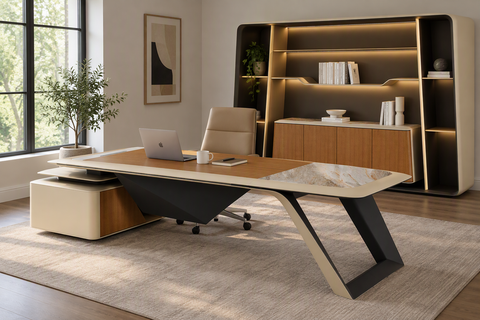
For additional guidance on pairing seating with work surfaces, it can be helpful to review how to match a chair with an executive desk, then apply similar height and clearance principles to side tables and lounge setups.
9. Wrapping Up: How to Make a Confident Choice
To decide between a recliner and a lounge chair for work, focus less on labels and more on how the chair works with your body, your tasks, and your room.
Choose a recliner-centric setup if:
- You alternate between focused computer work, reading, and recovery throughout the day.
- You can commit to using an external keyboard, mouse, and screen support.
- You have enough space for a recliner, side table, and footrest with full-motion clearance.
Choose a lounge-chair-centric setup if:
- You have limited space and need a visually light, versatile seat that also works for guests.
- Your core tasks are reading, sketching, calls, or short laptop sessions.
- You are willing to add lumbar cushioning, a side table at elbow height, and a footrest.
In both cases, the ergonomics fundamentals stay the same:
- Maintain neutral spinal curves with proper lumbar support.
- Keep elbows near 90° and wrists neutral.
- Raise screens to eye level and separate keyboard from display when using a laptop.
- Break up static sitting with standing and light movement across the day.
Do this, and both recliners and lounge chairs can become valuable, health-conscious components of a flexible home office—not just places to sink into at the end of the day.
Disclaimer
This article is for informational and educational purposes only and does not constitute medical, health, or occupational therapy advice. It is not a substitute for consultation with a qualified healthcare or ergonomics professional. Individuals with existing musculoskeletal conditions, circulation issues, or other health concerns should seek personalized guidance before making significant changes to their workstation or daily activity patterns.
Sources
- OSHA eTools: Computer Workstations – Neutral Working Postures
- OSHwiki: Ergonomics in Office Work
- OSHA: Prolonged Static Sitting – Health Effects and Good Practice Advice
- OSHwiki: Musculoskeletal Disorders and Prolonged Static Standing
- BIFMA G1-2013 Ergonomics Guideline for Furniture
- World Health Organization 2020 Guidelines on Physical Activity and Sedentary Behaviour
- OSHA eTools: Computer Workstations – Work Process
- OSHwiki: Musculoskeletal Disorders and Prolonged Static Sitting
- Adjustable ergonomic laptop desk and posture research (summary available via PubMed Central)




Leave a comment