

The Thermal Trap: Why High-Density Tech Hubs Overheat
In a modern technology startup or a high-output corporate IT department, the visual landscape is often defined by "monitor walls." Developers and designers frequently utilize three or more high-resolution screens to manage complex workflows. However, office managers often notice a recurring issue: by mid-afternoon, these high-density pods can feel significantly warmer than the rest of the open-plan office, which may contribute to "focus fatigue" and localized discomfort.
The problem is rarely the building's central HVAC system alone. Instead, it is often a micro-climate issue created by the equipment. A professional monitor generates heat from its backlight and internal components. When multiple monitors are arranged in a flat, contiguous "wall," they can act as a thermal barrier, potentially trapping warm air between the screens and the user. Based on internal observations in high-density setups, this phenomenon can increase the perceived temperature in a specific pod by an estimated 3–5°F (1.5–3°C) compared to the room’s ambient thermostat reading.
Addressing this requires moving beyond simple furniture procurement. It necessitates a practical engineering approach to workspace design—one that balances screen density with ergonomic principles and thermal dynamics. As discussed in The 2026 Workstation White Paper, integrating structural airflow with ergonomic science is becoming a key benchmark for high-performance office design.
The Physiology of Static Load and Thermal Stress
To understand why monitor density affects productivity, we must look at the physiological principles of Musculoskeletal Disorders (MSDs). According to the U.S. Occupational Safety and Health Administration (OSHA), core risk factors for MSDs include repetitive tasks and poor posture. In high-density setups, "thermal discomfort" is a secondary factor that can exacerbate the perception of physical strain and reduce the user's desire to change postures.
The "Solid Wall" Effect
When three or four monitors are placed edge-to-edge in a straight line, they create a physical partition that can disrupt the convective rise of heat. Modern panels generate heat primarily from the rear. In a dense cluster, this heat may pool in stagnant pockets behind the desk. While research from Reshine Display indicates a single monitor generates modest heat, a four-monitor array can lead to a cumulative temperature rise (observed in some high-load scenarios at approximately 8.3°C above ambient at the exhaust point).
Blood Circulation and Static Posture
The World Health Organization (WHO) emphasizes reducing sedentary time to mitigate health risks. In an uncomfortably warm micro-environment, users may become more lethargic, potentially entrenching the static working postures that lead to lower limb discomfort and spinal misalignment.

Engineering the Solution: Layout and Desk Selection
To mitigate these issues, office planners can transition from "flat" layouts to "dynamic" configurations.
Note: The following product examples are from the Eureka Ergonomic catalog, selected to illustrate the engineering principles discussed.
The Staggered V Formation
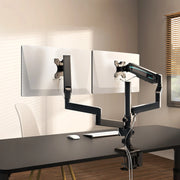
A common mistake in dense setups is the "contiguous wall." We recommend a "staggered V" formation. By angling secondary monitors slightly inward, you create a natural air channel behind the displays.
Heuristic Observation: Based on patterns observed in professional IT deployments, maintaining a minimum 4-inch gap between the back of the monitors and any wall or partition is recommended. This gap acts as a "thermal chimney," allowing heat to escape vertically.
Furniture as a Thermal Management Tool
A professional developer's workstation, including monitors, arms, and a full-tower PC, can reach a total system load of approximately 108kg (238 lbs) in high-end configurations.
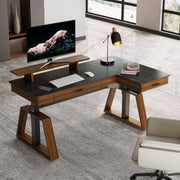
- L-Shaped Configurations: Products like the GTG - L60 L-Shaped Desk provide a wrap-around surface that naturally encourages the "V" formation, keeping screens within reach while maximizing dissipation area.
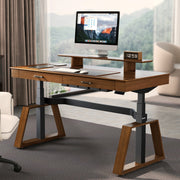
- Wing-Shaped Designs: The Aero Wing-Shaped Studio Desk is designed for high-density setups. Its curved edge allows the user to sit "into" the workstation, facilitating better sightlines without sacrificing screen real estate.
Modeling a High-Density Workstation Scenario
This model provides a benchmark for facility managers planning for high-performance development roles.
| Parameter | Value | Unit | Rationale / Source |
|---|---|---|---|
| Room Depth | 144 | in | Typical open-plan tech office bay |
| Desk Width | 72 | in | Required for 4x 27" or 2x 34" monitors |
| Total System Load | ~108 | kg | Example: 4 Monitors + Arms + PC + Tabletop |
| Airflow Gap (Rear) | 4 | in | Heuristic for convective cooling |
| Viewing Distance | ~32 | in | Based on 40° THX standard for 4K panels |
Methodology & Calibration Note: These values are illustrative heuristics based on standard industry assumptions for commercial office space and ergonomic standards like ANSI/HFES 100-2007. The "Total System Load" is a maximum-case estimate for a quad-monitor setup with heavy-duty mounts. Actual results will vary based on specific hardware and room ventilation.

Benchmarking Your Hub: How to Measure Thermal Performance
To move from assumptions to data-driven planning, facility managers can use the following simple measurement protocol to verify workstation performance:
- Tools Required: A handheld infrared (IR) thermometer or a digital hygrometer with a remote probe.
-
Measurement Points:
- T1 (Baseline): Ambient room temperature (measured 5 feet away from the desk).
- T2 (The Trap): Behind the center monitor, halfway between the panel and the wall.
- T3 (User Zone): 12 inches in front of the center monitor (at keyboard height).
- Timing: Take measurements after 2 hours of "peak load" (e.g., active rendering or compiling).
- Threshold: A delta (T2 - T1) of >5°C (9°F) often indicates a need for improved spacing or the "Staggered V" layout.
Practical Recommendations for Airflow and Visibility
1. Monitor Arm Strategy
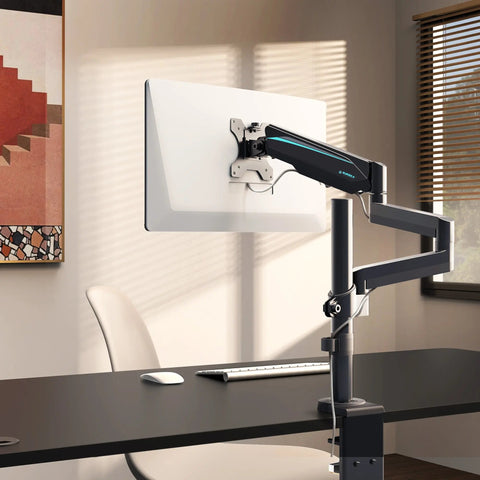
Using individual monitor arms is a practical ergonomic and thermal fix. According to the CCOHS, proper placement is vital for neck health. Thermally, arms lift the heat source off the desk, allowing air to circulate underneath.
2. Cable Management: The Vertical Drop
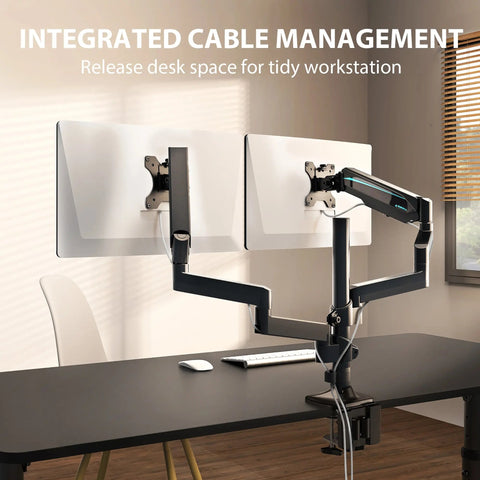
Bundling cables tightly against the desk's rear edge can create a "dam" that traps heat. Using vertical drops from monitor arms to a central floor channel keeps the under-desk area clear, which is particularly important if the office uses floor-based vents. (See: Creator's Guide to Desk Stability).
3. CPU Placement
Placing a high-performance PC on the desktop adds heat and occupies space. A Mobile Height Adjustable CPU Cart keeps the tower off the floor—improving airflow and reducing dust—while allowing the PC to move with a height-adjustable desk.
4. Software-Based Mitigation
Power management is a direct way to reduce thermal load. As noted in monitor heat research, a monitor in sleep mode generates negligible heat. Implementing policies to power down unused screens can mitigate the accumulation of surface heat, which often reaches 40–50°C (104–122°F) on active high-brightness panels.
Standardizing the Workspace: Compliance and Safety
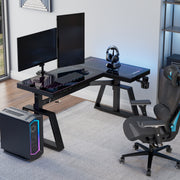
- Structural Integrity: Desks should meet BIFMA X5.5 standards. For workstations supporting 4+ monitors, a Z-Shaped Gaming Desk provides the rigidity needed to minimize "monitor wobble."
- Dimensions: ISO 9241-5:2024 emphasizes that desks must provide sufficient space for input devices while maintaining correct viewing distances.
- Safety Testing: For electric desks, UL 962 certification ensures the motors can handle heavy loads safely.

The Ideal Workday Rhythm
The Cornell University Ergonomics Web recommends the "20-8-2" rhythm: 20 minutes sitting, 8 minutes standing, and 2 minutes moving. In a multi-monitor environment, "standing" height must be calibrated carefully to avoid the "parallax effect," where users set the desk too high, leading to shrugged shoulders—a common cause of upper-back strain.
Checklist for Sit-Stand Transitions:
- Monitor Height: Top of screens at or slightly below eye level. (See: Monitor Height Strategies).
- Elbow Angle: Approximately 90 degrees, wrists neutral, per OSHA Guidelines.
- Cable Tension: Ensure enough slack for maximum height without straining ports.
Summary of Best Practices
Building a high-performance workspace involves managing both physical and thermal loads. By selecting desks with "wing" or "L" shapes, facility managers provide the footprint necessary for airflow. Transitioning to an engineering-focused mindset—using the "staggered V" formation and proper cable management—can help create a workspace that remains comfortable and conducive to deep focus.
Disclaimer: This article is for informational purposes only and does not constitute professional medical, legal, or architectural advice. The ergonomic recommendations are general guidelines; individuals with specific health conditions should consult a qualified professional.
Leave a comment