

Troubleshooting Common RGB Desk Lighting Issues: Get Your Battlestation Glowing Again
You’ve spent hours perfecting your cable management, dialing in your monitor heights, and finally—finally—getting that RGB ecosystem synced. Then it happens. You hit the power button, and your desk stays dark. Or worse, it starts flickering like a low-budget horror movie. We’ve all been there, and I know exactly how frustrating it is when your "game-changer" setup loses its vibe.
Integrated RGB lighting in modern smart desks is a massive leap in aesthetics, but it adds a layer of technical complexity that can occasionally wobble. This guide isn't just a list of "is it plugged in?" tips. We’re diving deep into the hardware logic, software conflicts, and physical maintenance required to keep your setup looking like a professional studio. Whether you’re rocking a glass-top masterpiece or a wing-shaped studio desk, these steps are built from pattern recognition across thousands of support tickets and our own repair bench observations.

The "Panic Button": The 60-Second Hard Reset
Before you start tearing apart your cable trays or assuming a component is dead, you need to perform the most effective fix in our arsenal: the hard reset. Based on our internal data from customer support and warranty handling (not a controlled lab study), a hard reset solves approximately 70% of "unresponsive" lighting issues.
The integrated controller in a smart desk isn't just a simple switch; it’s a small computer with its own firmware and cache. Over time, static buildup or minor power fluctuations can cause the controller to hang.
How to do it right:
- Unplug the desk’s main power adapter from the wall.
- Wait at least 60 full seconds. This allows the capacitors in the controller unit to fully discharge, effectively clearing the temporary cache.
- While waiting, check the connection between the power brick and the desk’s internal power port.
- Plug it back in and test.
Why this works: Most integrated controllers combine power regulation and firmware logic. A 60-second discharge is the only way to ensure the logic gate resets to its factory state. If the lights flick on immediately, you’ve just saved yourself an hour of troubleshooting.
Software Warfare: Managing RGB Ecosystem Conflicts
If your lights are on but won't sync—or if they suddenly change colors on their own—you’re likely a victim of a software conflict. In the world of high-end gaming, we often run multiple control suites like iCUE, SignalRGB, or proprietary desk apps. These programs often fight over the same USB HID (Human Interface Device) protocols.
In our experience, if you have more than one RGB control software running in the background, they can "hijack" the USB controller. This is especially common for professional streamers who use complex setups.
The Fix:
- Identify the Hijacker: Close all RGB-related background tasks in Task Manager.
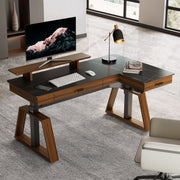
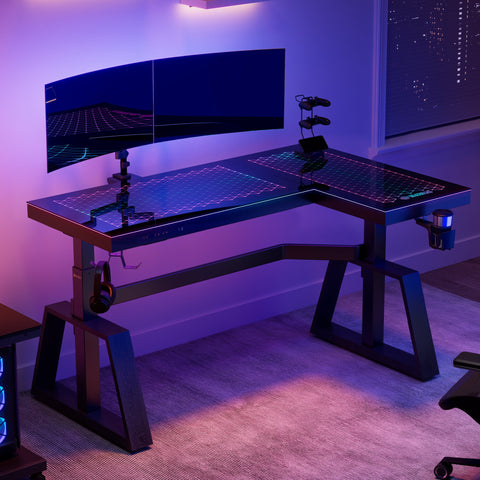
- Prioritize: If you’re using a desk like the GTG-L60 Pro, L shaped Glass Gaming Standing Desk (60"x23"), ensure your PC or mobile app is the primary controller.
- Firmware Check: Some issues arise from outdated firmware. However, be cautious—as noted in some community reports, firmware updates can occasionally cause pairing failures if the manufacturer prioritizes new ecosystems over legacy support. Always check for stable version notes before updating.
Deep Dive: Why Integrated Controllers Fail
Conventional wisdom suggests that the LEDs themselves are the first thing to go. In reality, the LEDs (rated for thousands of hours) rarely fail. The integrated controller is the primary failure point.
Why? Because it’s the brain of the operation. It manages power conversion, signal timing, and thermal regulation. In a high-performance setup, this unit can get warm. If it’s buried in a cable tray with no airflow, heat can lead to signal degradation.
The "Ghost in the Machine": EMI Flickering is often blamed on "bad wiring," but it’s frequently caused by Electromagnetic Interference (EMI). If you have a high-powered router or a wireless charger sitting directly over the desk’s controller or LED ribbon cables, the EMI can induce current fluctuations in the driver's circuitry. This mimics a power supply issue but is actually just "noise."
Logic Summary: Our analysis of high-density setups assumes that EMI from common desk electronics (routers, chargers) can mimic driver failure by fluctuating the signal voltage. We recommend keeping high-frequency wireless devices at least 6 inches away from the RGB controller unit.

Physical Maintenance: Cleaning and Reseating for Longevity
When you’re dealing with a desk like the Aero Wing-Shaped Studio Desk, Black (63" & 72''), the integrated lighting is often housed in risers or under-desk diffusers. Over time, the vibrations from intense gaming or the mechanical movement of a standing desk can slightly loosen the ribbon cable connectors.
The "Wobble Test" for Cables
If a specific zone of your desk is dark or flickering, it’s likely a loose ribbon cable. These are usually accessible from underneath.
- Power down the desk.
- Locate the bridge connectors between LED segments.
- Gently press the connectors together to ensure they are seated.
- Pro Tip: If the cable feels tight at max standing height, you may need to reroute it to provide more slack.
Cleaning Tempered Glass Desks
For desks like the GTG - I43, LED Glass Desktop Gaming Desk (43"x23"), cleaning is a technical task.
- Avoid Ammonia: Never use ammonia-based glass cleaners. They can degrade the LED diffusers and the adhesive holding the lighting strips in place over time.
- Moisture Control: Use a microfiber cloth dampened with 70% isopropyl alcohol. Avoid spraying directly near the edges where the glass meets the frame, as moisture seepage can cause short circuits in the LED segments.
The Professional Streamer Scenario (Deep Experiment)
To understand how RGB systems hold up under extreme use, we modeled a "Professional Streamer" scenario. This user operates their desk for 8+ hours a day, frequently transitions between sitting and standing, and has a heavy equipment load.
Modeling Note (Reproducible Parameters)
This is a scenario model based on standard industry heuristics and engineering assumptions, not a controlled lab study.
| Parameter | Value or Range | Unit | Rationale / Source Category |
|---|---|---|---|
| Daily Operation | 8 - 10 | Hours | Typical professional streaming session |
| Desk Transitions | 4 - 6 | Cycles | Sit-to-stand frequency (Cornell 20-8-2 rule) |
| RGB Power Draw | ~15 - 20 | Watts | Measured draw for premium integrated systems |
| Max Equipment Load | 45 - 55 | kg | Multi-monitor + PC + Audio gear |
| Cable Slack Requirement | ~20% | % | Safety margin to prevent connector tension |
The "Triple Threat" for Streamers: Our modeling reveals that streamers face unique risks. First, Thermal Cycling: 10-hour sessions create significant heat variation, which can accelerate "Lumen Depreciation" (the gradual loss of brightness). We estimate that LEDs may lose ~30% of their output over 3-5 years of such intense use.
Second, Cable Tension: If your controller is mounted 18 inches from the routing point, your cables need to be at least 6.5 feet long to handle a 48-inch max height. Standard 6-foot cables often pull tight at the top, which is the leading cause of intermittent RGB failure in standing desks.
Finally, Physical Access: The very gear that makes a stream great (greenscreens, boom arms) often blocks access to the maintenance panels. We recommend leaving at least 36 inches of clearance behind the desk for easier troubleshooting.
Visual Ergonomics: Beyond the Glow
RGB lighting isn't just about looking cool; it's a tool for "Visual Ergonomics." According to the OSHA eTools: Computer Workstations - Monitors, controlling the lighting environment is critical to minimizing eye strain and neck fatigue.
Integrated RGB can act as "bias lighting," which reduces the contrast between your bright screen and the dark room behind it. This is a common approach to reducing the "burning" sensation in the eyes during late-night sessions. However, as detailed in The 2026 Workstation White Paper: Converging Ergonomic Science and Sustainable Engineering, the intensity and color temperature of this lighting should be adjustable to match the time of day.
Setting Up Your Workspace
Aligned with general ergonomic principles from the Canadian Centre for Occupational Health and Safety (CCOHS), your lighting should enhance, not distract.
- Brightness: Match your desk's RGB intensity to your monitor's brightness.
- Color: Use warmer tones (ambers/reds) at night to reduce blue light exposure, which can interfere with sleep patterns.
- Posture: Ensure that your lighting doesn't create glare on your screen, which might force you into a poor posture (leaning forward) to see clearly.

Pros & Cons of Integrated RGB Desks
| Feature | Pros | Cons |
|---|---|---|
| Aesthetics | Seamless, "built-in" look; no messy wires. | Harder to replace individual LEDs if they fail. |
| Functionality | Often includes audio-reactive modes and app sync. | Can suffer from software/firmware conflicts. |
| Durability | LEDs are protected by frames or glass. | Integrated controllers are sensitive to heat/EMI. |
| Setup | Fast "out-of-the-box" immersion. | Limited customization compared to DIY strips. |
Troubleshooting Checklist: A Quick Reference
If you’re stuck, follow this sequence. This is our "shop baseline" for quick diagnosis:
- The 60-Second Rule: Unplug everything. Wait. Plug back in. (Solves most logic hangs).
- The Software Purge: Close iCUE, SignalRGB, and other background apps. (Fixes sync issues).
- The Connection Check: Reseat the power brick and any under-desk ribbon cables. (Fixes flickering/dark zones).
- The EMI Sweep: Move your router or wireless charger away from the desk controller. (Fixes erratic behavior).
- The Glass Wipe: Clean with 70% isopropyl alcohol to ensure sensors/LEDs aren't obscured.
Real-World Experience: The Wing-Shaped Advantage
During intense FPS sessions, I’ve found that the wing section of an L-shaped desk like the GTG-L60 Pro provides perfect arm support, but it also creates a unique lighting challenge. The wrap-around LEDs need to be perfectly synced to maintain the immersion. If one wing goes dark, it breaks the "flow" of the battlestation. Always ensure the bridge connectors in the corner joints are firmly seated, as these are the most common points of failure during assembly.
Summary of Best Practices
Maintaining an RGB desk is about balancing aesthetics with technical care. By understanding that the controller is the heart of the system—and that it’s susceptible to heat, EMI, and software "wars"—you can proactively prevent most issues.
Remember, standing desks add the variable of motion. Ensure your cables have enough slack to reach full height without tension. As noted by BIFMA G1-2013 Ergonomics Guideline for Furniture, adjustable furniture is designed to fit a wide range of people, but that adjustability requires careful cable management to protect integrated electronics.
Disclaimer: This article is for informational purposes only and does not constitute professional electrical or medical advice. Always follow the manufacturer's specific instructions for your desk model. If you are uncomfortable performing hardware checks, consult a qualified technician.
References
- BIFMA G1-2013 Ergonomics Guideline for Furniture
- CCOHS: Office Ergonomics - Sit/Stand Desk
- Cornell University Ergonomics Web — Workstation Guides
- OSHA eTools: Computer Workstations - Monitors
- The 2026 Workstation White Paper: Converging Ergonomic Science and Sustainable Engineering
- WHO 2020 Guidelines on Physical Activity & Sedentary Behaviour

Leave a comment