

A dual vs triple monitor setup usually comes down to simplicity versus a clearly defined role for a third screen. Choose two monitors when your work fits an active task plus a communication or reference view, especially with limited desk space. Choose three when a persistent preview, timeline, chat panel, control screen, map, or monitoring view justifies the added footprint and adjustment work. Before shopping, measure the complete supported assembly—not just the panel widths—and center the display that gets the most attention. Neither screen count is inherently ergonomic or guaranteed to prevent discomfort.

Dual vs triple monitor setup: Which Fits?
There is no universally better monitor count. Compare each display’s role with the usable desk area, primary viewing position, and mounting complexity before deciding.
| Decision factor | Dual monitor setup | Triple monitor setup |
|---|---|---|
| Workflow role | Covers two recurring views, such as active work plus email, reference, or chat | Adds value when a third view must remain visible, such as a preview, timeline, controls, telemetry, or persistent reference |
| Desk demand | Less supported width and usually simpler cable and angle management | More width and angled depth; also account for the stand or arm footprint, keyboard clearance, and wall or shelf clearance |
| Viewing position | Use a centered seam when both screens receive similar attention, or center the primary screen when attention is uneven | Start with the center display as primary and angle the outer screens inward |
| Mounting complexity | A dual arm or stand may be enough if the monitor and desk specifications match | Requires a complete three-screen compatibility check; do not infer triple-screen support from a dual-monitor product |
| Best fit | Home-office multitasking, two-application workflows, and space-limited desks | Editing, coding, streaming, gaming controls, or monitoring workflows with a defined third-screen role |
| Not a good fit when… | The second screen crowds the input area or forces repeated awkward turning | There is no persistent third-screen role, the supported footprint does not fit, or the outer screens become the main viewing position |
As a quick rule, if you cannot name what the third display will show during a normal work session, start with dual. If you can name that role, test the footprint and primary-screen position before deciding that triple is the better choice. OSHA purchasing guidance emphasizes placing the primary monitor directly in front of the user and allowing enough space and clearance for the full arrangement.

Match Screen Count to the Work You Do
A third monitor earns its space when it removes a recurring interruption—not simply because it lets you open more windows. Your software, scaling, viewing habits, and the amount of content that needs to stay visible can change the answer.
Office and Remote Work
For many home-office workflows, two screens are a practical starting point:
- Keep the active document, browser, spreadsheet, or meeting on one screen.
- Use the second for email, messaging, a reference document, or a supporting application.
- Consider a third display only when a reference, dashboard, communication channel, or monitoring view needs to stay visible for most of the workday.
An occasional lookup usually does not justify another panel. A recurring view that would otherwise interrupt the main task may, provided the added display passes the desk and viewing-position checks.
Gaming and Streaming
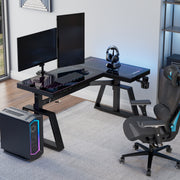
Keep the primary game centered and give side screens specific secondary roles. A dual-screen gaming desk may cover gameplay plus chat or controls; a triple layout may add stream controls, telemetry, a map, or a persistent communication view.
| Gaming consideration | Dual-screen layout | Triple-screen layout |
|---|---|---|
| Primary-game focus | One centered game screen with one secondary view | Center display remains the game screen; outer screens hold secondary content |
| Chat or controls | Fits when one side view is enough | Useful when chat and stream controls or telemetry must remain visible separately |
| Immersion and viewing position | Simpler to keep the main view centered | More visual span and more angles to check; side screens should not become the normal primary position |
| Footprint | Easier to fit on a constrained desk | Requires angled depth, cable planning, and clearance beyond the panel widths |
| Adjustment needs | Usually fewer independent angles and mounts | More screen positions to recheck after changing height, angle, or desk position |
For editors and other visual specialists, triple-monitor editing workflows can be a useful follow-up when the third screen has a persistent timeline, preview, or reference role. Treat that resource as workflow context, not proof that three displays improve performance for every user.
Creative and Technical Work
Three screens can make sense when a workflow continuously separates tools from the main canvas or task:
- Video editing: timeline, preview, and source or reference material.
- Design: canvas, tools, and a persistent reference or asset panel.
- Coding: code, documentation, and a running preview or test output.
- Data or monitoring: active analysis, source material, and a live dashboard.
More horizontal space is not automatically more useful. Confirm that the applications support the intended arrangement and that text scaling, bezel differences, and viewing distance will not make the third panel harder to use than opening it when needed. Readers planning a broader creative workstation can also browse the Creator Studio collection after defining the layout.
Plan Desk Width, Depth, and Viewing Distance
To determine how many monitors fit, measure the clear working area and compare it with the complete monitor-and-support footprint, plus the space needed for your keyboard, mouse, writing, viewing position, and movement. Because monitor sizes and hardware geometry vary, a universal minimum desk width would be misleading.
| What to measure | What to include | Why it matters |
|---|---|---|
| Clear monitor zone | Usable width and depth after fixed obstacles | Advertised desk dimensions may overstate the space available for screens |
| Supported footprint | Panels, stand base or arm geometry, cable path, and angled side-screen depth | Panel widths alone do not show the completed assembly |
| Working clearance | Keyboard, mouse, writing area, and normal seated position | A layout that fits the screens may still crowd daily input |
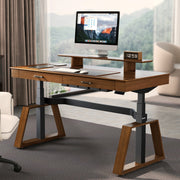
| Movement path | Chair position, sit-stand travel, walls, shelves, and lamps | The arrangement must remain workable as you move or raise the desk |
Measure the Usable Desktop
Use this sequence before buying a third display, stand, arm, or desk:
- Clear the intended monitor zone. Record usable width and depth rather than the desk’s advertised overall dimensions.
- Subtract fixed obstacles. Account for walls, shelves, drawers, lamps, existing clamps, and any rear edge that prevents a mount from sitting where planned.
- Reserve input-device clearance. Leave room for the keyboard, mouse, writing, and the chair position you actually use.
- Measure the complete supported footprint. Include each panel, stand base or arm geometry, cable path, and the extra depth created when side monitors are angled inward.
- Compare before ordering. The available area must accommodate the supported assembly and working clearance; panel widths alone are not enough.
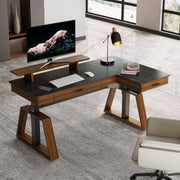
For example, a freestanding dual stand listed at 43.31 inches wide by 7.88 inches deep has a product-specific footprint, not a standard for every stand. Compare the dual monitor stand with your measured clear area, keyboard position, and rear-edge obstacles rather than treating it as a universal sizing rule. A small room may call for different desk geometry; this small-room L-desk layout offers guidance for that planning problem.
Check Viewing Distance and Movement
Set the monitors in their intended positions, then check the distance from your normal seated position to the primary screen and the outer screens. Stanford ergonomics guidance describes a comfortable horizontal viewing distance often around arm’s length for 20/20 vision, but use that only as a starting heuristic; display size, visual needs, mount position, and posture affect the final distance.
For a sit-stand desk, repeat the check at both seated and standing heights. Confirm that:
- Cables have enough slack for the full vertical travel without pulling on ports.
- The screens do not collide with a wall, shelf, lamp, or nearby equipment when raised.
- The primary screen remains in a workable position at both heights.
- The chair, keyboard, mouse, and your normal arm movement still have usable clearance.
If the setup repeatedly makes you turn far toward an outer display for the main task, change the screen roles or arrangement instead of assuming more screens will solve the workflow.
Set Monitor Angles to Limit Neck Rotation
Center the screen or seam that receives the most attention, angle secondary displays inward, and then recheck height, tilt, distance, and position from your normal seated workstation. Placement may help limit awkward turning, but it does not guarantee comfort or prevent pain, strain, or fatigue.
Arrange Two Monitors
Choose between these two starting layouts based on how evenly you divide your attention:
| Two-screen layout | Use it when | Starting arrangement | Recheck |
|---|---|---|---|
| Centered split | Both monitors receive similar attention | Place the meeting point between the screens near straight ahead and fan the panels outward | Make sure neither screen is so far to the side that it becomes the practical primary position |
| Primary plus secondary | One monitor carries most of the work | Put the primary display directly in front and place occasional content to the side | Confirm that the primary screen, rather than the secondary screen, is at the normal viewing position |
The centered-seam option is described in a University of Kentucky-hosted workstation checklist; use it as one arrangement for balanced use, not a universal rule. OSHA’s monitor guidance supports using the primary display as the straight-ahead reference point.
Arrange Three Monitors
Use this five-step starting framework:
- Identify the display that carries the main task.
- Center that display with your normal seated position.
- Angle both outer displays inward rather than leaving a flat wall of panels.
- Put occasional-reference or lower-attention content on the outer screens.
- Recheck the arrangement after changing screen height, tilt, desk height, or viewing distance.
CCOHS general office-ergonomics guidance describes placing multiple monitors with edges touching and angling them into a semicircle. Apply that as a layout option—not a U.S. regulatory requirement—and adjust it to your screen size and user position. If discomfort persists, worsens, or includes numbness, seek qualified professional advice rather than treating monitor adjustment as a diagnosis or cure. Related neck and shoulder ergonomics can provide additional reading, but it is not a substitute for professional care.
Choose Mounting Hardware Before Finalizing the Layout
A monitor arm, freestanding stand, or sit-stand desk can change the usable layout, but only after you verify the monitors, desk, support footprint, cable reach, and movement range together. Treat the hardware as part of the workstation footprint—not as a way to bypass measurement.
Before choosing a support method, verify:
- Monitor size, weight, VESA pattern, and the support’s stated load limit.
- Desk thickness, clamp or grommet clearance, and the actual base or arm footprint.
- Cable reach and clearance at every seated and standing height.
- Return and warranty terms currently offered for the hardware.
Arms, Stands, and Desktop Clearance
| Support option | Footprint and adjustment | Installation checks | Best-fit use |
|---|---|---|---|
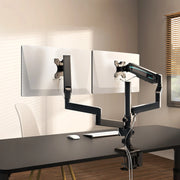
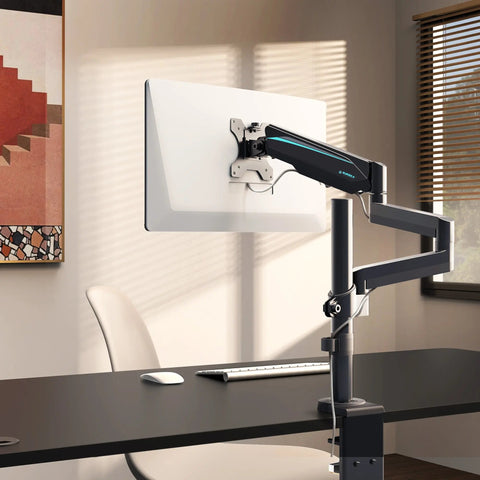
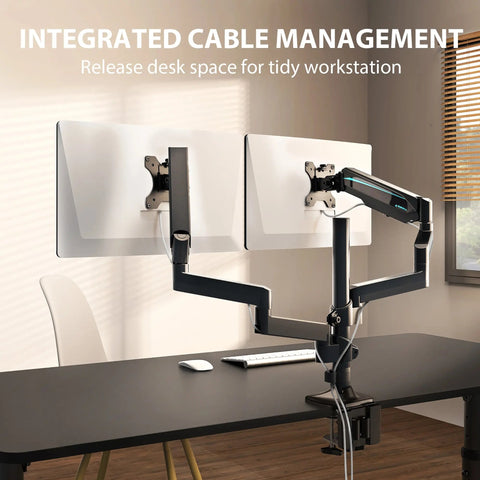
| Dual monitor arm | Can preserve more open desktop surface and allow position changes, but the arm’s reach and base or clamp geometry still need space | Verify monitor size, weight, VESA pattern, desk thickness, clamp or grommet clearance, and stated load limits | A dual layout that needs adjustable positioning |
| Freestanding dual monitor stand | Uses a defined desktop base and can suit a stable fixed arrangement when depth is available | Compare the actual base width and depth with the clear area; verify total monitor load and support limits | Two monitors on a desk with enough unobstructed depth |
| Desk-mounted organization accessory | May combine organization with a dual-monitor mounting path, but compatibility depends on the actual desk and mount specifications | Confirm current desk-thickness requirements, VESA details, monitor limits, and clearance before ordering | A dual setup where desktop organization is part of the plan |
For a bounded example, the adjustable dual monitor arm lists support for most 17- to 32-inch monitors up to 17.6 pounds per supported load, 75x75mm or 100x100mm VESA patterns, and C-clamp or grommet installation. Verify your own monitor labels and desk measurements; these facts do not establish triple-monitor compatibility. The desk-mounted pegboard also requires a current specification check because the supplied listing information contains conflicting desk-thickness representations.
Sit-Stand Movement and Cable Planning
A sit-stand desk changes the layout at every height. Before finalizing screen angles or cable management, test:
- Full vertical travel with the monitors attached.
- Cable slack from the highest to the lowest position.
- Wall, shelf, and lamp clearance behind and above the desk.
- Clamp or base clearance at the rear edge.
- Primary-screen position while seated and standing.
- Whether the outer screens remain visible without becoming the main viewing target.
Finish with this pre-order check: confirm screen dimensions, weight, VESA pattern, desk thickness, support footprint, load limits, cable travel, and current return and warranty terms. If the defined arrangement still does not fit, compare home office desks only after you know the required footprint.
Before ordering, sketch the complete supported footprint at your normal seated and standing positions. That simple test will tell you whether this dual vs triple monitor setup fits your workflow and movement space.
FAQs
These edge-case checks apply the planning method to your existing monitors, desk, software, and upgrade path.
Is a dual-monitor setup ergonomic?
It can be workable when the primary screen is centered, height and distance are adjustable, and the secondary display does not require repeated awkward turning. If the secondary screen receives most of your attention, swap the roles or recenter the arrangement. Screen count alone does not establish an ergonomic result.
How should I position three monitors for comfort?
Start with the center display aligned to your normal seated position, angle the side displays inward, and place lower-attention content on the outside. Recheck height, tilt, and distance after positioning. Screen size, bezel layout, and your seated position may require a different arrangement.
Do three monitors require a wider desk than two?
Not always, but three monitors generally add supported width and angled depth. Measure the panels, side-screen angle, stand or arm footprint, keyboard clearance, and wall or shelf clearance as one assembly. If that footprint crowds your input space, change the hardware or desk before buying another screen.
Should I use matching monitors for a multi-monitor workstation?
Matching models are not mandatory. Compare physical height, bezel alignment, resolution, scaling, connection requirements, and budget. Before expanding, check your computer’s video outputs and whether the operating system and applications handle the different resolutions as expected.
Can I add a third monitor later to a dual-screen desk?
Yes, if the desk has unused supported footprint and the mounting hardware has verified capacity for the planned arrangement. Check video outputs, power, cable routing, side-screen depth, viewing distance, and wall clearance. Define the third screen’s recurring role before reserving space for it.
Leave a comment