

Laptop Ergonomics Starts With Separating Screen and Keyboard Height
Laptop ergonomics means separating your screen height from your keyboard height instead of picking one compromise position. For prolonged laptop use, raise or reposition the display to a workable viewing height, then move typing to an external keyboard and mouse placed where your wrists and elbows can relax. If the laptop's own screen still can't reach a workable spot once the keyboard is separated, add a separate monitor rather than keep compromising.

A laptop's screen and keyboard are joined in one case, so raising one raises the other. OSHA's primary-use laptop guidance states that when a laptop is your main computer, it should be set up with the same ergonomic principles as a desktop, including a separate keyboard and input device. That's the direct fix. Settle your typing position first, adjust the screen independently, and bring in a second monitor only if the built-in display still won't cooperate.

Why a Laptop Forces a Height Compromise
A laptop's fixed screen-and-keyboard hinge creates a real trade-off between viewing height and typing height. Understanding why helps you pick the right fix instead of guessing.
The One-Piece Laptop Trade-Off
Every laptop has the same structural issue: the screen and keyboard share one hinge. Raise the laptop on a stand or a stack of books, and the keyboard rises with it, often well above elbow height. Keep the keyboard flat on the desk, and the screen usually sits too low, pulling your neck and shoulders forward as you look down at it. For primary use, OSHA's workstation guidance supports providing a separate keyboard and input device so the display and typing surface can be positioned independently. This is a limit built into a device designed to fold shut for travel, not a problem solved by hunting for one ideal height.
What Separate Input Devices Change
An external keyboard and mouse break that link. Once typing happens on its own surface, the laptop screen can move up without dragging the keyboard along with it. A separate monitor goes further: the laptop can sit closed or off to the side, and the display becomes fully independent of the laptop's case. Both changes solve a positioning problem, not a medical one. They give you room to place your eyes, wrists, and elbows well, but the rest of the setup, your chair and feet included, still has to line up.
Set Up Your Laptop in the Right Order
Work through your setup in this order: chair and feet, then typing surface, then screen, then a separate monitor if needed. Changing the screen before the rest of the setup is settled usually just moves the problem around.
1. Set the Chair and Feet First
Start with the chair, not the screen. Your seated position controls everything that follows.
- Adjust the chair height so your hips sit level with or slightly above your knees, as described in NIOSH's working-from-home guidance.
- Confirm your feet rest flat on the floor or on a footrest. If raising the chair leaves your feet dangling, add support before touching the laptop, consistent with NIOSH's workstation positioning guidance.
- Avoid raising the laptop screen to compensate for an unstable seated base; fix the chair and feet first, using our chair adjustment guide if your current chair needs more range than you expected.
2. Place the Keyboard and Mouse
With the chair set, position the external keyboard and mouse next.
- Place the keyboard directly in front of you, close enough that your elbows stay near 90 to 120 degrees and your wrists stay close to neutral, not bent up or down, as NIOSH's guidance recommends.
- Set the mouse right beside the keyboard so you don't reach or twist your shoulder to use it.
- Type for a minute and check your reach, wrist angle, and shoulder tension. If a fixed desk keeps the keyboard higher than this position allows, our keyboard tray height guide walks through the adjustment.
3. Raise or Reposition the Screen
Only after typing feels comfortable should you touch the laptop's height.
- Raise or angle the laptop screen with a stand, riser, or sturdy stack until the top of the screen is roughly at or slightly below eye level, consistent with NIOSH's monitor guidance.
- Check your viewing angle. You should look slightly down at the screen, not tip your head back or hunch forward.
- If the laptop display still can't reach a workable position once the keyboard is separated, switch to a separate monitor. NIOSH's working-from-home guidance places an external display about an arm's length away with the top at or below eye level, while noting that individual adjustment still matters.
4. Recheck the Whole Relationship
Once you've changed one height, look at the whole setup again. Confirm the new screen position didn't push your keyboard reach off, tip your wrists, or leave your feet unsupported. Save the full check for the audit later in this guide instead of repeating it here.
Choose the Right Path for Your Home Office
Your next move depends on which position is still failing: the screen, the keyboard, the desk, or your feet. The table below maps each scenario to its first useful change.
When an External Keyboard and Mouse Are Enough
Stick with an external keyboard and mouse when the laptop screen can be raised or angled and still stay at a workable height while the keyboard sits comfortably on its own surface. This is the simplest fix and often needs no other product. Remember that external input devices separate your typing position from the screen, but they don't reposition the laptop screen for you; you still have to raise or angle the display yourself.
When a Separate Monitor Is the Better Split
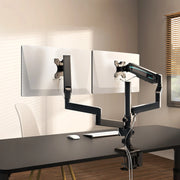
Move to a separate monitor when the laptop's screen and keyboard still conflict after you've tried external input devices, meaning viewing height and typing height can't both work with the laptop alone. If the monitor needs a wider range of positions than a simple stand allows, our Single Monitor Arm offers 360-degree adjustment and fits most 17- to 32-inch monitors up to 17.6 pounds. Check your monitor's weight and mounting pattern, along with the desk thickness and clearance, against the selected monitor arm's specifications before buying.
When the Desk or Feet Are the Limiting Factor
When a fixed-height desk is the real constraint, look at the keyboard's height and your feet, not the screen. Our Adjustable Keyboard Tray mounts below the desk and adds 360-degree swivel with 15-degree tilt, plus a 28.35 by 10.24 inch surface for a keyboard and mouse together; it fits most wood and MDF desks and holds up to 40 pounds. It's worth considering when a fixed desk leaves your external keyboard too high no matter how you adjust the chair. If chair adjustment instead leaves your feet unsupported, our Adjustable Ergonomic Footrest tilts from 0 to 20 degrees for under-desk use. A broader ergonomic desk or chair may be the better path when the furniture itself, not just one accessory, keeps the typing surface and seated position from working together.
| Scenario | Limiting constraint | First useful change | Solution path |
|---|---|---|---|
| Laptop only | Screen and keyboard both usable as-is | No change needed yet | Recheck periodically |
| Laptop with external keyboard and mouse | Typing separated, screen still workable | Raise or angle the laptop screen | External keyboard and mouse |
| Laptop with separate monitor | Laptop can't hold both positions | Add a separate monitor | Monitor and monitor arm |
| Fixed-height desk | Desk height controls keyboard position | Change keyboard height, not the screen | Keyboard tray or desk change |
For a monitor arm, confirm the monitor's weight and mounting pattern, the desk thickness, and the available clearance match the selected arm's specifications. For a keyboard tray, check the desk surface, tray dimensions, and weight capacity against its specifications.
Ergonomic Setup Audit
Run this check after making any changes to your laptop setup. If any item fails, go back to that step before calling the arrangement finished.
- The laptop screen sits at a workable viewing height without forcing you to use the built-in keyboard as your main typing surface.
- The external keyboard and mouse sit where your wrists stay close to neutral and you don't reach or twist to use either one.
- Your chair supports your seated position, and your feet rest flat on the floor or a footrest.
- The screen, keyboard, mouse, chair, desk, and feet all still work together after you type for a few minutes and look at the display.
- You've identified one next change, rather than adding more accessories without fixing the constraint that's actually limiting you.
When to Stop Adjusting and Get Medical Advice
Stop treating concerning symptoms as an equipment-only problem. Contact a healthcare provider for unexplained or persistent numbness or tingling, or related neck, forearm, or finger pain. Seek urgent care when weakness or inability to move occurs with numbness or tingling, as MedlinePlus explains.
A better desk, chair, or keyboard tray can remove a positioning problem, but it isn't a treatment, and it won't resolve a symptom that has a medical cause.
FAQs
Should a Laptop Be at Eye Level?
A laptop screen and a separate monitor aren't quite the same question. A separate monitor's top edge generally sits at or below eye level, about an arm's length away. A laptop screen should be raised only as far as still allows a workable viewing position once the keyboard has been moved to an external device; forcing it exactly to eye level can push the whole laptop too high.
How Can You Use a Laptop Without Neck Discomfort?
Separate the display from the typing surface. Position an external keyboard and mouse independently from the screen, then check that your wrists stay neutral, your elbows sit near 90 to 120 degrees, and your feet are supported. This creates separate viewing and typing positions, but it is not a guaranteed fix or treatment for existing discomfort.
When Do You Need an External Keyboard or Monitor?
Use the conflict test. If the laptop's screen can be raised or angled while the keyboard stays usable on its own surface, an external keyboard and mouse are the first step. If the screen and keyboard still can't both land in a workable position once you've tried that, a separate monitor is the clearer path.
What If the Desk Is Too High?
A fixed-height desk can turn the typing surface into the real limiting factor, even after the screen is fine. In that case, a keyboard tray that lowers or angles the keyboard, or a different desk-and-chair arrangement, is usually more useful than raising the laptop any further.
Next Steps for a More Flexible Laptop Desk Setup
Start with the piece that is limiting you now. If the screen is the problem, separate typing with an external keyboard and mouse, then choose a separate monitor when the laptop cannot hold both positions; a monitor arm can help when the display needs more positioning range. If typing height or foot support is the problem, choose keyboard trays or an adjustable footrest, and consider an ergonomic desk or chair when furniture is the constraint.
Make one decision now: if the screen is limiting you, start with an external keyboard and mouse; if the screen still cannot work independently, choose a separate monitor. If typing height is limiting you, choose a keyboard tray; if your feet are unsupported, choose an adjustable footrest. Apply that one change, then use the audit to decide whether another adjustment is needed.
Leave a comment