

A work laptop and a personal desktop can share one desk without doubling every peripheral. The fastest path to a workable two computer desk setup is to decide first whether the computers alternate or run at the same time, then assign each monitor, keyboard, mouse, and cable to a shared, dedicated, or optional role. Only after that plan is set should you shop for a switch, a bigger desk, or an accessory.

Last updated January 2026.

Choose the sharing pattern before you buy hardware
Start by labeling how each computer is used, then sort every peripheral into shared, dedicated, or optional before you look at any switching hardware.
Start with the computer roles
Write down what the work laptop and the personal or gaming desktop each need running continuously. A device that must stay connected during video calls or long game sessions is a poor candidate for sharing.
| Peripheral | Alternating use | Simultaneous use | Compact-desk note |
|---|---|---|---|
| Monitor/display | Share if display switching works for both computers | Consider a dedicated display for continuous visibility | One shared monitor saves the most surface area |
| Keyboard and mouse | Share through a verified switch or hub | Share only if brief handoffs are acceptable; otherwise dedicate | Sharing frees the most desk space |
| Audio | Share only if the connection path carries audio | Keep separate if both computers need sound at once | Optional; add only if the routine needs it |
| Webcam | Share if used one computer at a time | Dedicate one per computer for overlapping calls | Optional add-on |
| Storage (external drives) | Share with a manual reconnect step | Dedicate to avoid write conflicts | Optional |
| Power equipment | A shared power strip usually works | A shared power strip usually works | Route it away from the footwell |
Use the smallest workable shared set
Share only the devices that both computers can actually use through a connection you have checked. If simultaneous use would interrupt a task, such as a call on one computer while gaming on the other, keep that device dedicated instead of forcing it through a shared path. This decision, not the switching hardware, is the real starting point of a dual-computer home office setup.
Match the switching method to your two-computer routine
Choose the method based on what must keep working during a switch. A hardware KVM provides a physical path for compatible display and USB-console connections, while software switching depends on software running and functioning on both computers.
| Method | Dependencies and connection path | What happens when you switch | Best fit |
|---|---|---|---|
| Hardware KVM switch | Requires the model's stated display and USB connections to match both computers. | A physical control path changes the active computer for the compatible display and shared USB-console devices. | Alternating use when switching should not depend on an application running on both machines. |
| Software-based switching | Requires the selected software to support both operating systems and meet its installation, permission, network, and security requirements. | The switching workflow depends on the software functioning on both computers and on the required connection path being available. | A simultaneous workflow only when both computers support the same software workflow; keep any device that must stay active dedicated. |
Hardware KVM switches
A hardware KVM switch can share a compatible monitor, keyboard, mouse, and, on models that provide them, audio or extra USB devices between two computers through the switch's physical connection path. Exact ports, display support, and audio handling vary by model, so match the switch's stated connections to both computers before buying.
USB hubs and software switching
A USB hub expands or organizes connections; it is not automatically a monitor switch, so do not buy one expecting display switching. Software-based switching instead depends on the selected software being installed and functioning on both computers, with its operating-system, permission, network, and security requirements met. For simultaneous use, keep any device that must remain active on each computer dedicated.
Verify before buying
- List every port and display output on both computers, including docks or adapters in the path.
- Confirm whether a dock or adapter changes which displays or peripherals can connect.
- Note which peripherals must switch together, such as a monitor and its paired keyboard.
- Check the operating-system, permission, and installation requirements for any software-based option.
Arrange monitors and inputs around the primary computer
Center the display for whichever computer is doing the active task, and keep frequently used controls in that same zone. Correct arrangement solves ergonomics, not compatibility, so confirm connections separately using the checklist above.
Make one computer primary at a time
Treat one computer as primary for the current task and center its monitor directly in front of you, with the keyboard and mouse close at hand. OSHA's workstation evaluation guidance recommends placing the primary monitor directly in front of the user, positioning additional monitors beside it, and keeping the keyboard and mouse on a stable surface.
Use the laptop screen deliberately
If the laptop is your primary work computer, pair it with an external monitor plus a separate keyboard and mouse instead of typing on the laptop for long sessions. When the laptop screen stays secondary, place it beside the primary monitor and match the physical layout in your operating system. On Windows, display settings let you identify each monitor and arrange them to match your desk, then choose PC screen only, Duplicate, Extend, or Second screen only depending on how you want the laptop screen to behave.
Place the laptop, desktop, and power gear without losing legroom
Keep the area under the desk clear enough for normal leg and foot movement, and treat any tower, power strip, or cable pile blocking that space as a placement problem to fix now.
Separate computer zones from the footwell
Do not let the desktop tower become under-desk storage. OSHA's desk component guidance advises keeping the area under the desk free of CPUs and other items that restrict leg movement. If the tower, power equipment, or cable bundle stops your chair from moving normally, relocate it before treating the layout as finished.
Place the laptop for the active role
Park the laptop where its screen and cable path will not push the primary monitor or keyboard out of position. Leave enough cable slack so you can open or move the laptop without tugging on a shared connection.
Route and label cables so switching stays easy
Group cables by destination, label both ends, and leave the footwell clear so switching computers never means reaching through a cable pile.
Use one cable-management checklist
- Inventory every power, display, USB, audio, and network cable for both computers.
- Label both ends of each cable with the computer and destination.
- Route the work-computer and personal-computer paths separately where the desk allows it.
- Leave controlled slack at the laptop, monitor, or any adjustable point that moves.
- Test switching between computers before securing any bundle permanently.

Choose organizers only after mapping the route
Once you know which cables run where, raceways, clips, mounting bases, and reusable ties can keep the routes tidy. Our cable management system includes raceways, 200 tie wraps, mounting bases, and clips for organizing power, data, and audio/video cords, which fits this step once your routing plan is set. It organizes existing cable paths; it does not add power capacity or resolve a switching-compatibility gap.
Decide whether your desk needs more capacity
Run the fit test below before assuming you need a bigger desk. Most compact setups only need one item moved or one accessory added.
Run the existing-desk fit test
- Does the primary monitor stay directly in front of you?
- Do the laptop, keyboard, and mouse fit without pushing frequently used controls aside?
- Does the desk still leave usable knee and foot clearance?
- Can cables leave the work zone without crossing the footwell?
OSHA's purchasing guidance recommends a separate keyboard and input device for a laptop used as a primary workstation, a monitor placed roughly 20 inches away, and enough desk depth for multiple monitors and knee and foot clearance. If your desk passes all four checks, keep it. If one item fails, reconfigure first; a full desk swap is rarely the cheapest fix.
Match an accessory to the failed test
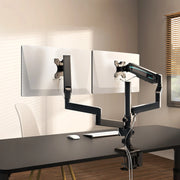
If the desk fails because the monitor has nowhere to sit without crowding the keyboard, our dual monitor arm is listed for 17- to 32-inch monitors with a load capacity of up to 17.6 pounds, 75x75mm or 100x100mm VESA compatibility, and desks between 0.4 and 3.5 inches thick. Measure your monitor and desk edge against those specifications before ordering. If the desk fails because keyboard and mouse space is the problem, our adjustable keyboard tray offers a 28.35-by-10.24-inch surface with 360-degree swivel and 15-degree tilt, and is listed as ideal for wood and MDF-engineered desks; confirm your desk material and underside clearance match before buying.
Build and test the setup in five steps
The shortest reliable build path is to inventory first, verify the connection path before buying, then place and test the equipment before securing cables.
- List both computers and every peripheral each one needs, noting which must stay continuously available.
- Assign each peripheral to shared, dedicated, or optional using your alternating-versus-simultaneous decision.
- Verify ports, displays, and any dock or adapter path on both computers before buying a switch or hub.
- Place the laptop, tower, and power gear so the footwell and primary work zone stay clear.
- Route and label the cables, then test switching between computers before securing anything permanently.
If step 5 turns up a monitor or input that will not fit cleanly, that is your cue to revisit the desk-capacity test above and add the one accessory that matches the failure, rather than replacing the whole desk.
A well-planned two computer desk setup shares only the peripherals that fit the routine, keeps cable routes easy to trace, and protects usable legroom. If one layout gap remains, fix that specific gap with the matching accessory.
FAQs
How do I switch monitors between two computers?
To switch monitors between two computers, use the monitor's input controls or a compatible hardware path such as a KVM switch. Windows display settings identify, arrange, and change the display mode for monitors connected to the same computer; they do not physically switch a monitor between two computers. Verify the monitor's connections, each computer's output, and any dock or adapter, then check keyboard and mouse sharing separately.
What is the best way to manage cables for two computers?
Group cables by destination, label both ends with the computer name, and leave only the slack needed for movement. Keep every route out of the footwell and test switching before you secure any bundle for good.
Do I need a larger desk for a dual-computer setup?
Not automatically. Run the fit test: a centered primary monitor, reachable keyboard and mouse, enough surface for both computers, and open leg clearance. If only one item fails, reconfigure or add one accessory before buying a bigger desk.
Can I use one keyboard and mouse with a work laptop and gaming PC?
Yes, if you alternate between the two and your connection path supports switching both computers reliably. If you use both at once, dedicated keyboards and mice usually work better than sharing one set.
Leave a comment