

You’ve seen the "final boss" gaming setups on social media—the ones where the screens seem to float effortlessly in mid-air, surrounded by a clean, RGB-infused glow. If you’re looking for a gift that will actually change how someone plays or works, you might be tempted by a new mouse or a flashy headset. But here’s a pro tip from the setup trenches: the single most impactful, "I-didn't-know-I-needed-this" upgrade is a high-performance monitor arm.
A monitor arm is a total game-changer for anyone spending eight-plus hours a day at a desk. It’s not just about aesthetics (though the "floating" look is insane); it’s about ergonomic precision. By the end of this guide, you’ll understand why this accessory is the key to finishing a battle-station and protecting the recipient’s health.
1. Unboxing and Assembly: The Journey to a Floating Screen
When you first unbox a high-quality monitor arm, the first thing that hits you is the Build Quality. We’re talking heavy-duty aluminum or steel, not the flimsy plastic stands that come in the monitor box. In our experience handling setup upgrades, the weight of the arm itself is usually the first indicator of its stability.
The First Impression
Most premium arms arrive in high-density foam packaging. You’ll find the main clamp, the gas-spring arm segments, and a VESA plate. Installation is usually straightforward but requires a bit of "setup muscle."
- The Clamp vs. Grommet: Most users go for the C-clamp, which grips the edge of the desk.
- The VESA Dance: You screw the plate onto the back of the monitor, then slide it into the arm’s bracket.
- The Tension Tweak: This is where the magic happens. You use an Allen key to adjust the internal gas spring until the monitor stays exactly where you put it—not sinking, not popping up.
One common mistake we see in community feedback is underestimating the monitor's total weight. As a rule of thumb, always add 2-3 lbs to the monitor's advertised weight to account for the VESA plate and cable attachments. If the arm is rated for 20 lbs and your monitor is 19 lbs, you’re pushing the limits of the gas spring’s "usable capacity."

2. The Science of "The Float": Why Ergonomics Isn't Just a Buzzword
Why does this matter? Because "Tech Neck" is real. According to the Canadian Centre for Occupational Health and Safety (CCOHS), proper screen placement is vital for preventing musculoskeletal disorders (MSDs).
When a monitor sits on its original stand, it’s usually too low. This forces the user to tilt their head forward, putting massive strain on the cervical spine. By lifting the screen to eye level, you’re encouraging a "neutral posture."
The 20-8-2 Rhythm
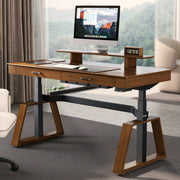
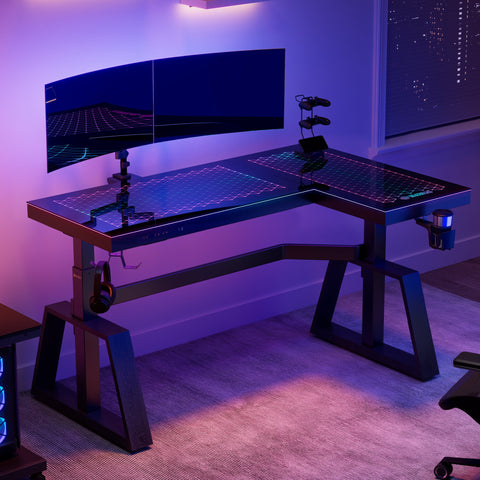
We often recommend the "20-8-2" rhythm developed by Cornell University Ergonomics Web: 20 minutes sitting, 8 minutes standing, and 2 minutes of moving. A monitor arm makes this transition seamless. When you move from sitting to standing on a desk like the Aero Pro Wing-Shaped Standing Desk (72"x23"), your viewing angle changes slightly. A gas-spring arm allows you to make micro-adjustments in seconds, keeping the top of the screen at or slightly below eye level, as suggested by OSHA eTools: Monitors.
3. Deep Dive: Engineering, Stability, and the "Wobble Test"
Let’s talk technical. A monitor arm is a cantilever system, which means it puts a lot of stress on the point where it attaches to the desk. This is why Stability is the most discussed topic in gaming communities.
The Usable Capacity Heuristic
In engineering, there’s a gap between the "marketing number" (the maximum load) and the "usable capacity." Based on common patterns from customer support and warranty handling, we use a practical baseline:
Logic Summary: For long-term safety and to prevent "arm sag," aim for a utilization rate of 50-75% of the rated capacity.
| Parameter | Value / Range | Unit | Rationale |
|---|---|---|---|
| Rated Capacity (Sample) | 20 | lbs | Manufacturer Spec |
| Recommended Load | 10 - 15 | lbs | Stability Safety Factor |
| Monitor Weight (32") | ~12 - 18 | lbs | Common Hardware |
| VESA Plate + Cables | ~2 - 3 | lbs | Added Mass |
| Dynamic Force | ~1.5x Static | lbs | Movement Stress |
The Wobble Test
If you put a high-end monitor arm on a cheap, thin desk, it will shake every time you type. To pass the "Wobble Test," you need a foundation with a steel frame. The Aero Wing Shaped Studio Desk (73"x23") is built for this. Its steel frame and 400 lbs weight capacity provide the rigid surface needed to anchor a dual-arm setup without the lateral stress causing the desktop to flex.
As noted in The 2026 Workstation White Paper: Converging Ergonomic Science and Sustainable Engineering, the convergence of structural integrity and ergonomic accessories is what defines a modern high-performance workspace.
4. Real-World Experience: From FPS Grinds to Content Creation
In actual gaming scenarios, the benefits are immediate. During intense FPS sessions, you might want your monitor closer for better focus. During a relaxed RPG or while editing video, you might push it back to open up desk space for a drawing tablet or a 23" Rolling File Cabinet with Drawer tucked nearby for your gear.
Cable Management Mastery
The biggest frustration with monitor arms is the "cable pull." If you don't route your cables correctly, the arm will snag when you try to move it. Expert Tip: Route the cables through the arm before your final height adjustment. Use velcro ties instead of the plastic clamps that come in the box. Plastic clamps tend to pinch cables over time, whereas velcro allows for the "slack" needed for full range of motion.
The "Wing" Advantage
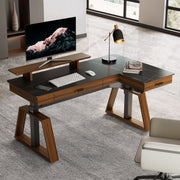
If the recipient has an L-shaped or wing-shaped desk, a monitor arm is even more essential. On the Aero Pro Wing-Shaped Standing Desk (72"x23"), the wing sections provide perfect arm support. A monitor arm allows you to center the screen perfectly in that "sweet spot" of the wing, maximizing the ergonomic layout defined by BIFMA G1-2013 Ergonomics Guidelines.

5. The Gift-Giver’s Checklist: Avoiding the "Gotchas"
Before you buy, you need to play detective. Not every desk is compatible with every arm.
- Desk Thickness: Check if the desk has a "lip." If the desk has a metal frame too close to the edge, the clamp won't fit.
- Material Matters: Avoid clamping onto glass or hollow-core "honeycomb" cardboard desks. They can shatter or crush under the pressure of a monitor arm.
- VESA Compatibility: Most monitors use a 75x75mm or 100x100mm hole pattern. Ensure the monitor isn't one of those rare models with a proprietary stand that can't be removed.
- The "Tech Neck" Solution: If they’ve complained about neck pain, look for an arm with a high vertical range. Solving 'Tech Neck' involves more than just lifting the screen; it’s about finding the angle where the eyes naturally rest.
6. Pros & Cons: Is it Right for Them?
Pros:
- Massive Space Savings: Reclaims the 10-15% of desk real estate usually taken up by bulky stands.
- Ergonomic Customization: Allows for the "neutral posture" recommended by ISO 9241-5.
- Aesthetic Upgrade: Instantly makes any setup look professional and high-end.
- Versatility: Great for switching between gaming, work, and streaming.
Cons:
- Setup Complexity: Can take 30-60 minutes to dial in the tension perfectly.
- Desk Requirements: Requires a sturdy, solid-core desk to avoid damage.
- Cable Length: You might need to buy longer DisplayPort or HDMI cables to accommodate the arm's reach.
7. Modeling Note (Method & Assumptions)
Our recommendations for load capacity and stability are based on a deterministic parameterized model of cantilever stress.
- Modeling Type: Scenario modeling based on common industry heuristics.
- Boundary Conditions: These estimates assume a standard desk thickness of 0.75" to 1.5" and do not apply to glass, stone, or hollow-core surfaces.
- Assumptions: We assume the monitor's center of gravity is within 3 inches of the VESA mount point.
| Parameter | Baseline Value | Unit | Source Category |
|---|---|---|---|
| Safety Factor | 1.5 | ratio | Engineering Heuristic |
| Average Monitor Weight (27") | 11 | lbs | Market Average |
| Clamp Surface Area | ~12 | sq. in | Standard Bracket |
| Max Extension Torque | ~240 | lb-in | Calculated at 16" reach |
Final Thoughts
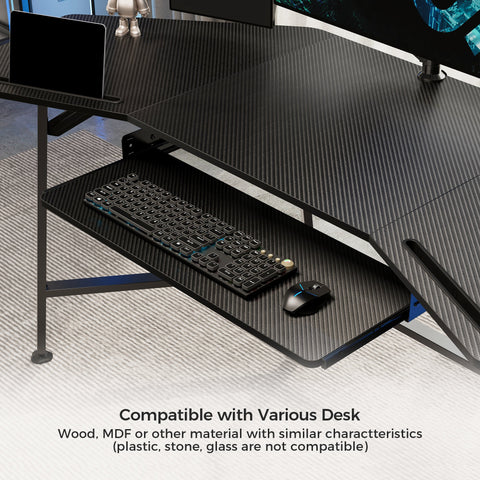
Gifting a monitor arm is like giving someone a new perspective on their hobby. It’s the "finishing touch" that turns a collection of parts into a cohesive battle-station. When paired with an ergonomic foundation like the Adjustable Keyboard Tray, you’re not just giving a gadget—you’re giving a healthier, more focused gaming experience.
For more insights on building the perfect setup, check out our guides on Why Desk Ergonomics Matter and Building a Healthy Gaming Setup.
Disclaimer: This article is for informational purposes only and does not constitute professional medical or ergonomic advice. Always consult with a qualified professional before making significant changes to your workstation, especially if you have pre-existing musculoskeletal conditions.
References
- BIFMA G1-2013 Ergonomics Guideline for Furniture
- CCOHS: Office Ergonomics - Sit/Stand Desk
- Cornell University Ergonomics Web — Workstation Guides
- OSHA eTools: Computer Workstations - Monitors
- ISO 9241-5:2024 Workstation layout & postural requirements
- WHO 2020 Guidelines on Physical Activity & Sedentary Behaviour
- The 2026 Workstation White Paper: Converging Ergonomic Science and Sustainable Engineering
Leave a comment