

The 90/90/90 ergonomics rule is a quick visual check, not a strict requirement. It asks whether your feet are supported, your hips and knees sit at roughly a right angle, and your elbows bend comfortably near your keyboard, as described in OSHA's neutral-position guidance. If any of those three checks fails, the fix is to adjust the workstation part causing the problem, not to force your body into a fixed number. Start by finding which surface, chair, or accessory is the actual source of the mismatch, then work from your feet up to your screen.
What the 90/90/90 Rule Means—and What to Adjust First
In practice, the 90/90/90 ergonomics rule describes three approximate relationships you can check by sitting at your desk, not a medical formula you must hit exactly.

What the Three Approximate Checks Are
Your feet need stable support, whether that comes from the floor or a footrest. Your hips and knees should sit at roughly the same height, and the angle between them can be slightly greater than 90 degrees rather than locked at exactly 90 degrees. Your elbows should stay close to your body and bend comfortably as you reach the keyboard. OSHA's neutral-position guidance describes this as a comfortable posture where your joints line up naturally, and it recognizes more than one seated position as neutral rather than a single fixed angle. Your screen is part of the setup too, but you check it on its own, separate from these lower-body angles.
Use the Rule to Find the Limiting Surface
If raising your chair fixes your elbows but lifts your feet off the floor, your desk height is likely the real constraint, not your chair. If your chair and feet already work but your keyboard still sits too high, your work surface is the limiting piece. If your screen stays too low or too close no matter what you do with your chair, treat that as a separate monitor or laptop-placement problem instead of chasing it with more chair adjustments.
Run the Self-Check From Feet to Screen
Work through this table in order, from your feet up to your screen, and stop at the first row where you notice a mismatch.
| Check | If you notice a mismatch | First adjustment |
|---|---|---|
| Feet | Feet dangle or only rest on toes | Add stable foot support, such as a footrest |
| Knees and hips | Knees noticeably higher or lower than hips | Adjust seat height, then recheck feet |
| Elbows and keyboard | Elbows reach up or down to type | Adjust chair height or the keyboard surface |
| Wrists and mouse | Wrists bend up, down, or sideways | Move the keyboard or mouse closer, or add a tray |
| Screen or laptop | Screen sits below eye level or too close/far | Raise, lower, or move the monitor or laptop stand |
NIOSH's home-office guidance supports using a temporary footrest such as a sturdy box when your feet don't reach the floor, and it recommends a separate keyboard or mouse when a laptop can't satisfy both your screen and typing position at once. If your feet fail the first check, fix that before touching your chair again. Keep screen and keyboard checks separate when you're using a laptop or a fixed monitor, since fixing one doesn't automatically fix the other.
Adjust Your Chair Before You Change the Desk
Start with your chair, since it's usually the fastest adjustment to test before you touch the desk itself.
Set the Seat Height, Then Retest Your Feet
Adjust your chair so you can reach your keyboard with relaxed shoulders and elbows held close to your body, as described in OSHA's guidance on neutral positions and keyboard placement. Right after that change, check your feet again. If they no longer rest securely, the chair adjustment has exposed a desk-height conflict, not a chair problem on its own. Treat the chair as one adjustable piece among several, not the only lever you have.
Use Seat Depth and Armrests as Fit Checks
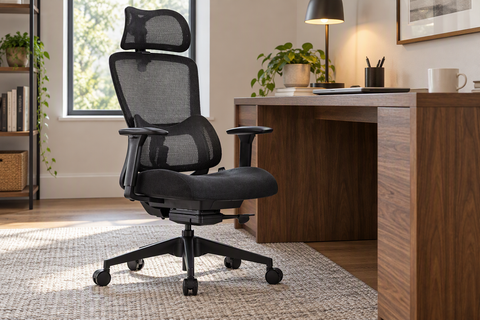
A chair with good height adjustment can still leave you unable to position your back, arms, and keyboard comfortably. Watch for armrests that push your shoulders up or force your chair too far from the desk. If your current chair can't be adjusted enough, our chair adjustment guide walks through seat depth, lumbar support, and armrest settings for different body sizes.
If the Desk Is Too High, Protect Foot Support First
When a fixed desk forces you to raise your chair, protect your feet before you worry about anything else.
When Raising the Chair Creates Unsupported Feet
Raise your chair only as high as you need for a workable keyboard position. If that leaves your feet unsupported, add a stable footrest and recheck your hips and knees. Don't substitute an unstable stack of books or boxes for real foot support; use something sturdy that stays in place.
When the Keyboard Is Still Too High
OSHA's keyboard and work-surface guidance treats chair height and work-surface height as linked variables, recommending you adjust both together so your keyboard sits near elbow height. If your keyboard is still too high after fixing your feet, lower or reposition the keyboard surface itself. A keyboard tray is worth considering at this point if your desk and chair can't be adjusted enough on their own.
If the Desk Is Too Low or Fixed, Reposition the Input Surface
A low or fixed desk is usually a work-surface problem, not a chair or foot-support problem, once your feet are already secure.
When Your Feet Work but Your Elbows Do Not
Don't give up supported feet just to reach a low or high keyboard. Instead, reposition the keyboard or work surface where you can. A tray is a reasonable fixed-desk adaptation, but only if it installs correctly and lands at a workable height and distance for your setup.
When the Laptop Creates Two Separate Mismatches
A laptop screen and keyboard are locked together, so they can't always be positioned independently. When one placement can't satisfy both your screen and your typing position, use a separate keyboard and mouse, or add an external monitor. Then retest your viewing distance and your input position separately, since fixing one doesn't guarantee the other is fixed too.
Choose the Least-Disruptive Fix for the Mismatch
Match your fix to the specific check that failed, rather than replacing furniture in general.
Choose a Footrest for an Unsupported-Feet Mismatch
A footrest makes sense when raising your chair solved your keyboard position but left your feet hanging. Our height-adjustable footstool adjusts from 16.73 to 20.24 inches, with wheels for easy repositioning under a desk. Compare that listed range with your available legroom and desk clearance before choosing it.
Choose Chair Adjustment or Replacement for a Range Problem
A chair change only makes sense once your current chair, even after basic adjustment, can't give you a workable seat, arm, or support position. Our chair adjustment guide covers the setup steps worth trying first.
Choose a Keyboard Tray for a Fixed-Surface Mismatch
When your feet and chair position already work but the keyboard remains too high or too low, the fixed desk surface is the problem. Our pull-out keyboard tray offers adjustable pull-out length and two height options. Confirm it can mount securely under your specific desk before treating it as your fix.
Change the Desk Only When Several Conflicts Remain
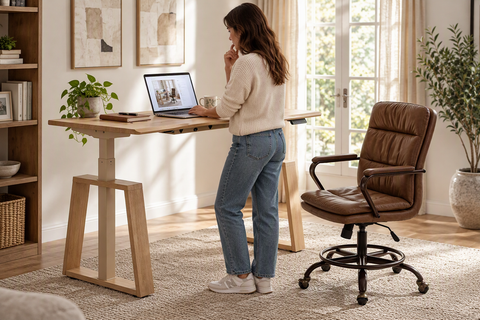
A desk change is the biggest step, so save it for when your fixed surface keeps you from getting a workable chair, foot, and keyboard position all at once. There's no single universal desk height that works for everyone. The practical rule is simple: replace whichever component keeps causing the same mismatch.
Adapt the Rule When Exact Angles Do Not Feel Right
If matching every angle exactly feels uncomfortable, prioritize stability and function over the precise number.
Prioritize Support Over Exact Geometry
Keep your feet supported, your shoulders relaxed, your wrists close to neutral, and your keyboard and screen easy to use, as outlined in OSHA's neutral-position guidance and NIOSH's home-office guidance. A slightly different angle is a reasonable adaptation as long as your setup stays stable and comfortable. Don't force a textbook 90-degree position if doing so creates a new problem somewhere else.
Change Position Instead of Holding One Pose
Both OSHA's workstation guidance and NIOSH's home-office guidance support changing your posture throughout the day rather than holding one fixed position. Use the 90/90/90 check as a reset point whenever you adjust your workstation, not as a pose to maintain all day. After each change, retest your setup to see whether the mismatch moved somewhere else.
The 90/90/90 desk posture rule works best as a comfort check: start with supported feet, adjust the relationship that fails, and retest after the smallest change. If the mismatch moves upward, follow it to the next surface instead of forcing an exact angle.
FAQs
Is the 90/90/90 Rule Mandatory for Everyone?
No. It's an approximate visual check, not a universal requirement. What matters more is keeping your feet supported, your input devices within easy reach, and changing position throughout the day instead of holding one pose.
What Should I Do If My Desk Is Too High?
Raise your chair only enough to bring your elbows near the keyboard. If your feet lift off the floor, restore support with a footrest. If the keyboard is still too high after that, reposition the keyboard surface or consider a tray.
How Do I Know If My Office Chair Is Set Correctly?
Check your feet, hips, knees, elbows, and keyboard together, not the chair alone. Look for relaxed shoulders and a screen and keyboard position you can use comfortably. An exact angle or a product label isn't proof that your setup fits you.
Can I Use a Footrest With the 90/90/90 Desk Posture Rule?
Yes. Both OSHA and NIOSH guidance allow a footrest when your desk isn't adjustable or your feet can't rest securely on the floor. Just make sure the footrest works with your chair height, desk clearance, and available legroom.
Leave a comment