

Set your standing position first, then handle the screen, the camera, and the keyboard as three separate jobs. Standing desk height alone will not fix a video call: raising the desk without repositioning the monitor and camera usually leaves you looking down, leaning in, or reaching for a keyboard that is now too high. Align the monitor, aim the camera, restore your keyboard and mouse, and test the whole thing before you join.

Use This Standing-Call Alignment Order
Start by standing exactly where you will take the call, with your shoulders relaxed and your arms hanging naturally. Set the desk to that height before touching anything else.
From there, work through the setup in one order: position the monitor for a comfortable direct view, then check the camera separately, then restore the keyboard and mouse, and finally test the complete arrangement. Skipping the order is what causes the common problems: a monitor that is fine but a camera that looks up your nose, or a screen at the right height with a keyboard now floating near your chest. Each component gets its own check because a fix in one spot does not automatically fix the others.
Set Monitor Height for a Comfortable Standing View
Keep the monitor directly in front of you, at least 20 inches away, with the top edge at or below your standing eye level. The OSHA monitor placement guidance recommends this direct-front placement along with a viewing angle where the screen center sits roughly 15 to 20 degrees below your eye line, so you glance slightly down rather than straight ahead or up.
Use that downward angle as your comfort check. If you catch yourself tilting your head back, the monitor is too high, so lower it. If you lean toward the screen, reassess its viewing distance and keep it at least 20 inches away. If the monitor sits to one side, move it directly in front of you. A fixed monitor stand only works here if it happens to land in that position once the desk is raised; if it does not, the fix is an independently adjustable display rather than adjusting your posture to match the screen. Our monitor arm placement guide walks through height, distance, and tilt if you want the full adjustment process for an arm-mounted display.
Raise the Camera for Natural Eye Contact
Set the camera at or just above your eye level and pointed straight at your face, separately from wherever the monitor ends up. Monitor height and camera height solve two different problems, so a comfortable screen position does not guarantee good framing.
The Columbia camera-height guidance notes that a camera pointed up at your face from below creates an unflattering angle, and recommends adjusting the camera height whenever you switch to a standing desk. Preview the actual image from your standing position, not a seated test shot, since your head height changes when you stand.
If the built-in webcam on your monitor or laptop cannot reach eye level once the screen is correctly placed, that is a camera problem, not a reason to re-lower the monitor. A monitor arm changes where the display sits; it does not reposition a separate webcam. In that case, an external webcam mounted at the right height can address the framing issue without undoing your screen adjustment.
Keep the Keyboard and Mouse Usable While Standing
Place your keyboard and mouse where your wrists stay close to straight and your elbows sit between roughly 90 and 120 degrees, independent of where the screen sits. A laptop couples the screen, camera, and keyboard together, so raising the laptop for eye-level viewing can push its built-in keyboard uncomfortably high.
The NIOSH laptop and external-device guidance recommends using a separate keyboard and mouse that you can position independently of the screen once you rely on an external monitor. That independence is the actual fix: it lets the display sit at eye level while the keyboard stays at a comfortable working height.
If the raised desktop leaves too little surface for the keyboard, or the keyboard now sits above a comfortable typing height, we offer an adjustable keyboard tray with two height settings and adjustable pull-out length. Use it only when its dimensions, mounting method, and load capacity suit your workstation. It fits desks where height or crowded surface space is the specific problem; it is not a required accessory for every standing desk.
Choose the Setup That Can Move With You
Pick the setup based on which single component cannot hold its position on its own, not on whether you are standing at all. If the monitor, camera, and keyboard all already land correctly once the desk is raised, no extra hardware is needed.
External monitor with a fixed stand or monitor arm
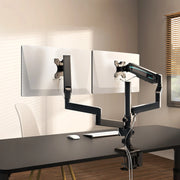
A fixed stand is enough only if the display keeps its correct front-and-eye-level position after the desk goes up. When a compatible monitor needs to move between seated and standing heights on its own, our Single Monitor Arm gives 360-degree adjustment for monitors from 17 to 32 inches and up to 17.6 pounds, with VESA 75x75mm or 100x100mm mounting and C-clamp or grommet installation. Confirm your monitor's size, weight, and VESA pattern against those limits before counting on it for standing calls.
Laptop-only setup
A laptop ties the screen, camera, and keyboard together, so fixing one for standing height can push another out of position. Add an external keyboard, mouse, or webcam only once you find the specific check that the laptop fails, rather than replacing every component up front.
When seated is the better fit
Standing is optional. If the complete arrangement, screen, camera, and inputs together, cannot stay comfortable and usable once raised, use the seated setup instead. This applies to a five-minute check-in and a long meeting alike; validate the actual framing and screen view before deciding, not just how the desk height feels.
| What isn't working | Likely cause | Best move |
|---|---|---|
| Monitor is off to the side or too low | Fixed stand can't hold the standing position | Independently adjustable monitor arm |
| Camera looks up at your face | Webcam height is fixed to the display or laptop | External webcam set at eye level |
| Keyboard sits too high or crowds the desk | Screen and keyboard are on the same surface height | Separate keyboard and mouse, or an adjustable tray |
| Screen, camera, and keyboard all conflict on a laptop | Laptop couples all three components | External display, keyboard, and mouse |
| Nothing stays comfortable once standing | Standing can't preserve the full arrangement | Seated setup |
Run the Pre-Call Ergonomic Setup
Run this check every time before you join a standing call, not just the first time you set up.
- Stand in the exact spot you will use for the call and confirm the desk is at that height.
- Check the monitor: directly ahead, at a comfortable distance, top edge at or below eye level.
- Open your camera preview and confirm it sits at or just above eye level with a straight-on, head-and-shoulders frame.
- Rest your hands on the keyboard and mouse and confirm your wrists stay straight and your elbows stay bent at a comfortable angle.
- If any check fails, fix that one component or switch to the seated setup before you join.
FAQs
How high should a monitor be when standing?
Use the screen's top edge and downward viewing angle as the guide: keep it no higher than your eyes and at least 20 inches away. OSHA's monitor guidance supports this position.
Where should my camera be for a standing desk video call?
Aim for eye level or just above, with a straight-on view, and judge the frame while standing. Columbia's camera guidance supports testing the setup before the call.
Can I use a laptop by itself at a standing desk?
Yes, if the screen, camera, and built-in keyboard all pass their standing-position checks. If one fails, add only the separate device that addresses that problem or use the seated setup.
How do I keep my keyboard and mouse comfortable while standing?
Keep both devices independent of the screen. If the raised surface leaves them too high or crowded, an adjustable keyboard tray is an option; NIOSH guidance supports independent input-device placement with near-neutral wrists and elbows at 90 to 120 degrees.
References
- Computer Workstations eTool: Monitors - OSHA
- Working from Home: How to Optimize Your Work Environment and Stay Healthy - CDC/NIOSH
- Video Production Best Practices - Columbia University Center for Teaching and Learning
Leave a comment