

A shared standing desk setup works when each person has a documented seated and standing configuration—not when both users settle for one averaged height. Measure each user with their usual chair, monitor, keyboard, mouse, footwear, and foot support. Then compare those four working positions with the desk's documented range and create a repeatable handoff for the equipment that does not move automatically.

The goal is a workstation that can be restored without guessing. If one user still has to accept a persistent reach, viewing, chair, or clearance compromise, the desk may not be the right fit for both people.
Measure Both Users Before Setting the Desk
Start with each person's actual working position rather than body height alone. A complete workstation includes the monitor, keyboard, desk, chair, and mouse, so changing only the desktop height does not establish a suitable setup for the next user. OSHA's monitor guidance supports checking these components together.
Seated and Standing Fit Checks
Have User A and User B test both seated and standing work with the equipment they normally use. Keep the results separate; a seated configuration is not simply a lower version of the standing configuration.
For each user and work mode, check:

- Elbows and keyboard: Adjust the chair and work surface so the elbows can remain comfortably positioned relative to the keyboard, without shrugged shoulders or a forced reach. OSHA's keyboard guidance supports checking these relationships rather than applying one universal desk height.
- Mouse and wrist position: Place the mouse where it can be used without extending the arm far beyond the keyboard or sharply bending the wrist.
- Monitor view: Recheck screen height, distance, and angle after changing the desk. The monitor should remain positioned for the person using it, not simply left at the previous user's setting.
- Chair and leg clearance: Record chair height, back support, arm position, and available leg room. A chair change can alter the user's relationship to the desktop.
- Reach and surrounding clearance: Check whether the user can reach the inputs, controls, and frequently used items without leaning around the monitor or nearby furniture.
Use shoulder tension, wrist bending, excessive reach, poor screen view, or restricted leg clearance as signals to revise the arrangement. These are practical fit checks, not a universal posture prescription.
Record Each User's Starting Settings
Create a short configuration card for each person. A photo beside the desk controls can be useful, but it should supplement written notes rather than replace them.
- Document: Record the desk position, chair settings, monitor position, keyboard and mouse location, footrest use, and any accessory or cable changes.
- Label: Mark controls by user or mode when possible, and keep each person's manual desk-height note near the controls.
- Validate: Recheck the arrangement after several work sessions. If a user keeps moving the monitor, chair, or inputs, update the recorded configuration instead of preserving an arrangement that does not work.
For more planning help, use this desktop size planning resource as a follow-up. Do not treat a desktop dimension as proof of fit until the equipment footprint and both users' positions have been tested.
Choose a Shared Height Range and Daily Routine
Choose the desk range by comparing four validated positions: User A seated, User A standing, User B seated, and User B standing. Do not average the users' heights and assume the midpoint will work. Desktop thickness, chair dimensions, footwear, and accessory clearance can change the position each person needs.
| User and work mode | Measured working position | Desk-range check | Chair or accessory change | Pass/fail boundary |
|---|---|---|---|---|
| User A seated | Record the tested desk and chair relationship | Does the documented minimum allow this position after desktop thickness is considered? | Note chair, monitor, footrest, and input changes | Pass only if the position is workable without a persistent compromise |
| User A standing | Record the tested standing input and screen position | Does the range reach this position without restricting equipment or clearance? | Note monitor, keyboard, mouse, and cable changes | Fail if the user must reach, shrug, or accept a poor screen view |
| User B seated | Record separately rather than copying User A | Check the same minimum-range and clearance conditions | Note this user's chair and foot support | Fail if the chair or inputs cannot be restored reliably |
| User B standing | Record the tested standing position | Check the documented maximum and the full equipment path | Note accessories that remain fixed or move | Fail if the desk range or room prevents a workable position |
A published frame range is only a starting point. The product listing must also be checked for desktop thickness, control behavior, surface dimensions, accessory mounting, room clearance, warranty, and returns.
When presets are unavailable—or when they do not move the rest of the workstation—use a fixed manual handoff. Cornell's workstation adjustment guidance provides a practical order: adjust the chair, then monitor, keyboard, and mouse, followed by the footrest, personal items, and cables. Write the order beside the desk and keep the measurements available as a fallback.
If memory presets on a standing desk are available, use them as a shortcut for the desk position, not as an all-in-one handoff. The other user still needs to restore the chair, screen, inputs, foot support, and cable path.
Shared Standing Desk Setup: Configure Presets and Swap-Friendly Accessories
Match each feature to the specific friction it solves. A preset helps with repeated desk-height entry; an adjustable monitor helps with screen-position differences; a tray may address input placement—but only if its mounting requirements match the desk.
- Use a desk preset only after the complete workstation has been checked.
- Match monitor, keyboard, and mouse adjustability to the differences between users.
- Include chair settings, foot support, cables, and personal-item zones in the handoff.
- Verify each accessory's current dimensions, mounting method, and material requirements before buying.
Use Memory Presets If Available
Validate the complete workstation before saving a programmable height preset.
- Set the chair, desk, monitor, keyboard, mouse, footrest, and cables for one user.
- Save and label the desk position by user or work mode, then write down the manual desk setting as a backup.
- Switch users and test the complete handoff. If the preset leaves the monitor, chair, or inputs wrong, document those remaining steps beside the controls.
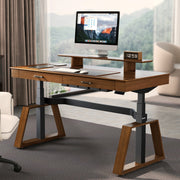
For a listing-specific example, the desk with programmable settings identifies four programmable settings and a 28-inch to 49.19-inch adjustment range. Those are specifications for that named listing, not evidence that every adjustable desk offers the same range or controls. Verify the current product page before buying.
Match Monitor and Input Adjustability to the Swap
Use this matrix to connect a feature with a real shared-workspace problem:
| Shared-workspace friction | Adjustment response | Compatibility check |
|---|---|---|
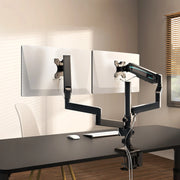
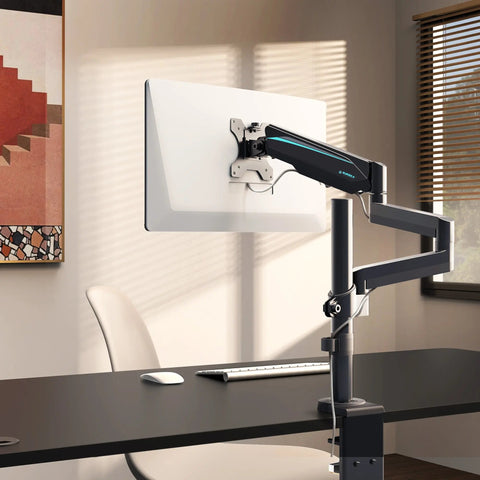
| The monitor stays at the wrong viewing position after the desk moves | Use a monitor that can be repositioned or an arm with documented adjustment | Confirm monitor size, weight, VESA pattern, desk mounting method, and current thickness limits |
| One user inherits the other person's keyboard and mouse zone | Assign a repeatable input zone or use an adjustable tray | Check desk-edge clearance, mounting space, and whether the surface material and thickness are supported |
| A monitor arm or tray blocks controls or desk travel | Test the hardware at the planned low and high positions | Confirm the mount does not contact the wall, desktop edge, chair, or nearby furniture |
| Personal devices occupy the shared input area | Give each user a labeled storage or charging zone | Check that chargers and notebooks do not cross the moving cable path |
The adjustable keyboard tray listing, for example, specifies wood and MDF compatibility and a minimum 18 mm desktop thickness, while excluding plastic, stone, glass, and GTG Glass Gaming Desk desktops. Use that information as a product-specific check—not as a compatibility rule for all trays or desks.
Plan Chair and Footrest Changes
Keep chair changes in the handoff because the chair affects the user's position relative to the desk. Each person should record seat height, back support, and arm position. OSHA recommends adjusting the chair with the monitor, keyboard, and desk, rather than treating the chair as fixed background equipment.
- Record each user's seat height, back support, and arm position.
- Check whether raising the chair leaves the feet unsupported.
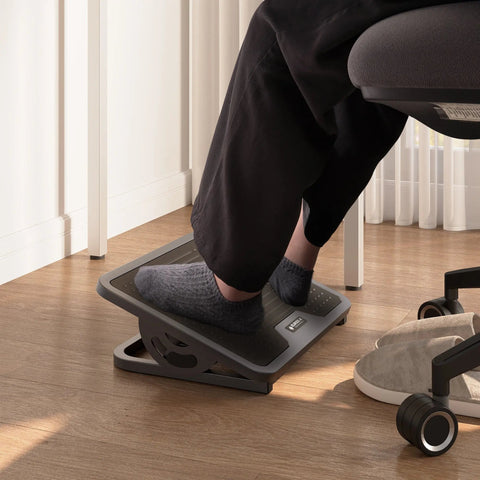
- Store and label the footrest so the person who needs it can reach it during the swap.
If raising the chair leaves a user's feet unsupported, evaluate a footrest as a conditional support option. Cornell's computer workstation tips include a footrest when chair height prevents comfortable foot support. A footrest should not be used to hide a desk range that is unsuitable for the user.
Resolve Monitor, Cable, and Surface Conflicts
Height fit and conflict fit are separate tests. A desk can reach both users' measured positions and still fail the handoff if the monitor, cables, personal items, or surrounding furniture restrict movement.
| Item | Conflict to inspect | Test action | Handoff rule |
|---|---|---|---|
| Monitors | Screen position, arm reach, wall contact, or blocked controls | Move the desk through every planned position and recheck the screen for each user | Restore the monitor before fine-tuning the keyboard and mouse |
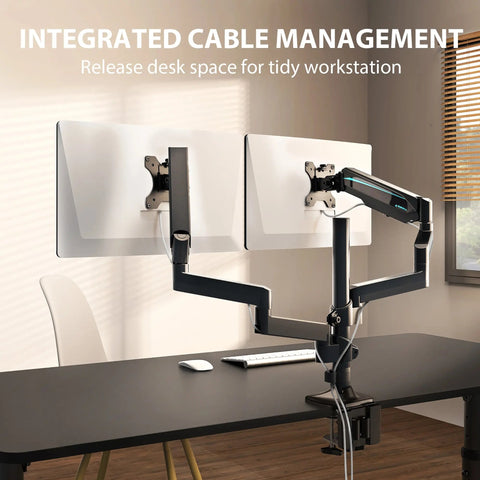
| Cables | Snagging, connector strain, or a cable that becomes too short during travel | Test the full cable path at the lowest and highest planned settings; inspect clips, loops, and pass-throughs | Keep fixed cables separate from personal charging cables |
| Keyboard and mouse | Overlapping input zones or a tray that contacts the chair or desk edge | Place each user's inputs in the recorded zone and move the desk through its range | Return inputs to the labeled zone after the desk moves |
| Personal items | Notebooks, chargers, headphones, and bags blocking shared equipment | Assign a storage or charging area for each person | Clear the surface before switching users |
| Room and wall clearance | Desk, monitor arm, chair, or accessories contacting nearby furniture | Test the desk with chairs pushed in and pulled out as they will be used | Keep controls and the handoff path accessible |
Recheck the monitor after any major desk or arm adjustment. OSHA's additional workstation information supports treating monitor placement and the overall workstation as connected checks. There is no universal cable-slack number that guarantees a successful swap; the movement test is the useful boundary.
Run a Two-User Fit Check Before You Buy
Use this sequence before placing the desk in your cart:
- Measure: Record each user's seated and standing desk, chair, monitor, input, footrest, and clearance positions.
- Verify: Compare those positions with the specific listing's documented height range, desktop thickness, control features, surface dimensions, accessory compatibility, stability information, warranty, and return terms.
- Map: Sketch or tape the footprint of every monitor, keyboard, mouse, charger, notebook, and cable path. Decide whether users work sequentially or need overlapping zones; do not rely on a universal desktop width or depth.
- Test: During the first week, test the complete handoff, including presets if available, monitor repositioning, chair changes, foot support, cable movement, and access to controls.
- Keep or reconsider: Keep the setup only if both users can restore a workable position without a persistent compromise. If the range, surface, room, or equipment cannot be reconciled, compare different office desk options or consider separate work surfaces. A separate work surface is a bounded alternative when one desk cannot serve both users; it is not a universal requirement.
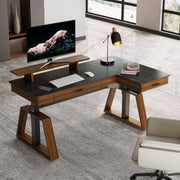
For rooms that may suit a corner layout, compare L-shaped desk options, but verify the actual footprint, corner reach, wall clearance, and control access before choosing the shape. A desk is a credible shared solution only when the measured positions, equipment, room, and handoff routine pass together.
FAQs
A shared standing desk setup works for two users only when both have documented workable positions and the equipment can be reset without persistent compromises. Use the questions below to check the handoff, controls, surface, and room before buying.
How Do You Share a Standing Desk When Users Switch Several Times a Day?
Use labeled configuration cards and the same reset order for the desk, chair, monitor, inputs, footrest, and cables. If both people need the surface at once, assign separate zones; if those zones cannot coexist, consider separate work surfaces.
Are Memory Presets Necessary When Two Users Are Similar in Height?
No. They may add little value when both users have nearly identical tested desk positions and the rest of the workstation stays fixed. If available, test whether a preset reduces desk-height changes without assuming it moves the monitor, chair, or accessories.
What If Neither User Finds an Acceptable Shared Height?
Compare both tested positions with the desk's documented minimum and maximum, including desktop thickness, chair range, footwear, and foot support. If either user lacks an acceptable position, reconsider the desk instead of forcing a midpoint.
How Much Desk Space Do Two Users Need?
There is no universal width or depth for every pair. Tape the footprint of each monitor, keyboard, mouse, charger, notebook, and cable path, then mark whether the work is sequential or simultaneous. Use that map to compare listings.
Is an L-Shaped Desk Practical for Two People?
It can work when the room supports the corner orientation and each user can reach an assigned zone. Check wall clearance, chair movement, monitor-arm reach, cable paths, and control access; the shape alone does not confirm a workable swap.
Leave a comment