

If your desk shakes after assembly, start with the floor and foot contact before tightening random hardware. Clear the area, set the desk at one fixed height, and check whether it rocks while stationary. Then inspect the unloaded frame joints, desktop fasteners, equipment placement, and cable tension one variable at a time. This standing desk wobble fix sequence helps separate an uneven floor or setup interference from a loose or damaged assembly—without assuming that any single check guarantees a repair.

Start the Standing Desk Wobble Fix at the Floor
A rocking foot can make the entire desk feel loose even when the frame is assembled correctly. Begin with a controlled stationary test so the floor, mat, wall, or nearby furniture does not disguise the actual source of movement.
- Clear the test area. Move cables, floor mats, chairs, shelves, walls, and adjacent furniture away from the desk as far as practical. A cable under tension or an object touching the desktop can create movement that feels like a frame problem.
- Set one fixed height. Do not test while the desk is lifting or lowering. Choose a comfortable working height and keep the desk in the same floor position for the first comparison.
- Test for rocking while stationary. Apply light, consistent hand pressure to different areas of the desktop. Notice whether the movement begins at a foot, travels through the frame, or appears only where the top is being pressed.
- Inspect each foot's contact. Look for a foot that is not sitting firmly, a soft or uneven mat, debris, or a floor transition beneath one side. Do not assume the floor is level just because the desk looks level.
- Adjust only the levelers your manual identifies. If the desk has adjustable feet, use the exact model instructions rather than copying a bolt or leveling procedure from another desk. Avoid forcing a foot that does not match the manual's design.
- Retest after one change. Keep the height and surrounding setup constant. If the rocking changes after a floor-contact adjustment, record that observation before moving on to the frame.
For additional background on desk stability on uneven floors, use the linked guide as general context—not as proof that your particular desk has been fixed. A community troubleshooting discussion also illustrates why floor contact and test conditions should be separated from frame checks; it is anecdotal, not a technical standard.

Tighten the Frame Joints Before Reworking Assembly
Once floor contact is reasonably consistent, inspect the unloaded frame. A standing desk assembly troubleshooting check should focus on the joints named in the model's manual, not on every fastener equally.
Check the Base and Leg Connections
Unload the desktop before inspecting the connections. Follow the manual's sequence for the leg-to-base, cross-support, foot, and other visible frame joints, then compare both sides for gaps or shifted brackets.
- Look for a bracket that sits differently from its matching bracket on the other side.
- Check for visible gaps between joined parts, missing hardware, or a fastener that turns without becoming snug.
- Inspect the feet and frame connections without lifting or twisting the desk in a way the manual does not describe.
- Retest the joint or area you inspected instead of reopening the entire assembly immediately.
A careful, manual-directed retightening check may be appropriate when a fastener is visibly loose and all parts appear intact. It is not a reason to substitute hardware, apply extra force, or invent a tightening order.
Separate Loose Hardware From Misalignment
The next action depends on what you can observe. Use this table to decide whether a limited check is reasonable or whether the condition should go to support.
| Observable sign | Permitted next check | Stop-and-contact-support condition |
|---|---|---|
| A fastener is visibly loose, but the parts are intact | Follow the exact manual procedure with the desk unloaded, then retest | The fastener spins, will not seat, or the joint still shifts |
| A joint has a visible gap or shifted bracket | Compare it with the assembly diagram and check whether the part can be reseated as instructed | The bracket, frame, or mounting surface appears bent or damaged |
| One side looks different from the other | Compare hardware placement and joint seating without forcing alignment | A missing component or uncertain hardware prevents a proper comparison |
| The frame remains misaligned after the manual-directed check | Stop repeated tightening and document the condition | Persistent movement, slipping, or binding remains |
The modular furniture stability checks can provide broader maintenance context, but your desk's own manual remains the authority for part identification and assembly steps.
Secure the Desktop and Balance the Working Load
A desktop can shift or transmit movement differently from the base. After checking the frame, test the top unloaded and then with the normal work setup so equipment, cables, and nearby contact become a separate diagnostic branch.
| Observable symptom | Controlled check | Retest condition |
|---|---|---|
| The desktop moves relative to the frame | Unload the surface and inspect desktop-to-frame fasteners and seating against the manual | Retest with the same floor position and no equipment first |
| One part of the top sits differently from another | Check for even seating and supplied hardware; reseat only if the instructions allow it | Compare the same corner and edge after the check |
| Movement appears after adding concentrated equipment | Temporarily move unusually heavy or off-center items | Compare unloaded, then normally loaded, conditions |
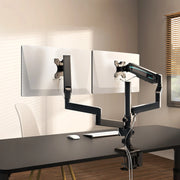
| A monitor arm adds movement when the top is pressed | Check its mounting point, placement, and the published guidance for the exact desk | Retest with the arm in the same position and cables slack |
| Shake changes when the desk moves up or down | Check cable slack and remove contact with walls, shelves, or adjacent furniture | Compare at matching heights without external contact |
Verify Desktop Fasteners and Mounting Points
- Unload the desktop completely enough to see the mounting points safely.
- Check that the top is seated evenly and that the supplied fasteners are present.
- Compare the connection with the exact product manual and use only its stated snugness or reseating instructions.
- Retest in the same location before adding equipment back.
If the desk is steadier unloaded but moves with equipment installed, do not immediately conclude that the frame is defective. Check the model's published load guidance, redistribute concentrated equipment, and compare the setup again. Without the exact model facts, a general article cannot determine whether a particular monitor arm, computer, or accessory is compatible.
Check Load Placement and Cable Pull
- Move unusually concentrated or off-center equipment temporarily toward a more balanced position.
- Check whether a monitor arm is clamped near an edge or transfers force when the screen is adjusted.
- Leave enough cable slack for the full tested height range; a taut cable can pull the desktop or contact another object.
- Remove anything touching a wall, shelf, cabinet, or neighboring desk.
- Reinstall the normal setup one change at a time so you know which addition changes the symptom.
Use Height Testing to Isolate Normal Movement
Height testing is useful for comparing conditions, not for applying a universal acceptable-wobble limit. Keep the floor position, load, and surrounding space comparable, then use the pattern to choose the next check rather than labeling the desk normal or defective.
Run a Repeatable Height Test
- Clear the area and confirm that no cable, wall, mat edge, or furniture is touching the desk.
- Keep the same load for the first comparison. If you need an unloaded test, complete it separately and record the difference.
- Test at more than one working height while the desk is stationary. Use light, consistent hand pressure rather than leaning heavily on one corner.
- Distinguish stationary movement from movement that occurs during lifting or lowering.
- Record the tested height, load, floor surface, contact point, and type of movement. A short video can make the pattern easier for support to review.
Do not quote a numeric wobble limit, torque value, or height-specific defect threshold unless the exact product documentation provides one. Different desk designs and assembly procedures can make a number from another model misleading.
Read the Pattern Before Changing Parts
| Observed pattern | Likely diagnostic branch | Next check or escalation cue |
|---|---|---|
| Rocking starts at one or more feet at every tested height | Floor contact or leveler branch | Clear the surface, inspect foot contact, and follow the manual's leveling instructions |
| Movement becomes more noticeable when raised | Height, frame, load, or setup branch | Compare matched heights and inspect frame, desktop, cables, and nearby contact without using a numeric threshold |
| The top shifts while the base appears still | Desktop attachment or concentrated-load branch | Inspect mounting points unloaded, then compare the equipment setup |
| Movement appears only with equipment installed | Load, monitor arm, cable, or accessory branch | Remove or reposition one item and retest under the same conditions |
| Movement occurs when the desk touches another object | External-contact branch | Clear the contact and repeat the stationary test |
This pattern narrows the next check; it does not identify the cause with certainty. If a component slips, binds, bends, or behaves unusually during testing, stop rather than changing more variables.
Know When Persistent Shake Needs Support
Persistent movement after the relevant manual-directed checks is a reason to document and escalate, not proof that a warranty claim will be approved. Stop testing sooner if a part is damaged, missing, slipping, bending, binding, or showing another condition that makes continued use uncertain. For a broader safety reminder about visible furniture instability, see the CPSC furniture tip-over guidance; it does not set a wobble threshold or determine warranty coverage.
Use this support checklist:
- Stop if the desk shows visible structural damage, slipping, binding, bending, or other unsafe behavior.
- Keep the model name or number, order information, and purchase channel available.
- Take clear photos of the feet, frame joints, desktop mounting points, and any damaged or missing part.
- Record a short video that shows the movement under controlled conditions.
- Note the tested heights, floor surface, load condition, equipment or monitor-arm setup, and whether cables or nearby objects were cleared.
- List the checks you completed, including the manual-directed floor, hardware, desktop, and retest steps.
- Review the exact product warranty, return window, and support terms for your purchase.
- Contact the seller or manufacturer when the symptom remains after safe checks or when a part cannot be assembled as instructed.
Support can act more effectively on a precise symptom description than on a message that only says the desk wobbles. Include where the movement begins, whether it changes with height or load, and which controlled changes affected it. We cannot determine warranty eligibility without the exact model and purchase terms, so let the applicable seller or manufacturer policy make that decision.
FAQs
These questions address common exceptions and next steps after the floor, frame, desktop, and height checks above. Use the exact manual for model-specific instructions.
Can a Floor Mat Cause a Standing Desk to Shake After Assembly?
Yes, a thick, soft, shifting, or uneven mat can change foot contact. Compare the desk in the same position with and without the mat, keeping height and load consistent. If the symptom changes, inspect the mat and feet before reopening the frame; that identifies a contributor without proving it is the only cause.
Should I Tighten Standing Desk Fasteners Again After the First Height Test?
An unloaded second inspection can be reasonable if the first test revealed a specific loose connection and the manual allows it. Follow the model instructions, use the supplied hardware, and stop if a fastener spins, a part shifts, or the procedure is uncertain. Repeated retightening does not replace diagnosing misalignment or damage.
Why Does My Desk Shake Only When I Lean on One Corner?
Check whether the top shifts at that corner, the nearest foot has firm contact, an off-center item is nearby, or the corner touches another object. Repeat the comparison with the surface unloaded and the surrounding area clear before judging the cause.
Can a Monitor Arm Make a Standing Desk Feel Less Stable?
It can contribute by concentrating force at one mounting point or pulling through its cables. Temporarily remove or reposition the arm, check its mounting area, add cable slack through the tested height range, and compare the same desk position. Use the exact model's published load and accessory guidance for compatibility.
What Should I Send Support for a Desk That Still Wobbles After Assembly?
Send the model or order details, purchase channel, photos of the joints and feet, a short video, tested heights, load conditions, equipment and cable setup, and a list of completed manual-directed checks. Describe whether movement begins at the feet, frame, desktop, or accessories. This gives support usable conditions without assuming warranty coverage.
A practical next step is to use the exact manual for your desk and repeat only the safe checks it describes. If the standing desk wobble fix sequence does not resolve the symptom—or if a part is damaged, missing, slipping, or binding—contact the seller or manufacturer with the documentation above. The seller or manufacturer can then review the issue under the terms that apply to your model and purchase.
Leave a comment